> For the complete documentation index, see [llms.txt](https://ai-docs.fptcloud.com/llms.txt). Markdown versions of documentation pages are available by appending `.md` to page URLs; this page is available as [Markdown](https://ai-docs.fptcloud.com/account/billing/tutorials/create-payg-tenant-on-ai-factory.md).
# Create PAYG Tenant on AI Factory
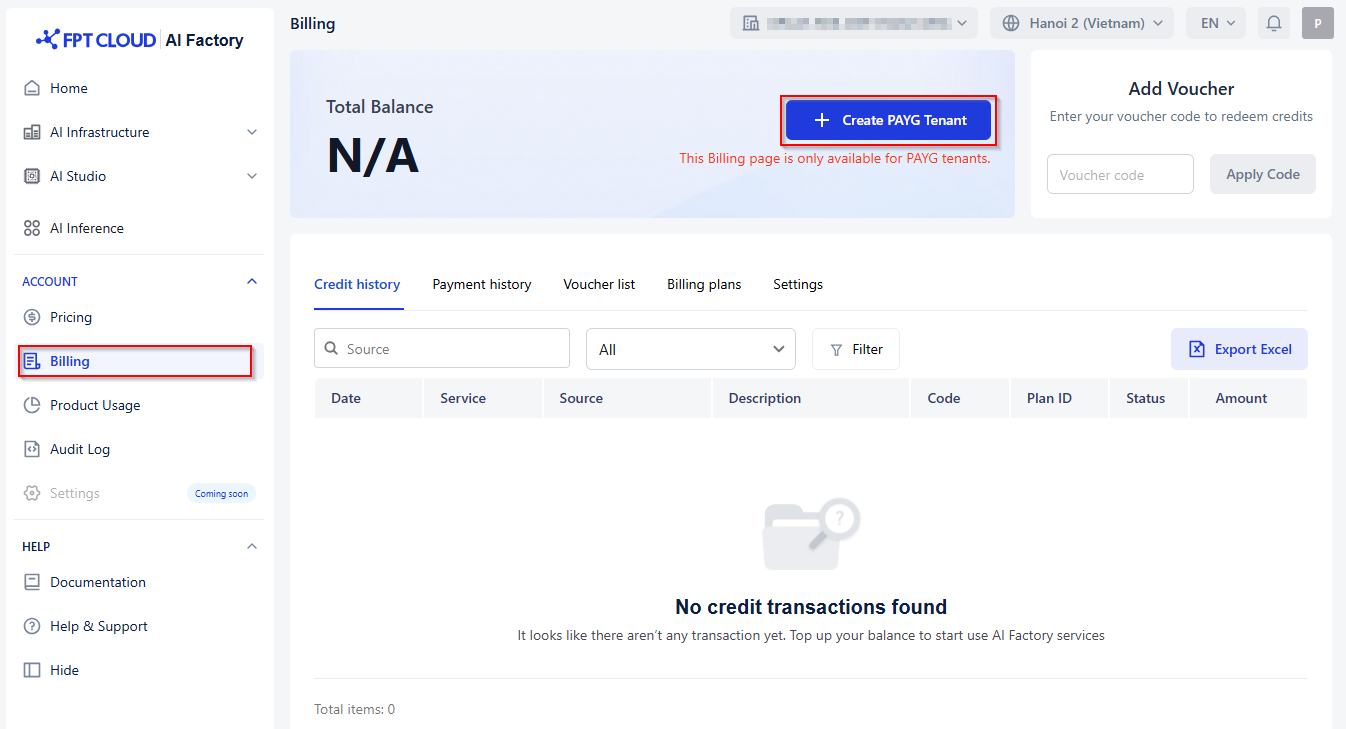
Some customers are granted service access through a **Contracted Tenant**. However, features such as **Top-up**, **Voucher redemption**, and **Balance tracking** are only available for **PAYG (Pay-As-You-Go) tenants**.
### When do you need to create a PAYG Tenant?
You should create a PAYG Tenant if, when opening **Billing**, you see:
* **Total Balance: N/A**
* A message saying: *“This Billing page is only available for PAYG tenants.”*
This means your current tenant is Contracted, and Billing is not enabled for it.
### Steps to create a PAYG Tenant
#### **Step 1 – Log in with your Contracted Tenant**
* Log in to AI Factory as usual.
* In the left navigation menu, select **Billing**.
* You will see the Billing page showing **N/A** and a help text explaining that Billing is only available for PAYG tenants.
#### **Step 2 – Click “+ Create PAYG Tenant”**
* On the Billing page, click the **+ Create PAYG Tenant** button.
* A popup will appear asking for confirmation:
> “Billing is not available for this tenant.\
> Would you like to create a PAYG tenant now?”
* Click **Create PAYG Tenant** to proceed.
The system will start creating your new PAYG Tenant.
#### **Step 3 – Log out and log in again**
* After clicking confirm, please **log out** of AI Factory.
* Log in again so the system can update your tenant list.
#### **Step 4 – Select your new PAYG Tenant**
* After logging back in, go to the **Tenant dropdown** in the Header (next to the Location selector).
* Select the newly created **PAYG Tenant**.
#### **Step 5 – Access Billing under the PAYG Tenant**
* While using the PAYG Tenant, open **Billing** again.
* All Billing features will now be available, including:
* **Select Currency**
* **Top-up (add balance)**
* **Apply voucher**
* View credit history, payment history, billing plans, and more.
You have successfully created a PAYG Tenant and can now use all available Billing features to top up and manage your AI Factory service usage.
---
# Agent Instructions
This documentation is published with GitBook. GitBook is the documentation platform designed so that both humans and AI agents can read, navigate, and reason over technical content effectively. Learn more at gitbook.com.
## Querying This Documentation
If you need additional information that is not directly available in this page, you can query the documentation dynamically by asking a question.
Perform an HTTP GET request on the current page URL with the `ask` query parameter, and the optional `goal` query parameter:
```
GET https://ai-docs.fptcloud.com/account/billing/tutorials/create-payg-tenant-on-ai-factory.md?ask=&goal=
```
`ask` is the immediate question: it should be specific, self-contained, and written in natural language.
`goal` is optional and describes the broader end goal you are ultimately trying to accomplish on behalf of the user. GitBook uses it to tailor the answer towards what is most useful for that goal.
The response will contain a direct answer to the question and relevant excerpts and sources from the documentation.
Use this mechanism when the answer is not explicitly present in the current page, you need clarification or additional context, or you want to retrieve related documentation sections.