> For the complete documentation index, see [llms.txt](https://ai-docs.fptcloud.com/llms.txt). Markdown versions of documentation pages are available by appending `.md` to page URLs; this page is available as [Markdown](https://ai-docs.fptcloud.com/fpt-ai-studio/before-you-start/prequisites.md).
# Prequisites
### Account setup
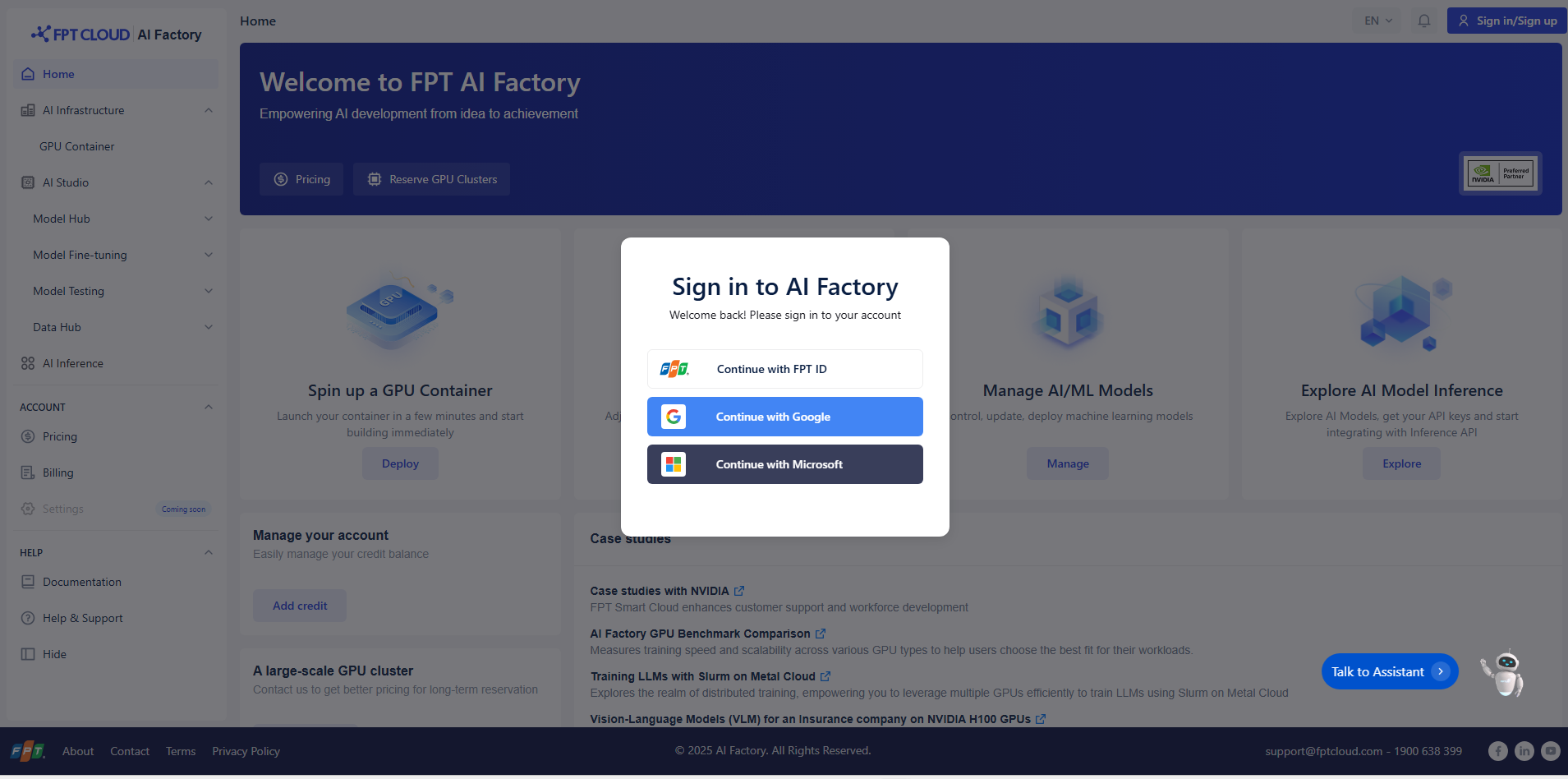
1. **Access the Sign in / Sign up page**
* Navigate to FPT AI Factory in your web browser ()
* On the top-right corner of the homepage, click **Sign in/Sign up**.
* A login dialog box will appear in the center of the screen.
2. **Sign in Options**
You can sign in using one of the following methods:
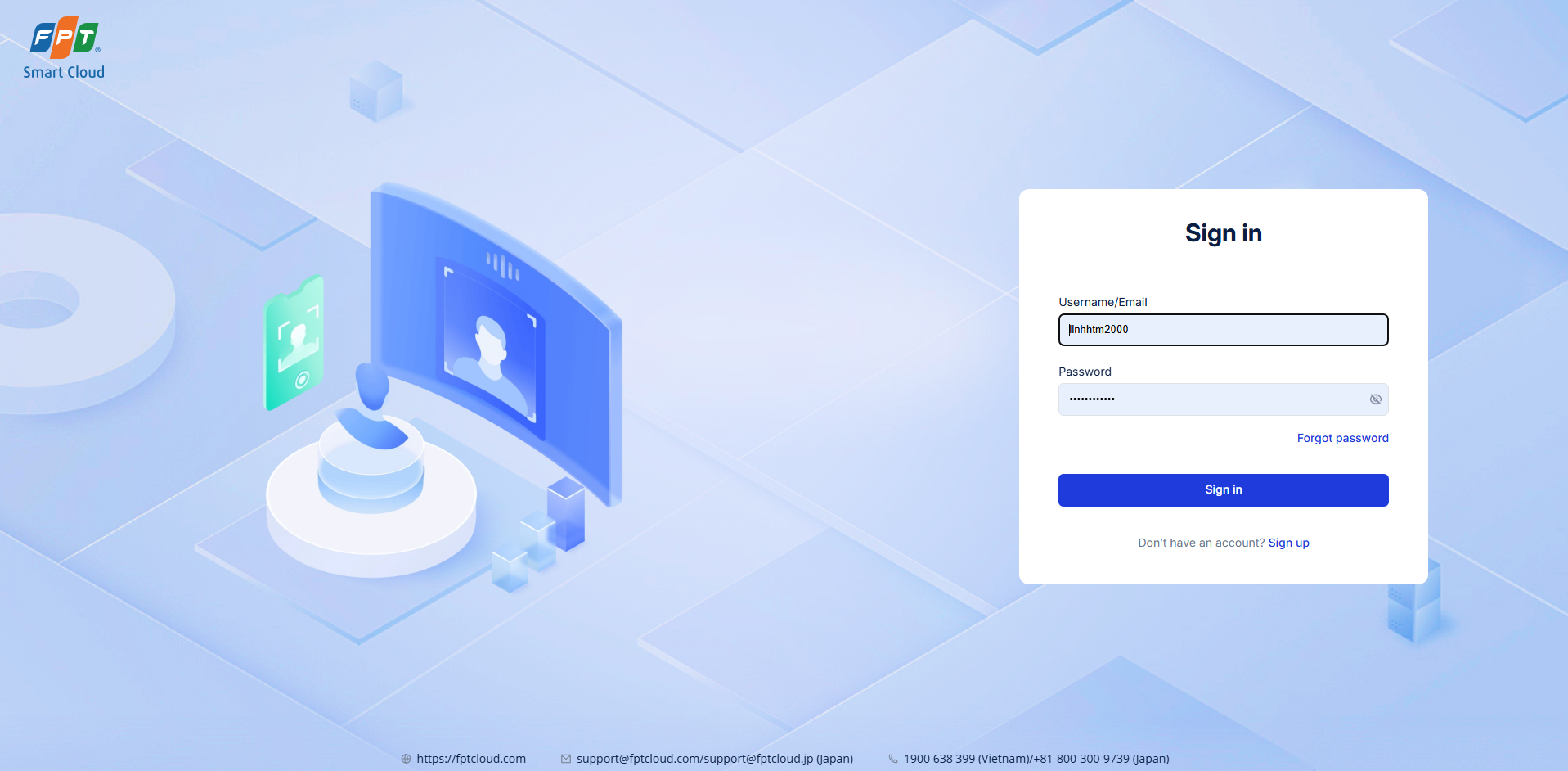
* **Continue with FPT ID**: Use your existing FPT account credentials to log in.
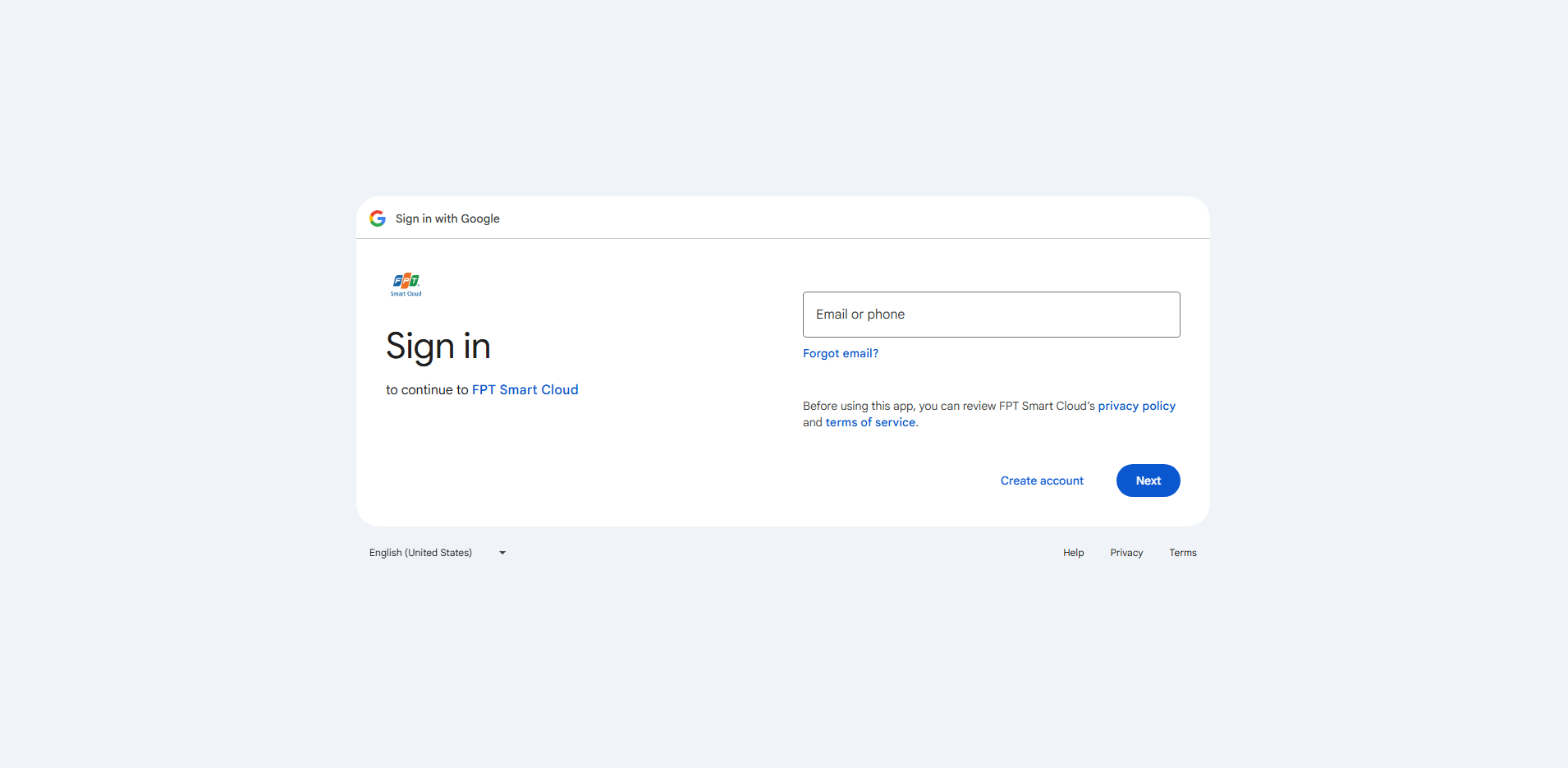
* **Continue with Google**: Sign in with your Google account by selecting this option and following the Google authentication process.
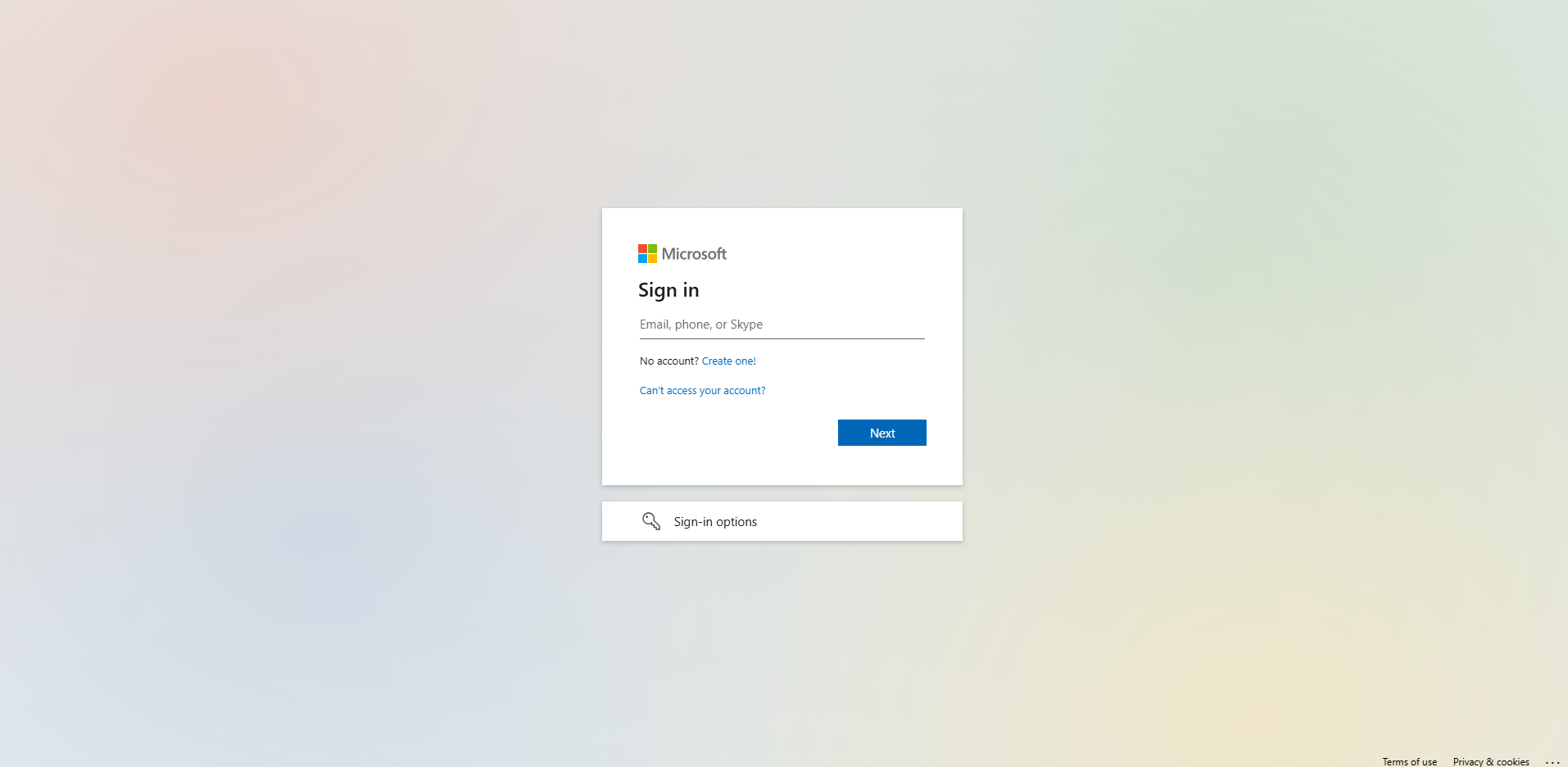
* **Continue with Microsoft**: Use your Microsoft account to log in securely.
3. **Sign up for a New Account**
* If you do not have an account, choose one of the available login options (FPT ID, Google, or Microsoft).
* Complete the registration process as instructed.
* Once registered, you can use the same method to sign in next time.
4. **Successful Login**
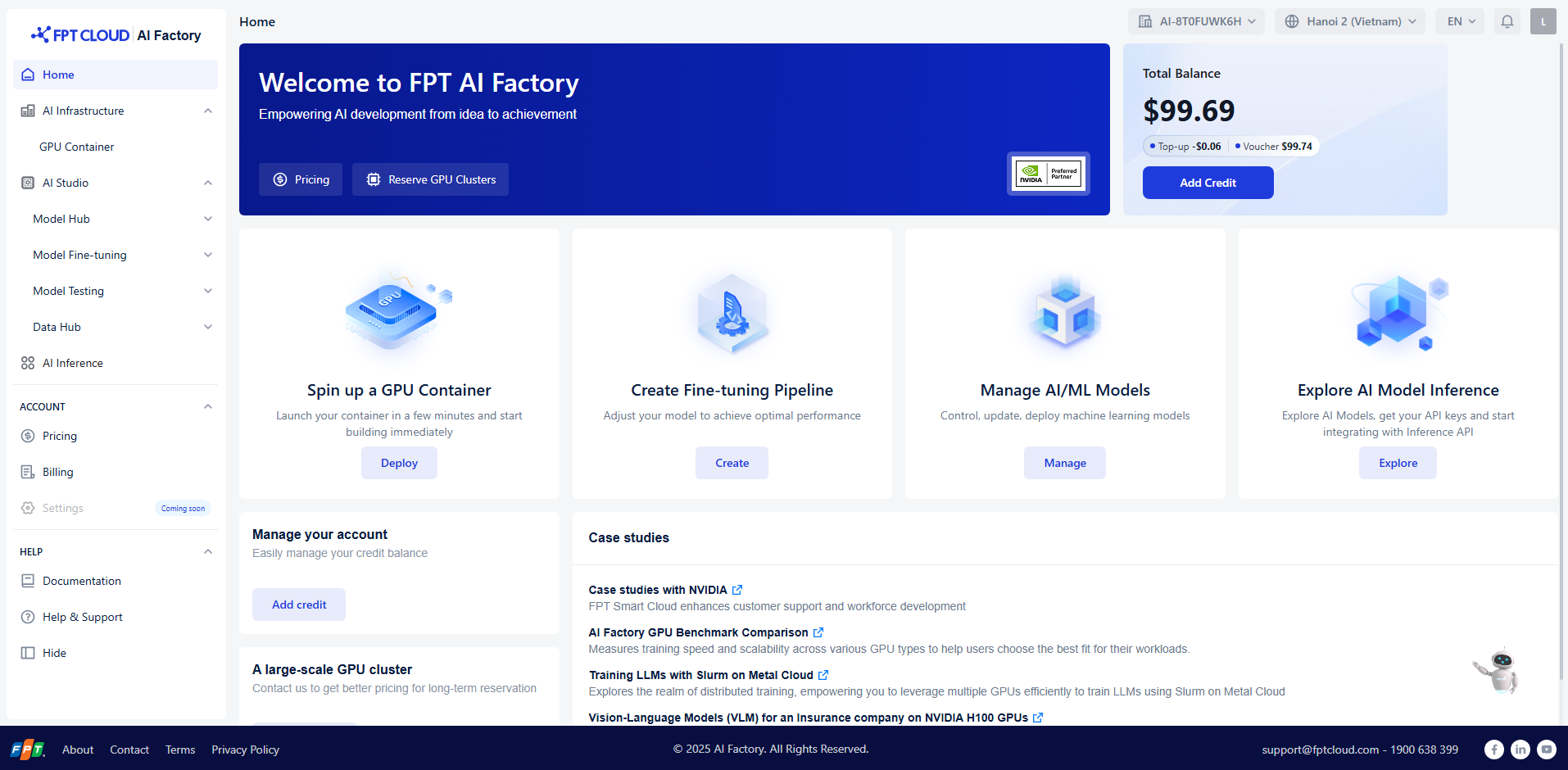
After signing in, you will be redirected to the **AI Factory Dashboard**, where you can:
* Spin up a GPU container
* Manage AI/ML models
* Explore inference APIs
* Access pricing and billing
5. **Troubleshooting**
* Ensure that your Google or Microsoft account is active if using external login methods.
* For FPT ID login issues, reset your password through the **FPT account recovery page** ().
* If you encounter technical problems, click **Help & Support** in the left menu or contact:
📧 **** | ☎️ **1900 638 399**
### Top up Balance
* Navigate to **Account** -> **Billing** in the left menu
* Follow the detailed guide: [Add credits](/account/billing/tutorials/top-up-credits.md)
### Pricing
Navigate to **Account -> Pricing** and check the pricing table: [Pricing](https://ai.fptcloud.com/pricing/aistudio)
---
# Agent Instructions
This documentation is published with GitBook. GitBook is the documentation platform designed so that both humans and AI agents can read, navigate, and reason over technical content effectively. Learn more at gitbook.com.
## Querying This Documentation
If you need additional information that is not directly available in this page, you can query the documentation by asking a question.
Perform an HTTP GET request on the following URL with the `ask` and `goal` query parameters:
```
GET https://ai-docs.fptcloud.com/fpt-ai-studio/before-you-start/prequisites.md?ask=&goal=
```
`ask` is the immediate question: it should be specific, self-contained, and written in natural language.
`goal` is what the user is ultimately trying to achieve, the reason they need the answer. Sharing it helps GitBook give you a better, more relevant answer. A goal is most helpful when it describes the outcome the user wants rather than restating the question. For example, with `ask=how do I create an API token`, a goal like `automate deployments from our CI pipeline` lets GitBook tailor the answer to that use case.
The response will contain a direct answer to the question and relevant excerpts and sources from the documentation.
Use this mechanism when the answer is not explicitly present in the current page, you need clarification or additional context, or you want to retrieve related documentation sections.