> For the complete documentation index, see [llms.txt](https://ai-docs.fptcloud.com/llms.txt). Markdown versions of documentation pages are available by appending `.md` to page URLs; this page is available as [Markdown](https://ai-docs.fptcloud.com/fpt-ai-studio/services/data-hub/tutorials/how-to-generate-a-dataset.md).
# How to Generate a Dataset?
**Generate Dataset** feature allows you to create a new dataset using a pre-trained model (teacher model) to label or generate outputs from your input data. You’ll need to provide model configuration, input data, and generation parameters.
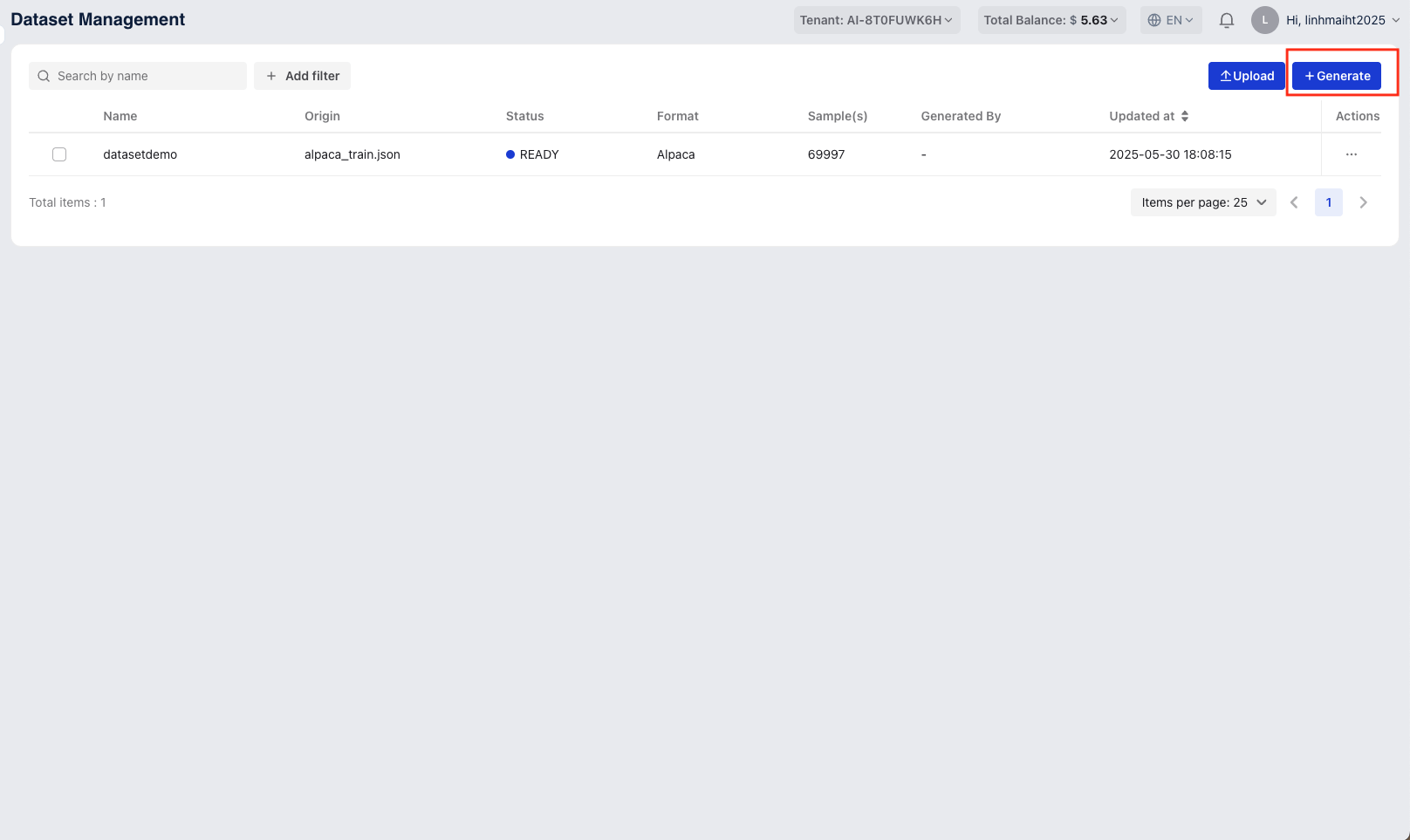
Access the Data Hub service, navigate to Dataset Management menu and click the "**Generate Dataset**" button
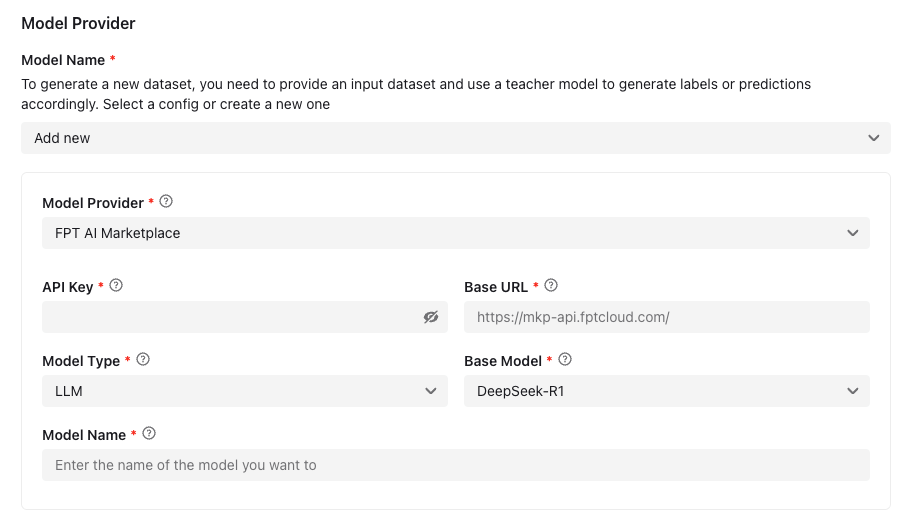
### **Step 1: Select or Create a New Model Configuration**
You can select a model configuration that you have created or create a new one by click drop-down list
* **Model Provider**: A model provider is a service that offers AI models for tasks like text generation, ranking, and classification, currently support **FPT AI Marketplace** & **OpenAI**
* **API Key**: An API key is a unique code that authenticates your access to a service
* **Base URL**: The base endpoint URL for the model. Example: `https://mkp-api.fptcloud.com/`
* **Model Type**: Select the type of model, which defines the AI model’s function. Currently only support LLM - Large Language Model
* **Base Model**: Choose the foundation model (e.g., DeepSeek-R1).
* **Model Name**: Specify the name of the model you want to set
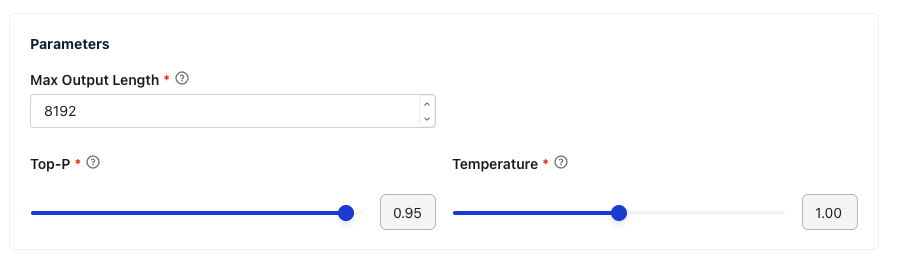
**Step 2: Set Parameters**
* **Max Output Length**: Maximum number of tokens the model is allowed to generate. Default: `8192`.
* **Top-P**: Controls the cumulative probability for token sampling. A higher value increases diversity. Default: `0.95`.
* **Temperature**: Controls randomness in the output. Higher values result in more creative responses. Default: `1.00`.
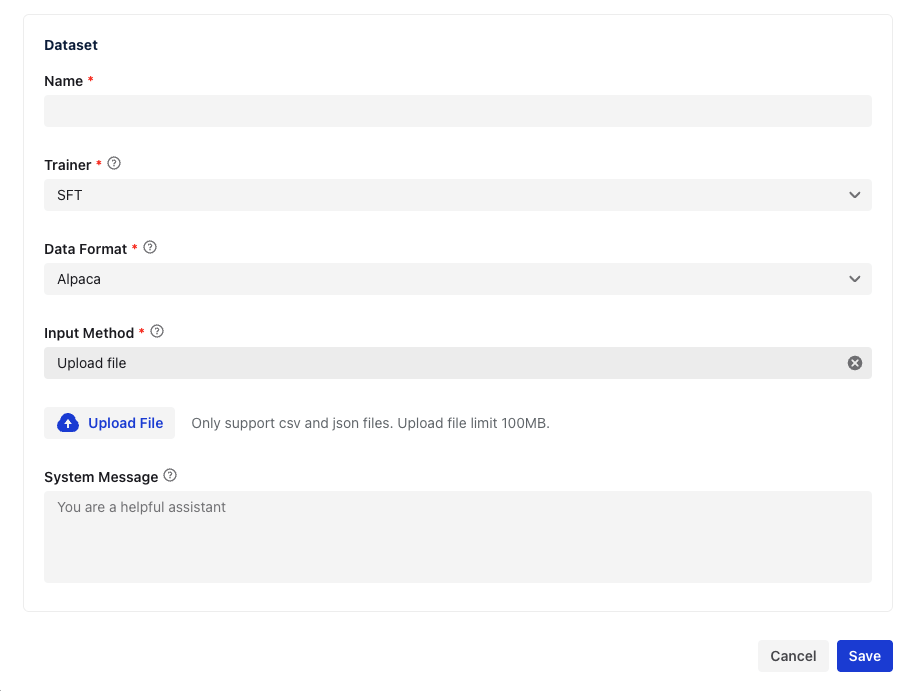
**Step 3: Configure Dataset**
* **Name** *(required)*: Enter a name for the dataset to be generated.
* **Trainer**: Select the trainer type (e.g., SFT - Supervised Fine-Tuning).
* **Data Format**: Choose the format of the input data, such as Alpaca
* **Input Method**: Choose how to provide input data. Currently supports **File Upload & Data Connection**
* **Upload File:** Click **Upload File** to upload a `.csv` or `.json` file.
> Note: Max file size is 100MB.
>
> * **Data Connection:** Choose a data connection that you want and enter a valid path
* **System Message** *(optional)*: A background prompt for the model, e.g., `"You are a helpful assistant."`
After completing required fields, click “Save” button. Depending on file size and model response time, generation may take a few minutes.
---
# Agent Instructions
This documentation is published with GitBook. GitBook is the documentation platform designed so that both humans and AI agents can read, navigate, and reason over technical content effectively. Learn more at gitbook.com.
## Querying This Documentation
If you need additional information that is not directly available in this page, you can query the documentation dynamically by asking a question.
Perform an HTTP GET request on the current page URL with the `ask` query parameter, and the optional `goal` query parameter:
```
GET https://ai-docs.fptcloud.com/fpt-ai-studio/services/data-hub/tutorials/how-to-generate-a-dataset.md?ask=&goal=
```
`ask` is the immediate question: it should be specific, self-contained, and written in natural language.
`goal` is optional and describes the broader end goal you are ultimately trying to accomplish on behalf of the user. GitBook uses it to tailor the answer towards what is most useful for that goal.
The response will contain a direct answer to the question and relevant excerpts and sources from the documentation.
Use this mechanism when the answer is not explicitly present in the current page, you need clarification or additional context, or you want to retrieve related documentation sections.