> For the complete documentation index, see [llms.txt](https://ai-docs.fptcloud.com/llms.txt). Markdown versions of documentation pages are available by appending `.md` to page URLs; this page is available as [Markdown](https://ai-docs.fptcloud.com/fpt-ai-studio/services/model-hub/tutorials/how-to-create-model-version.md).
# How to Create Model Version?
### Create Version
**Purpose**: Create a version to save the training information of a model into the system.
To create a new version, follow these steps:
**Step 1**: Click on a model to view its details > Select the **Version** tab.
**Step 2**: Click the **New version** button to open the create form
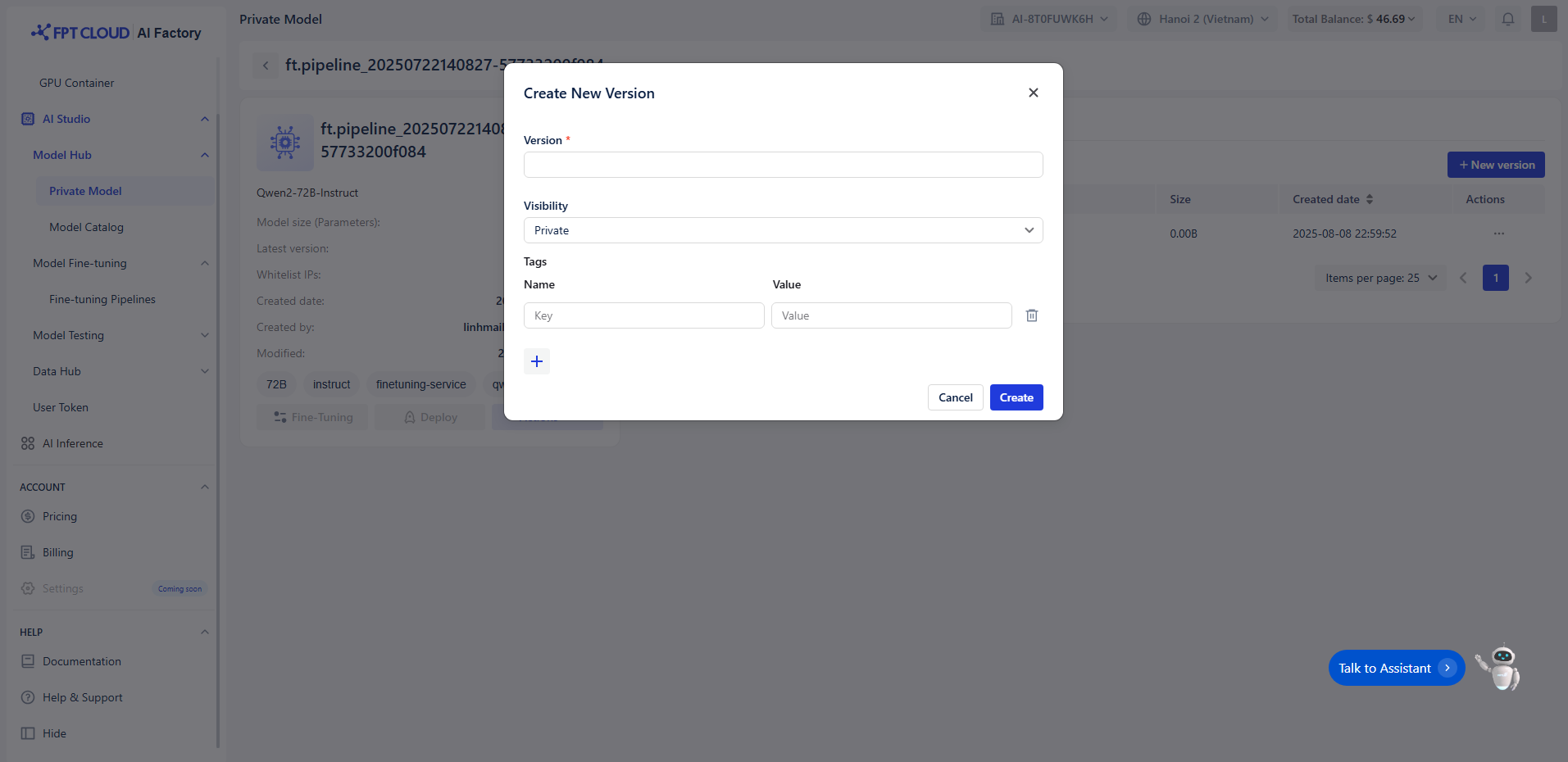
**Step 3**: The create version form will appear. Enter the following information:
**Version**: The version name
* **Note**: The version name can include a-z, A-Z, numbers, "-", "\_", ".", and can be up to 20 characters. The version name must be unique for each model.
**Version visibility**: The visibility status of the version, including: Private or Public.
**Tags**: Add key-value pairs to help categorize or describe this version.
* **Key**: The tag name
* **Value**: The tag value
**Step 4**: Click **Create** to create the version.
### Edit Version
**Purpose**: Allows users to edit an existing version.
To update a version, follow these steps:
**Step 1**: Click on a model to view its details > Select the **Version** tab.
**Step 2**: In the version list, click the three dots next to the version you want to edit, and select the **Edit** option.
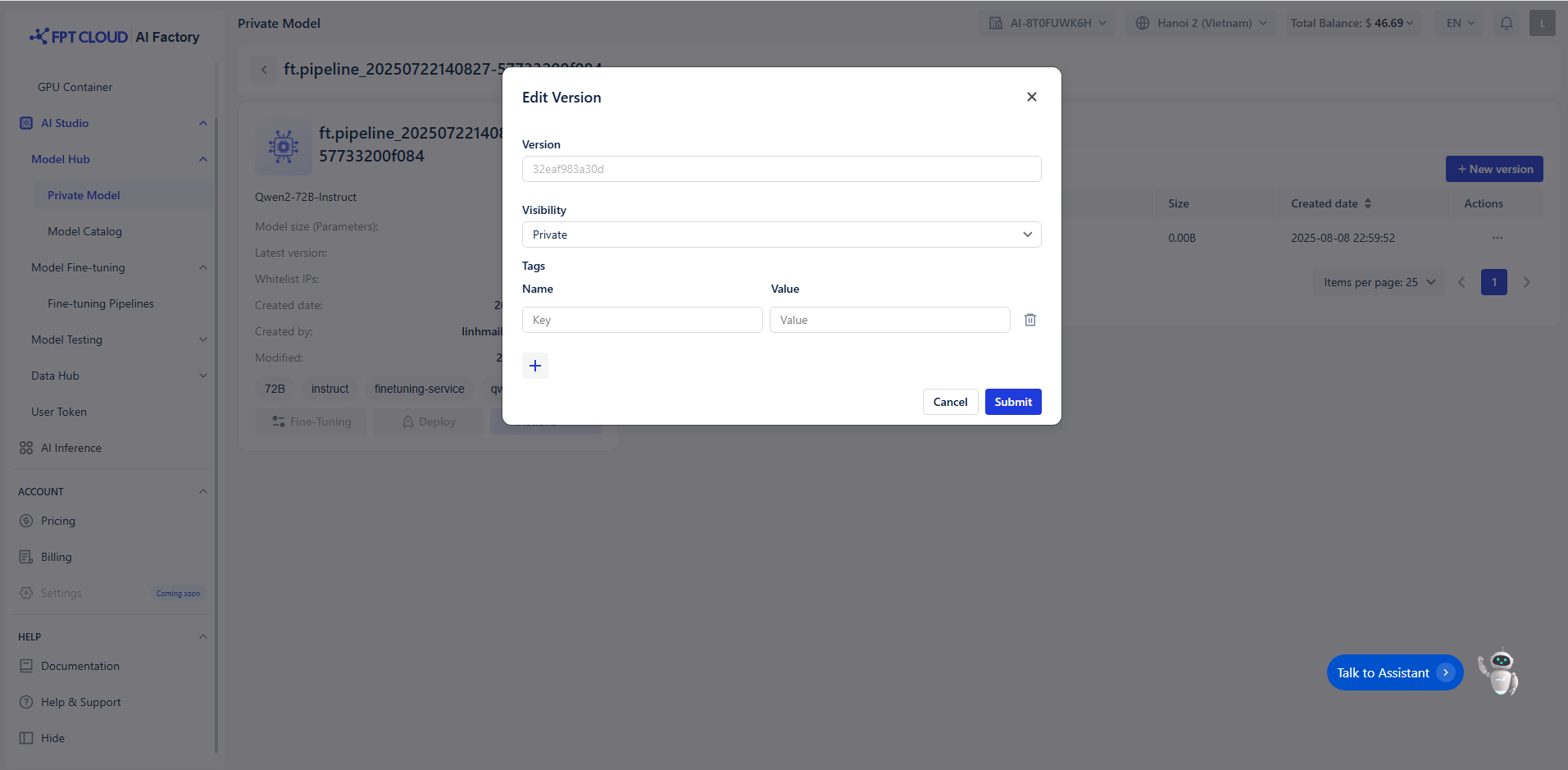
**Step 3**: The system will navigate to the **Edit** **version** screen, where you can make changes.
* **Note**: You are only allowed to edit the **Version visibility** & **Tags**.
**Step 4**: After completing the changes, click the **Save** button to save the updated version.
### Delete Version
**Purpose**: Deleting a version removes the version information and associated files from the system.
To delete a version, follow these steps:
**Step 1**: Click on a model to view its details > Select the **Version** tab.
**Step 2**: Click the three dots in the **Action** column > Select **Delete**.
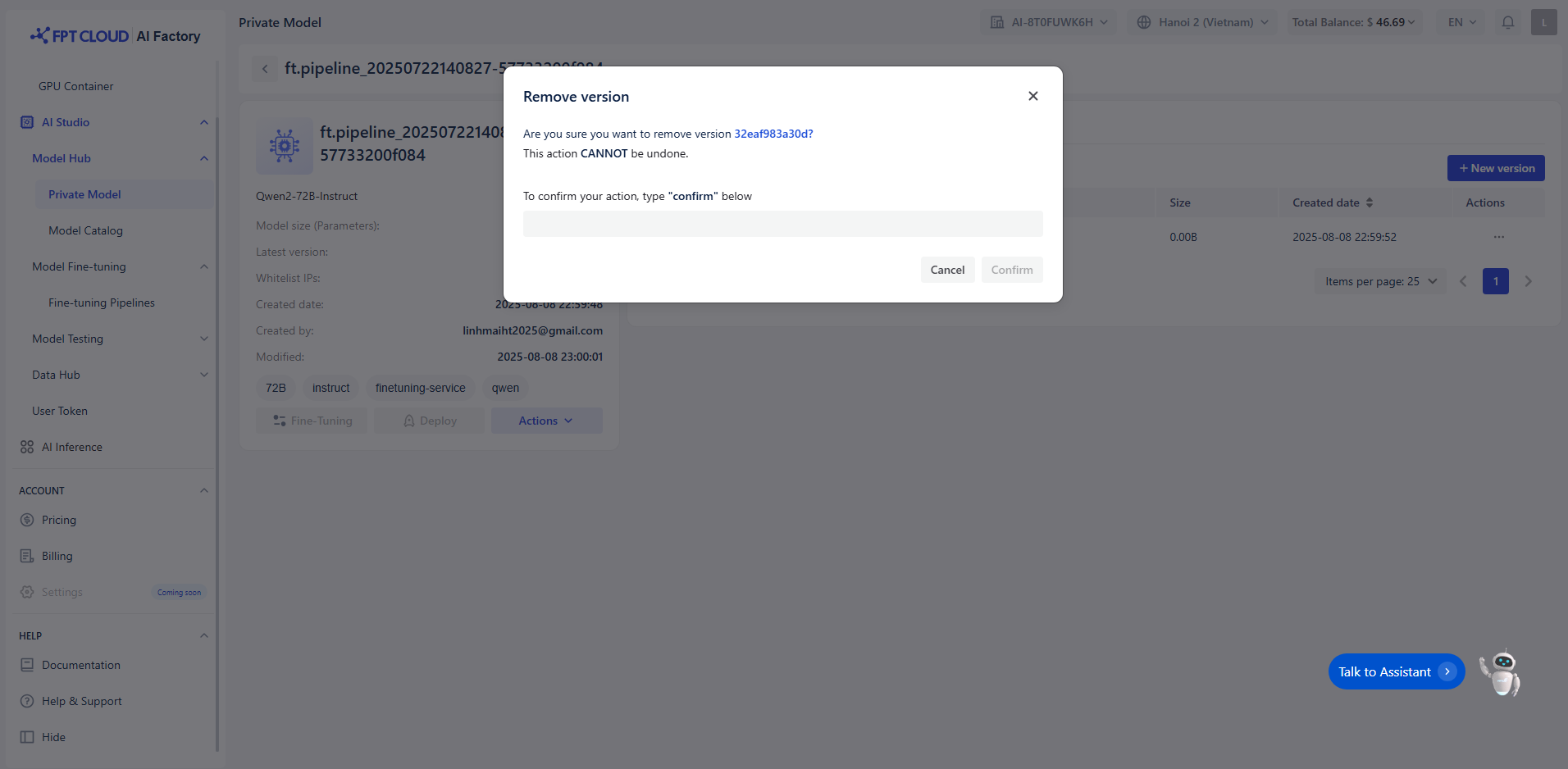
**Step 3:** A confirmation dialog will appear. To confirm deletion, type "confirm" into the text box. The **Confirm** button will be enabled once the text is entered.
[](https://fptcloud.com/wp-content/uploads/2025/10/image-1759305220470.png)
**Step 4**: To delete, click the **Confirm** button. To cancel the action, click **Cancel**.
---
# Agent Instructions
This documentation is published with GitBook. GitBook is the documentation platform designed so that both humans and AI agents can read, navigate, and reason over technical content effectively. Learn more at gitbook.com.
## Querying This Documentation
If you need additional information that is not directly available in this page, you can query the documentation dynamically by asking a question.
Perform an HTTP GET request on the current page URL with the `ask` query parameter, and the optional `goal` query parameter:
```
GET https://ai-docs.fptcloud.com/fpt-ai-studio/services/model-hub/tutorials/how-to-create-model-version.md?ask=&goal=
```
`ask` is the immediate question: it should be specific, self-contained, and written in natural language.
`goal` is optional and describes the broader end goal you are ultimately trying to accomplish on behalf of the user. GitBook uses it to tailor the answer towards what is most useful for that goal.
The response will contain a direct answer to the question and relevant excerpts and sources from the documentation.
Use this mechanism when the answer is not explicitly present in the current page, you need clarification or additional context, or you want to retrieve related documentation sections.