> For the complete documentation index, see [llms.txt](https://ai-docs.fptcloud.com/llms.txt). Markdown versions of documentation pages are available by appending `.md` to page URLs; this page is available as [Markdown](https://ai-docs.fptcloud.com/fpt-gpu-cloud/gpu-cluster/managed-k8s-with-gpu-virtual-machine/tutorial/audit-logs.md).
# Audit Logs
**1. Overview of Audit Log Security Features**
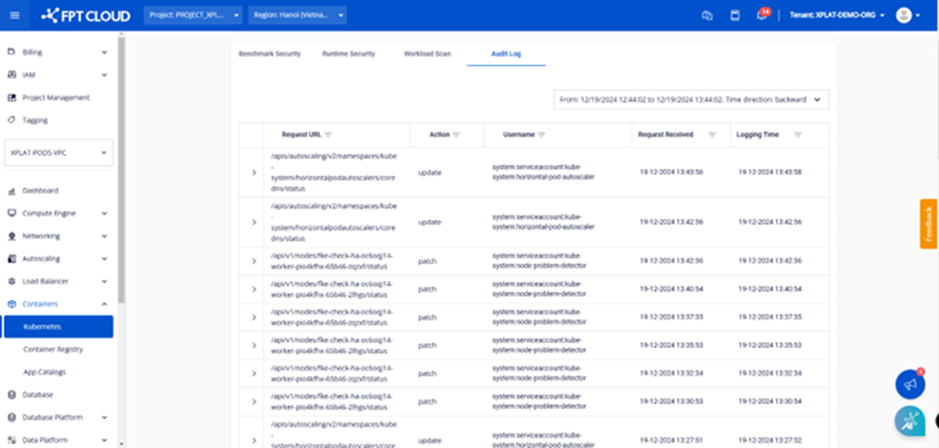
Audit logs are included in the self-service security feature group provided in the Unify Portal for M-FKE products. This feature helps record all activities and API requests sent to the kube-apiserver. This allows you to track which agent performed what action, when, which objects were affected, and what the outcome was.
**2. Benefits of Audit Logs**
* It helps monitor the behavior of components interacting with the Kubernetes cluster's API server.
* They provide security analysis and anomaly detection capabilities.
* Supports troubleshooting and compliance adherence.
**3. Audit Log Structure**
* Request URL: The path of the API called on the kube-apiserver
* Audit ID: Each audit log is assigned a unique ID used for log tracing.
* Object reference: Information about the K8s resource that was operated on
* APIGroup
* apiVersion: API version (v1)
* name: The name of the node
* namespace
* resource: Resource type (nodes)
* action: Operation performed on the K8s resource. Example: patch/create/delete/update
* Username: The account or service name performing the action.
* Request Received: Time the request was recorded by the kube-apiserver (dd-MM-yyyy HH:mm:ss format).
* Logging Time: The time the event was recorded in the MFKE service's logging system. Typically, logging time lags behind request receipt time due to the processing time required to push logs from the cluster's kube-apiserver to the centralized logging system.
**4. Using Features in Unify Portal**
Note: The feature set enhancing the security capabilities of Managed Kubernetes Clusters is integrated after the cluster has successfully started (status "Succeeded (Running)").
**4.1. Enabling the Audit Log Security Feature**
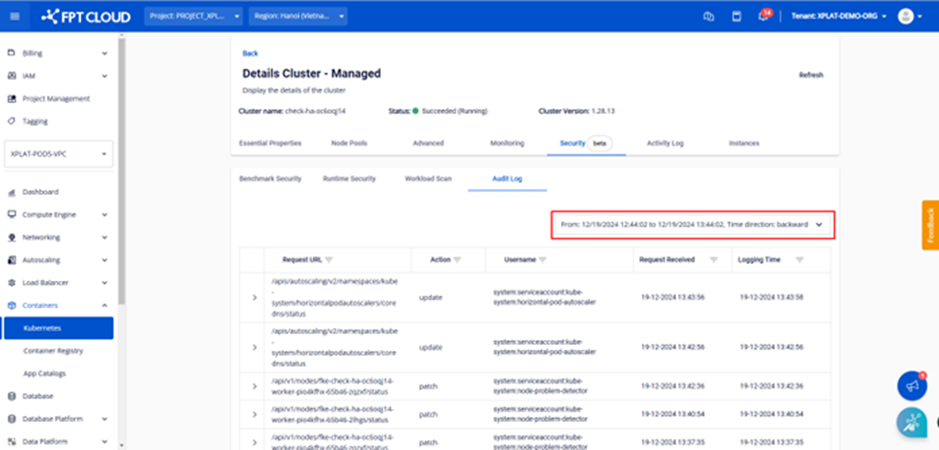
Access the FPT Cloud console.fptcloud.com portal, select the Kubernetes item, click the cluster requiring auditing, then select the Security tab followed by the Audit Log tab.
Clicking the Audit Log tab automatically executes a query and displays all logs recorded in the past hour. Audit log information is displayed alongside the fields described in section 2 above.
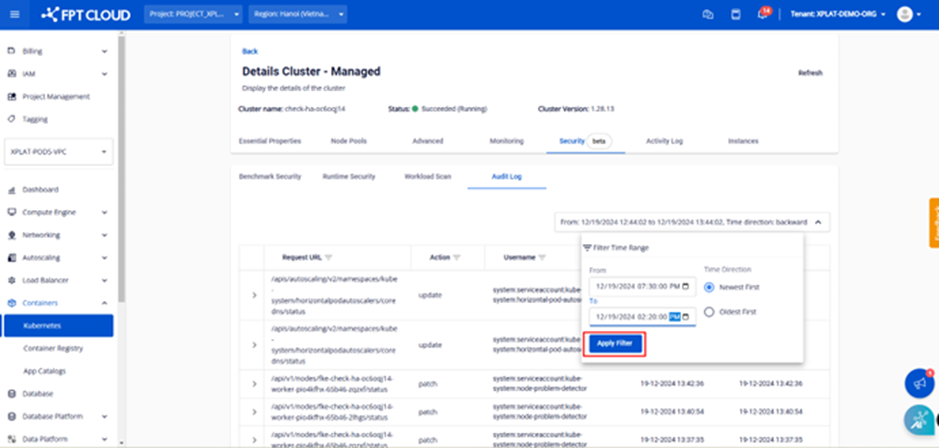
**4.2. To search logs from a different period, follow these steps:**
**Step 1:** Click the time picker in the upper-right corner of the screen.
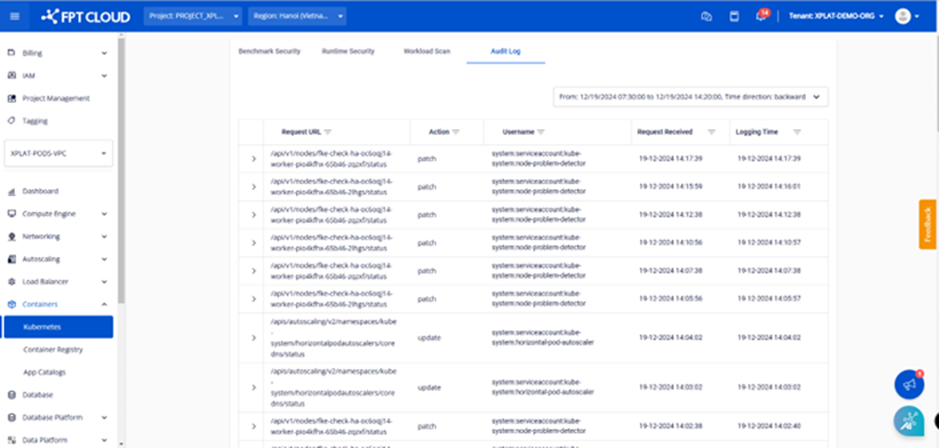
**Step 2:** Enter the period for which you want to view logs, then click "Apply Filter".
The system will display all logs recorded during the selected period, sorted in descending order.
Note: You can only filter logs for a maximum period of 3 days (From – To). Logs are retained for the past 7 days.
---
# Agent Instructions
This documentation is published with GitBook. GitBook is the documentation platform designed so that both humans and AI agents can read, navigate, and reason over technical content effectively. Learn more at gitbook.com.
## Querying This Documentation
If you need additional information that is not directly available in this page, you can query the documentation dynamically by asking a question.
Perform an HTTP GET request on the current page URL with the `ask` query parameter, and the optional `goal` query parameter:
```
GET https://ai-docs.fptcloud.com/fpt-gpu-cloud/gpu-cluster/managed-k8s-with-gpu-virtual-machine/tutorial/audit-logs.md?ask=&goal=
```
`ask` is the immediate question: it should be specific, self-contained, and written in natural language.
`goal` is optional and describes the broader end goal you are ultimately trying to accomplish on behalf of the user. GitBook uses it to tailor the answer towards what is most useful for that goal.
The response will contain a direct answer to the question and relevant excerpts and sources from the documentation.
Use this mechanism when the answer is not explicitly present in the current page, you need clarification or additional context, or you want to retrieve related documentation sections.