> For the complete documentation index, see [llms.txt](https://ai-docs.fptcloud.com/llms.txt). Markdown versions of documentation pages are available by appending `.md` to page URLs; this page is available as [Markdown](https://ai-docs.fptcloud.com/fpt-gpu-cloud/gpu-cluster/managed-k8s-with-gpu-virtual-machine/tutorial/backup-and-restore.md).
# Backup and Restore
The Backup & Restore feature is a function of the M-FKE product used in OpenStack infrastructure, designed to create snapshots of PVCs and configurations (resource configurations within Kubernetes).
M-FKE has released Backup & Restore functionality version 1.0.0. This version includes the following utilities:
1\. Backup Plan
a. Display Backup Plan List
b. Create a new backup plan
c. Set multiple timings within a single backup plan to enable the system to automatically create PVC snapshots. Can be applied to one or more PVCs simultaneously.
d. Set retention period in minutes/hours/days.
e. Edit Backup Plan
f. Enable/disable backup plans
g. Deleting a Backup Plan
2\. PVC Snapshots
a. Display PVC Snapshot List
b. Synchronize Snapshot List from Cluster to FPT Cloud Portal
c. Create New PVC Snapshot
d. Delete PVC Snapshot
e. Restore PVC Snapshot
3\. Restore PVC
a. Display list of restored PVCs
b. Update status
Note: This feature applies to the Cinder driver (pre-created by FPT Cloud).
**1. Backup Plan**
1\. Create a new backup plan
* Step 1: Access Portal > Containers > Kubernetes > Detailed Cluster > Backup tab
* Step 2: Click "New Plan" to create a new backup plan.
* Step 3: Enter the backup plan information.
* Basic Information:
* Plan Name: Name of the backup plan
* Retention Period: The duration for which snapshots are retained. After this period, snapshots are permanently deleted.
* Schedule Scope:
* PVC Backup List: List of PVCs within the cluster
* Schedule Information: Enter specific month/day/year to configure the backup schedule
* Step 4: Click "Save" to save the backup plan. The newly created backup plan will be added to the backup plan list


\
Note: Snapshots created according to the backup plan schedule will appear in the snapshot list with Type = "Scheduled".
**2. PVC Snapshots**
This subtab displays created snapshots. This includes those created manually by you (*Type = **"Manual*****"**) or those created by a backup plan (*Type = **"Scheduled*****"**).
\- View the list of created snapshots
\- Users can select "Create Snapshot" to create a snapshot directly.
\
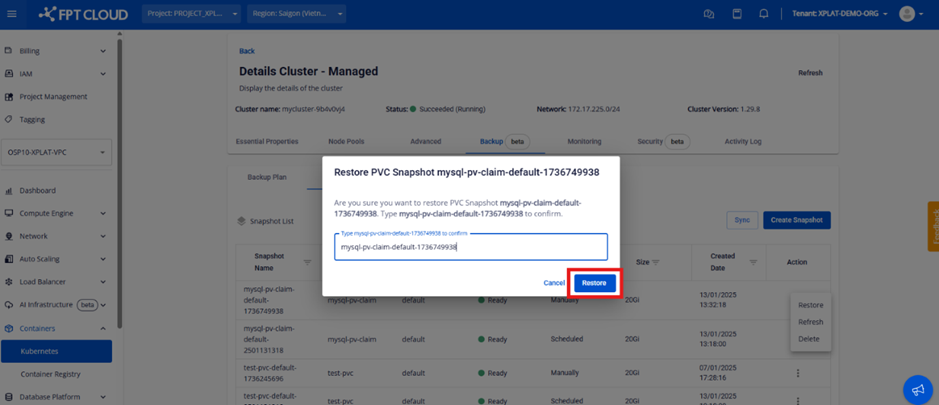
\- Users can select Delete to remove a snapshot, Refresh to update the snapshot to its latest state, or Restore to restore the PVC to the K8s cluster.
\
\- Simultaneously, the Sync button can be used to directly synchronize the status of snapshots and PVCs from the K8s cluster to the FPT Cloud Portal.
**3. PVC Restored**
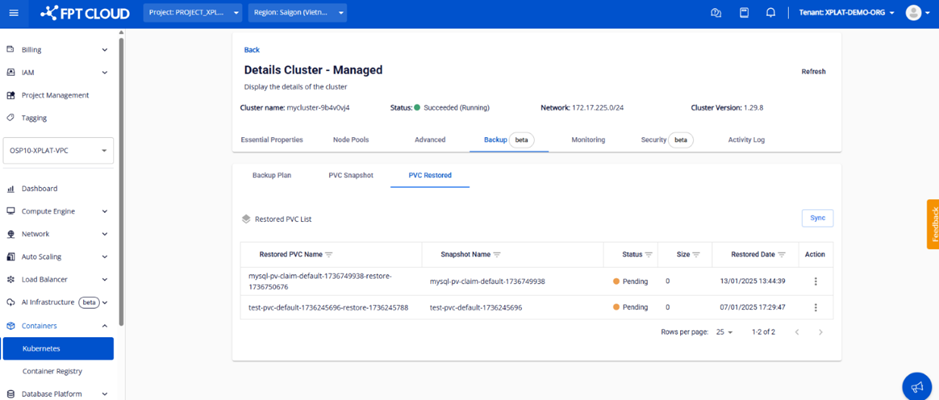
When a user selects Restore Snapshot from the "PVC Snapshot" subtab, the restored PVC appears in the "PVC Restored" subtab.
Restore PVC in the "PVC Snapshot" subtab
A list of restored PVCs is displayed
PVCs not assigned to pods will be in Pending status.
Users can then access their K8s cluster and configure the deployment of pods mapped to the restored PVC to update the PVC status.
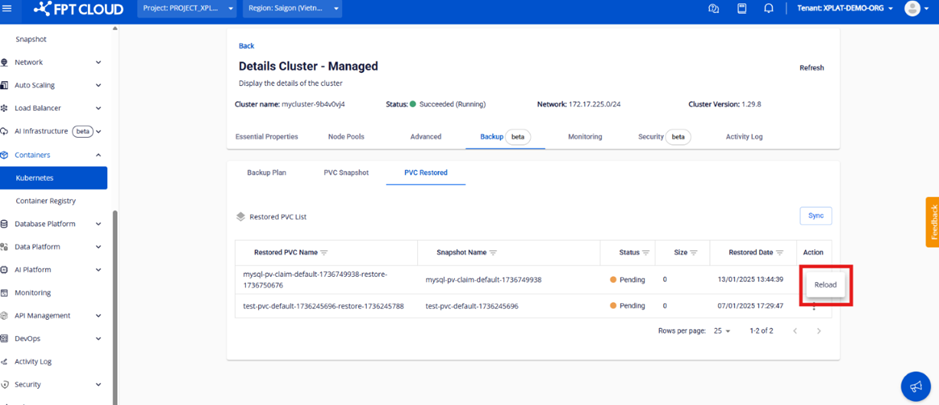
Click [Reload] to update the PVC status, or click [Sync] to update all.
**4. Notes**
\- The number of snapshots within each VPC is limited to a maximum of 10. For further upgrades, please contact FPT Cloud Support.
\- Users must create an appropriate plan and avoid reaching infrastructure limits by creating numerous snapshots without deleting them, which would prevent further snapshot creation.
\- If a snapshot status shows *as "Failed*,*"* access the K8s cluster and run the following command to investigate the cause beforehand:
\`\`\`
kubectl describe volumesnapshots.snapshot.storage.k8s.io -n \ \
\`\`\`
---
# Agent Instructions
This documentation is published with GitBook. GitBook is the documentation platform designed so that both humans and AI agents can read, navigate, and reason over technical content effectively. Learn more at gitbook.com.
## Querying This Documentation
If you need additional information that is not directly available in this page, you can query the documentation dynamically by asking a question.
Perform an HTTP GET request on the current page URL with the `ask` query parameter, and the optional `goal` query parameter:
```
GET https://ai-docs.fptcloud.com/fpt-gpu-cloud/gpu-cluster/managed-k8s-with-gpu-virtual-machine/tutorial/backup-and-restore.md?ask=&goal=
```
`ask` is the immediate question: it should be specific, self-contained, and written in natural language.
`goal` is optional and describes the broader end goal you are ultimately trying to accomplish on behalf of the user. GitBook uses it to tailor the answer towards what is most useful for that goal.
The response will contain a direct answer to the question and relevant excerpts and sources from the documentation.
Use this mechanism when the answer is not explicitly present in the current page, you need clarification or additional context, or you want to retrieve related documentation sections.