> For the complete documentation index, see [llms.txt](https://ai-docs.fptcloud.com/llms.txt). Markdown versions of documentation pages are available by appending `.md` to page URLs; this page is available as [Markdown](https://ai-docs.fptcloud.com/fpt-gpu-cloud/gpu-cluster/managed-k8s-with-gpu-virtual-machine/tutorial/cluster-auto-scaling.md).
# Cluster Auto-Scaling
## Auto-scale container level
* Horizontal Pod Autoscaler (abbreviated as HPA) automatically updates workload resources (such as Deployment or StatefulSet), with the purpose of automatically scaling workload resources to match application demand. Basically, when the workload of an application on Kubernetes increases, HPA will deploy more Pods to meet the resource demand. If the load decreases and the number of Pods exceeds the configured minimum, HPA will reduce the workload resource (Deployment, StatefulSet, or other similar resources), i.e., reduce the number of Pods again. HPA for GPU uses DCGM's custom metrics to monitor and scale Pods based on the workload of GPU-using applications.
* To configure HPA for GPU-based applications, refer to the following configuration:
```
apiVersion: autoscaling/v2beta2
kind: HorizontalPodAutoscaler
metadata:
name: my-gpu-app
spec:
maxReplicas: 3 # Update this accordingly
minReplicas: 1
scaleTargetRef:
apiVersion: apps/v1beta1
kind: Deployment
name: my-gpu-app # Add label from Deployment we need to autoscale
metrics:
- type: Pods # scale pod based on gpu
pods:
metric:
name: DCGM_FI_PROF_GR_ENGINE_ACTIVE # Add the DCGM metric here accordingly
target:
type: AverageValue
averageValue: 0.8 # Set the threshold value as per the requirement
```
* Check if HPA has started the GPU-based application using the following command:
## Auto-scale Node level
Like regular Cluster Auto-scale, the Kubernetes cluster will automatically scale worker nodes in a worker group up or down based on GPU usage requirements: it will automatically scale up new workers in a worker group if the application running on that worker group is not getting enough resources (GPU) from the worker nodes in that pool.
At that point, pods that were pending due to insufficient node resources will be served by the new worker nodes after scaling up. The Cluster Autoscale feature also automatically deletes nodes that do not use enough utilization (default is 50%) of that node.
Configuring the number of worker group nodes is defined on the FPT Cloud Portal as shown below:

### **Enabling Cluster Auto-Scaling**
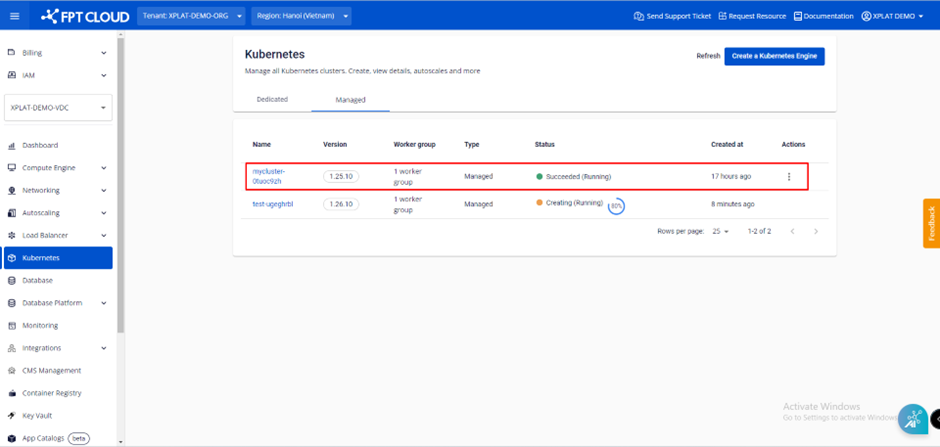
**Step 1:** Select **\[Containers] > \[Kubernetes]** from the menu to display the **Kubernetes Management** page. Select the cluster for which you want **to enable the cluster auto-scaling feature.**
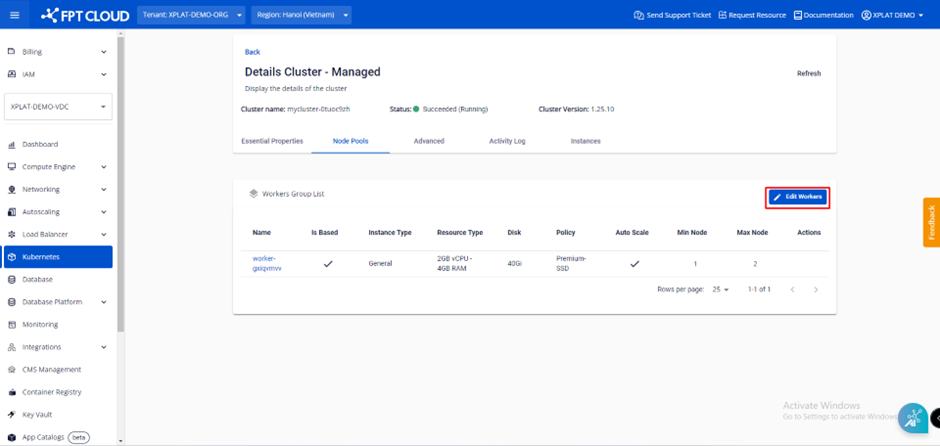
**Step 2:** Select **Node Pools > Edit Workers.**
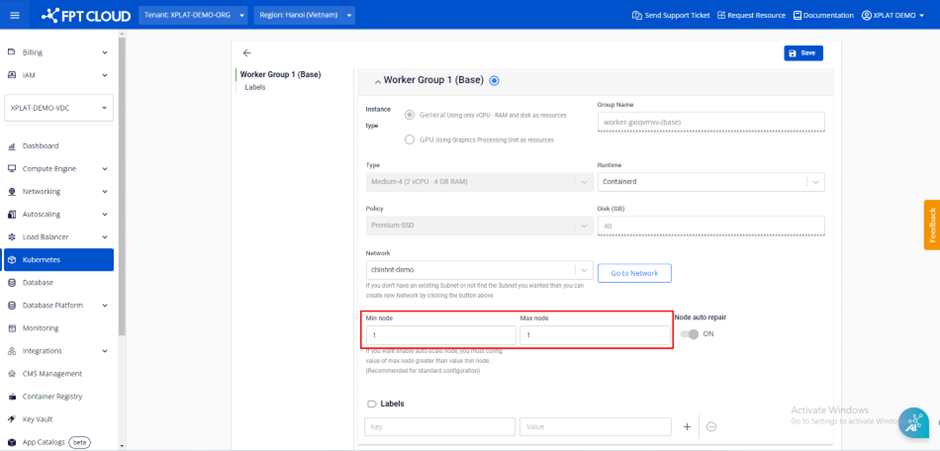
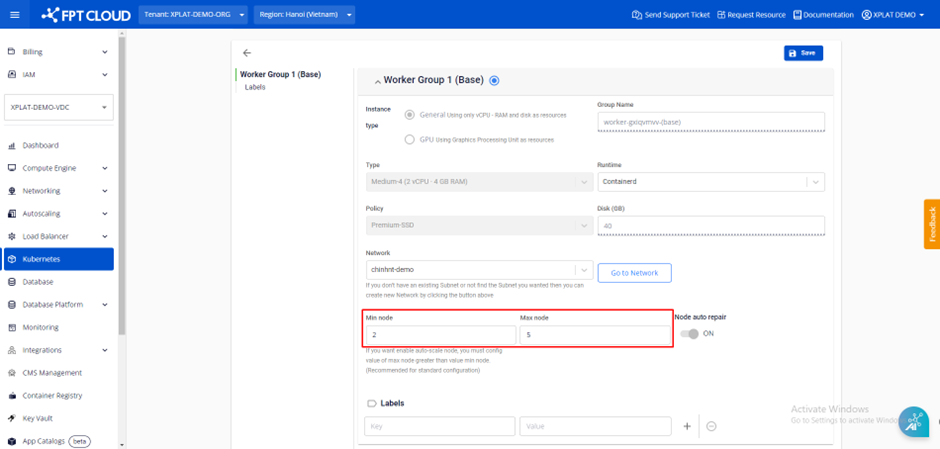
**Step 3:** Adjust the minimum and maximum number of workers according to the sizing selected by the user.
**Note:** If the maximum number of workers is greater than the minimum number, the cluster auto-scaling feature is automatically enabled.
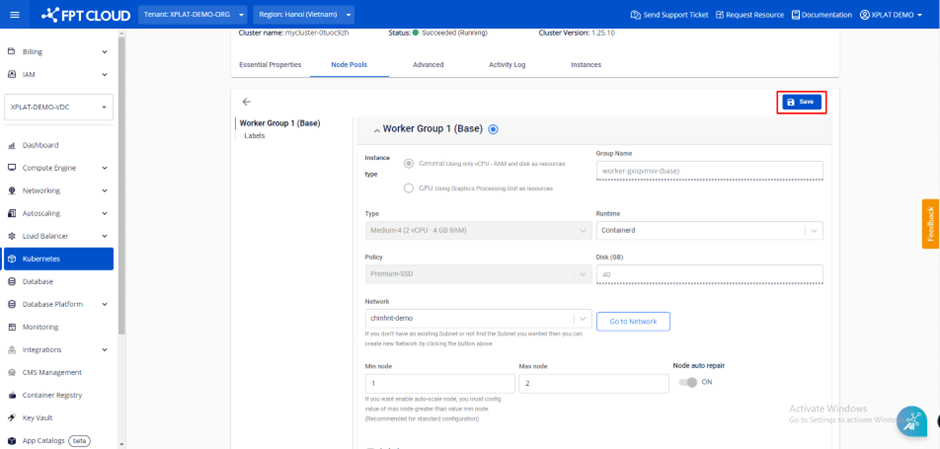
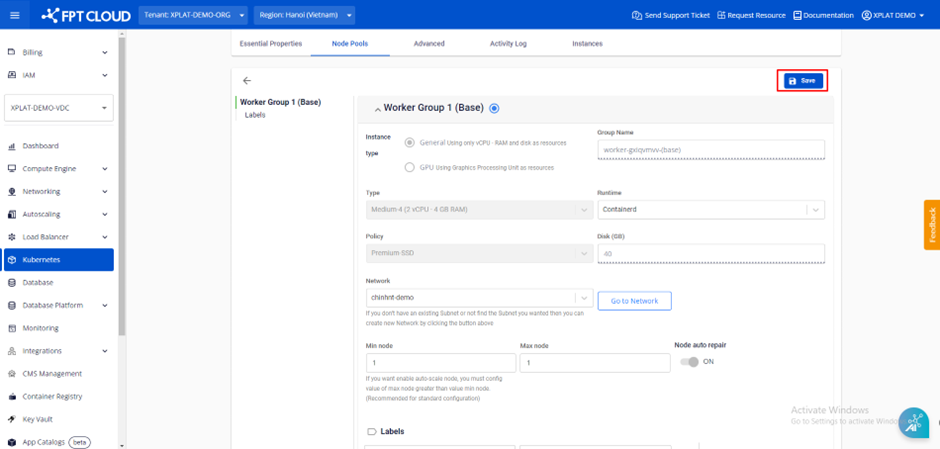
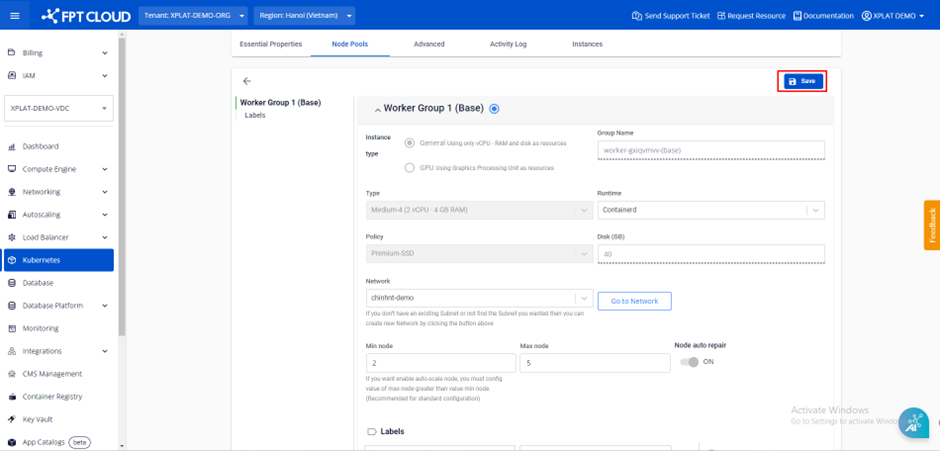
**Step 4:** Review the information and select **\[Save]** to enable the cluster auto-scaling feature.
### **Disabling the Cluster Auto-Scaling**
**Step 1:** Select **Kubernetes** from the menu to display the **Kubernetes Management** page. Select the cluster for which you want **to disable the cluster auto-scaling feature.**
**Step 2:** Select **Nodes Pool > Edit workers.**
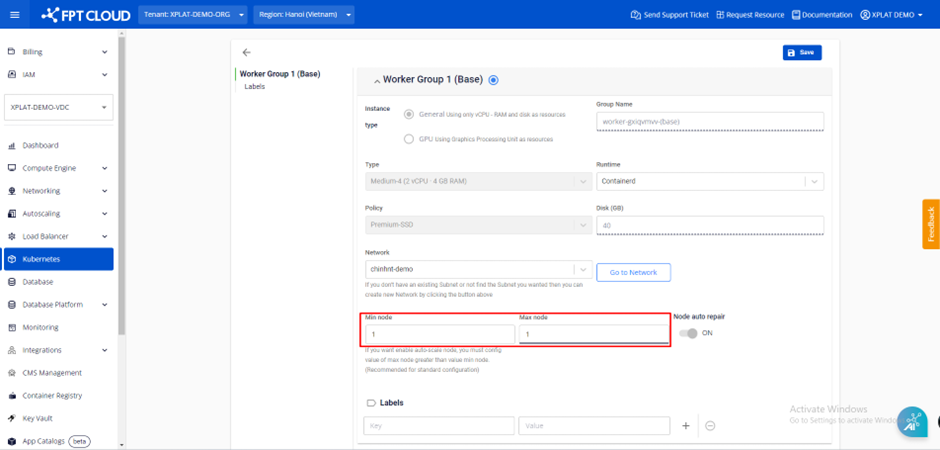
**Step 3:** Adjust the minimum and maximum worker counts to the same number.
**Note:** When the minimum and maximum worker counts in the worker pool are the same, the cluster's auto-scaling feature is automatically disabled.
**Step 4:** Review the information and select **"Save".**
### **Modifying Cluster Auto-Scaling Settings**
**Step 1:** Select **\[Containers] > \[Kubernetes]** from the menu to display the **Kubernetes Management** page. Select the cluster for which you want to customize the cluster **auto-scaling** settings.
**Step 2:** Select **Nodes Pool > Edit workers.**
**Step 3**: Adjust the number of workers according to your usage needs.
**Step 4:** Review the information and select **"Save".**
---
# Agent Instructions
This documentation is published with GitBook. GitBook is the documentation platform designed so that both humans and AI agents can read, navigate, and reason over technical content effectively. Learn more at gitbook.com.
## Querying This Documentation
If you need additional information that is not directly available in this page, you can query the documentation dynamically by asking a question.
Perform an HTTP GET request on the current page URL with the `ask` query parameter, and the optional `goal` query parameter:
```
GET https://ai-docs.fptcloud.com/fpt-gpu-cloud/gpu-cluster/managed-k8s-with-gpu-virtual-machine/tutorial/cluster-auto-scaling.md?ask=&goal=
```
`ask` is the immediate question: it should be specific, self-contained, and written in natural language.
`goal` is optional and describes the broader end goal you are ultimately trying to accomplish on behalf of the user. GitBook uses it to tailor the answer towards what is most useful for that goal.
The response will contain a direct answer to the question and relevant excerpts and sources from the documentation.
Use this mechanism when the answer is not explicitly present in the current page, you need clarification or additional context, or you want to retrieve related documentation sections.