> For the complete documentation index, see [llms.txt](https://ai-docs.fptcloud.com/llms.txt). Markdown versions of documentation pages are available by appending `.md` to page URLs; this page is available as [Markdown](https://ai-docs.fptcloud.com/fpt-gpu-cloud/gpu-cluster/managed-k8s-with-gpu-virtual-machine/tutorial/cluster-security.md).
# Cluster Security
**1. Benchmark Managed Kubernetes Cluster Feature**
1\. Overview of the Benchmark Security Feature\
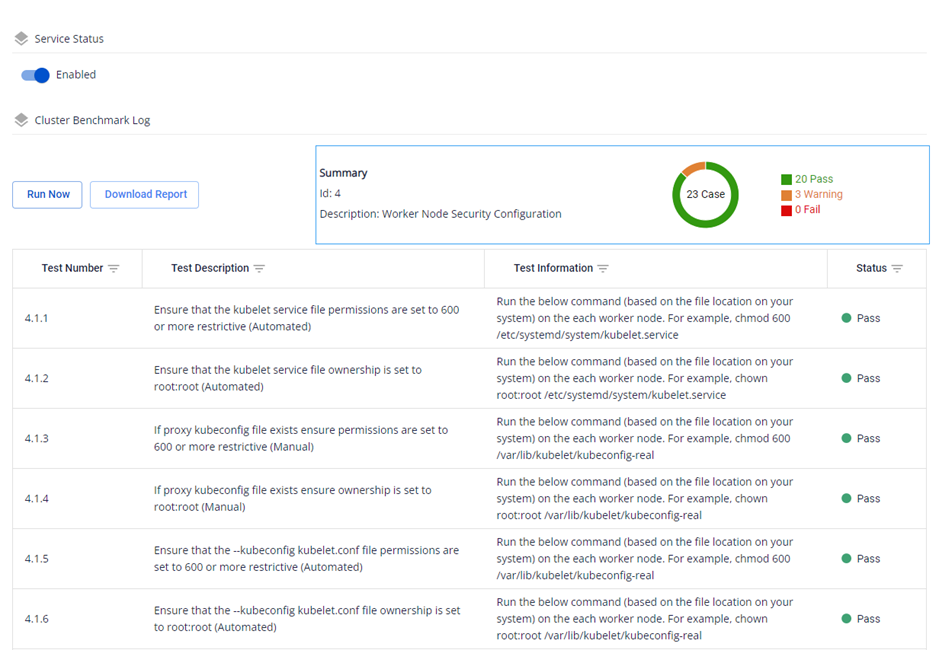
\- To ensure the information security of FPT Cloud Managed Kubernetes clusters, FPT Cloud provides a feature allowing administrators to benchmark the configuration and settings of worker node kubelets according to the Common Baseline recommended by the Center for Internet Security (CIS).
\- CIS Benchmarks are a comprehensive set of security configuration guidelines developed by the Center for Internet Security (CIS). These guidelines provide best practices for the security of systems, services, and software.\
\- Test cases are applied to each Kubernetes version and tailored to FPT Cloud's kubelet configuration.\
\- Test case results fall into three categories: Pass, Fail, and Warning. Pass indicates the configuration meets the CIS-defined test case requirements. Fail indicates the configuration fails a high-severity test case. Warning indicates the configuration fails a test case, but the severity is low (configurable or non-configurable).\
2\. How to use features on the Unify Portal:
\* Note: The feature set to enhance the security of Managed Kubernetes Clusters is integrated after the cluster has successfully started (status "Succeeded (Running)").
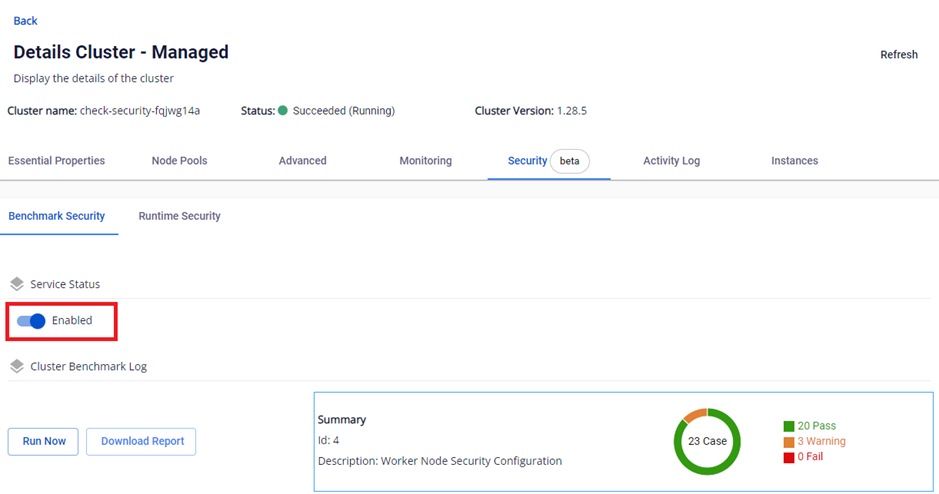
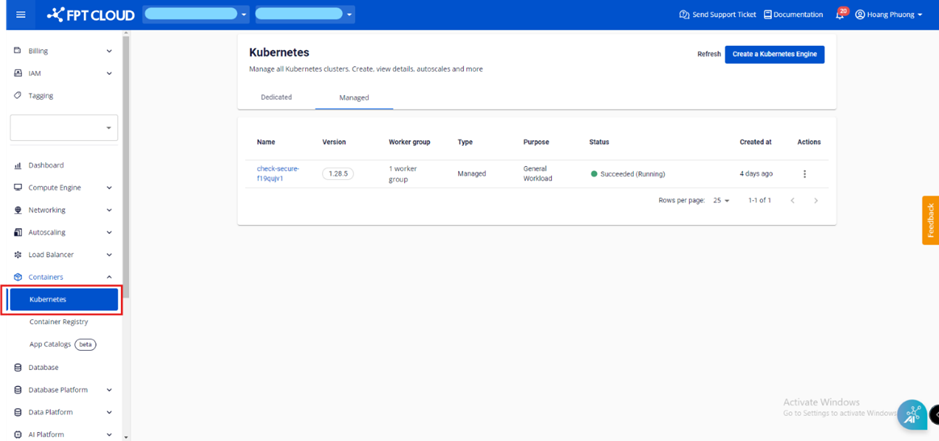
2.1. Enabling Benchmark Security: Access the FPT Cloud portal at, select the Kubernetes item, click the cluster requiring benchmarking, then navigate to the Security tab followed by the Benchmark Security tab to enable it.
When the benchmark job completes successfully, detailed results will be displayed. Users can rerun the benchmark to update the latest results or download the results to their own machine.
2.2. Disabling the Benchmark Security Feature
Access the FPT Cloud console.fptcloud.com portal, select "Kubernetes," click the cluster requiring benchmarking, select the "Security" tab, then the "Benchmark Security" tab, and confirm deactivation.
**2. Runtime Security Feature**
1\. Overview of Runtime Security Features\
\- To ensure the information security of FPT Cloud Managed Kubernetes clusters, FPT Cloud has developed a feature integrating Runtime Security support tools. These tools can detect abnormal behavior within K8S clusters that may pose risks to the runtime layer or worker node kernels.
\- Falco is a powerful open-source tool for monitoring and detecting anomalous behavior in container systems and Kubernetes. Falco was developed by Sysdig and is now a project maintained by the CNCF (Cloud Native Computing Foundation). Falco's primary function is to provide "runtime security" to systems by monitoring operating system and container behavior and detecting activities that introduce anomalies or potential risks to the system based on predefined rules.
\
\- FPT Cloud offers integration with runtime security features, allowing you to configure detailed alerts on actions via Telegram or Gmail. By utilizing alert channels, Security Runtime ensures security events are detected in a timely manner, enabling administrators to act quickly to protect the system.
2\. How to use the feature in Unify Portal:
\* Note: The feature set to enhance the security capabilities of Managed Kubernetes Clusters is integrated after the cluster has successfully started (status "Succeeded (Running)").
2.1. Falco Engine Integration:
A. Enable Falco Engine
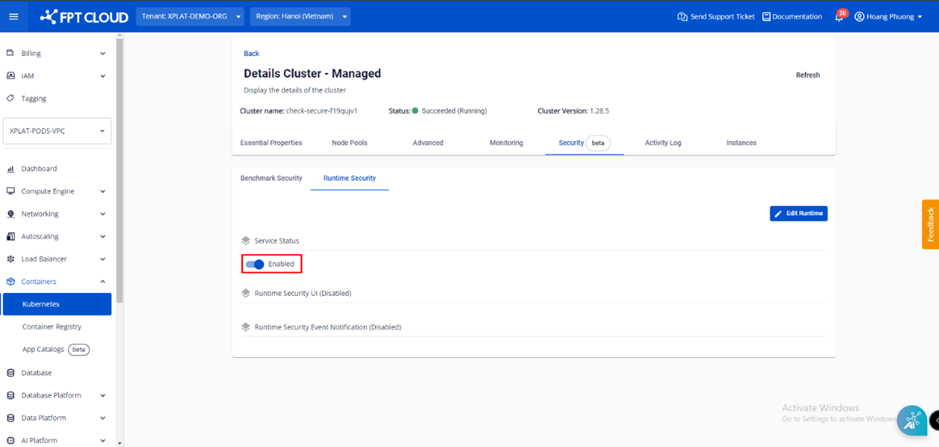
Step 1 : Access the FPT Cloud portal at console.fptcloud.com and select "Kubernetes".
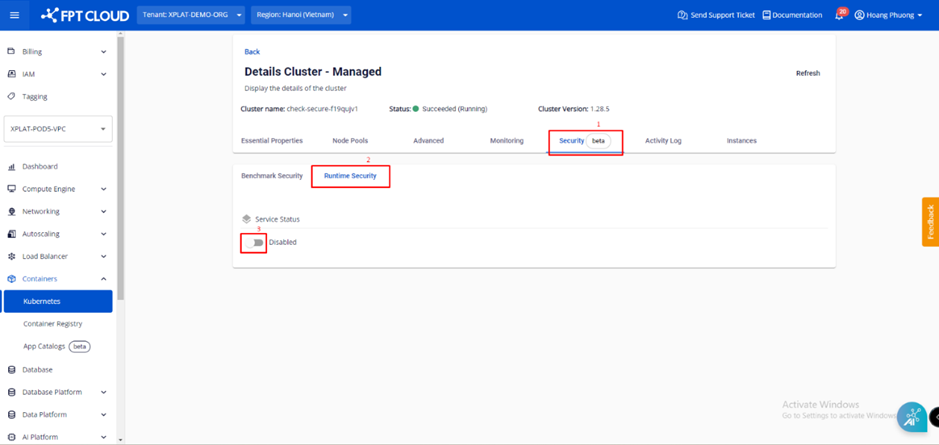
Step 2: Select the cluster to integrate. Runtime
Step 3: Select the Security tab
⟶ *⟶*
Select "Runtime Security" and perform "enable".
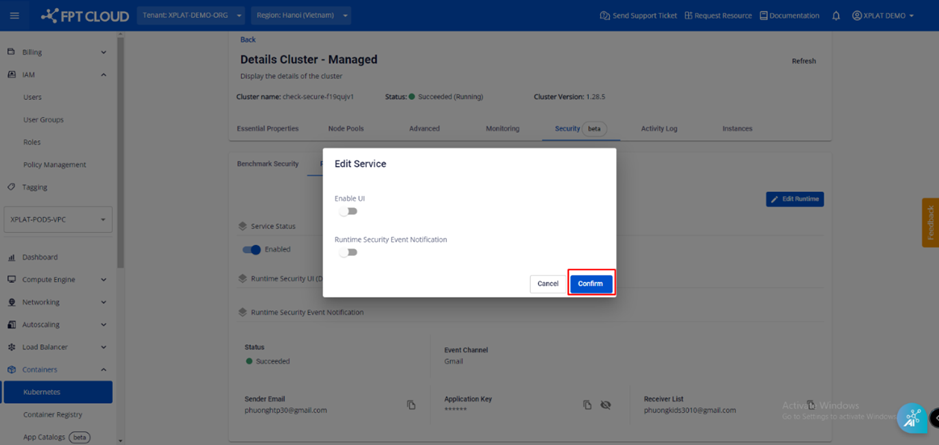
Step 4: Select \[Confirm] to complete.
Runtime Security has been successfully enabled, but since the alert reception channel is not configured, alerts will not be delivered to users.
B. Disable Falco Engine
If Runtime Security integration is not required, users can disable the service in the portal.
Step 1: Click the button in the \[Enable] state.
Step 2: Enter the cluster name and click \[Disable].
Result after disabling:
2.2. Integrating Falco UI Features
A. Enabling Falco UI
Step 1: Select the \[Security] tab. Choose \[Runtime Security] and enable it.
Step 2: Enable the UI
Step 3: Enter the username and password to access the Falco UI, then click "Confirm" to complete.
Step 4: Download the kube-config file and access Lens.
⟶ *⟶*
Select Network
⟶ *⟶*
Select Services
⟶ *⟶*
Filter by Namespace fptcloud-runtime-security
Step 5. Select the falco-falcosidekick-ui service and choose \[Forward].
Step 6: Enter the port forwarding details and click \[Start] to access
Step 7: Enter the username and password set when enabling the service
Post-login result:
Dashboard screen if a warning appears:
B. Updating username and password
Step 1: Click Edit Rutime
Step 2: Edit the username and password, then click "Confirm"
C. Disable Falco UI
To disable Falco UI, select Edit Runtime.
⟶ *⟶*
Click the Enable button
⟶ *⟶*
Click Confirm
Result of disabling the Falco UI:
2.3. Integration of Runtime Security Event Notifications
2.3.1. Telegram
A. Enabling Runtime Security Event Notifications
Step 1: Log in to Telegram and search for BotFather
Step 2: Type /newbot and set the bot's name
Step 3: Create a group chat to receive notifications
Step 4: Enable runtime security event notifications in the Unify Portal
Step 5: Select Telegram as the notification channel, enter the ChatID and Token ID, then click Confirm
Result after setup:
When an anomaly is detected, a warning like the image below will be sent to the user's Telegram.
B. Changing the Notification Receiving Channel via Gmail
Note: Before creating a Gmail application token, you must enable "2-Step Verification" on your Google account.
Step 1: Access the link to create an application token
Step 2: Select \[Edit Runtime]
Step 3: Enter the information to receive notifications via Gmail and click "Confirm"
Result after setting is complete:
If an anomaly occurs, the system will send a warning like the following to Gmail.
C. Disable Runtime Security Event Notifications
If you do not need to receive notifications via Telegram or Gmail, navigate to the \[Security] tab.
⟶ *⟶*
Select this option and execute Edit Runtime to disable Runtime Security Event Notification.
⟶ *⟶*
Click Confirm
Disabling "Runtime Security Event Notification" will prevent warnings from appearing even if an anomaly occurs.
**3. Workload Managed Kubernetes Cluster Feature**
**1. Overview of Workload Security Features**
**1.1. Overview of Configuration Audit**
When deploying containerized workloads within a Kubernetes environment, you encounter numerous configuration options related to images, containers, the control plane, and the data plane. Improper configuration can introduce potential security risks. DevOps and platform owners must have the ability to continuously evaluate tools, workloads, and infrastructure against hardening standards and remediate any violations.
**1.2. Vulnerability Reports**
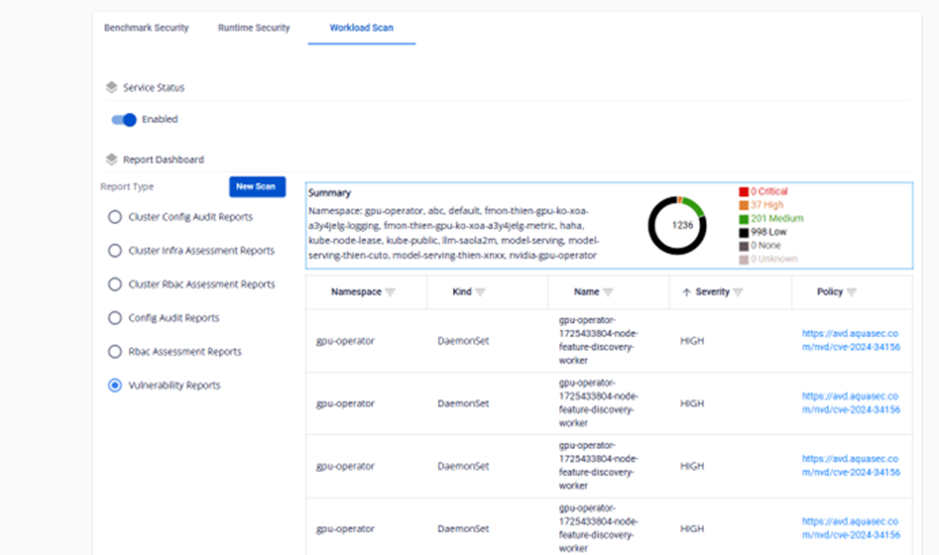
The Vulnerability Report provides recently discovered vulnerabilities in container images for specific Kubernetes workloads. This includes a list of OS package and application vulnerabilities, along with a summary grouped by severity.
Vulnerability reports provide recently discovered vulnerabilities in container images for specific Kubernetes workloads. This includes a list of vulnerabilities for OS packages and applications, along with a summary grouped by severity.
Each namespace has a corresponding vulnerability report where the scan results for image workloads within that namespace are stored.
The report contains the following fields:
* **Namespace**
* **Summary**
* **criticalCount:** Number of high-severity vulnerabilities
* **highCount:** Number of high-risk vulnerabilities
* **lowCount:** Number of low-risk vulnerabilities
* **unknownCount:** Number of vulnerabilities with unevaluated severity
* **vulnerabilities:** Details of each vulnerability
* **ID**
* **Severity:** Vulnerability urgency level (Critical, High, Low, Unknown)
* **Title:** Vulnerability name
* **PrimaryLink:** Link to detailed description of the vulnerability
* **Score:** Common Vulnerabilities and Exposures (CVE) score. This determines the severity level
* 0: Unknown
* 0.1 - 3.9: Low -> Unknown
* 4.0 - 6.9: Medium
* 7.0 - 8.9: High
* 9.0 - 10.0: Critical
* **Namespace**
**1.3. Role-Based Access Control (RBAC) Report**
The RBAC assessment report displays the results of Kubernetes RBAC checks performed by configuration audit tools such as Trivy.
For example, it checks that a specific role does not grant access to secrets for all groups.
Each report is owned by the underlying Kubernetes object and stored in the same namespace.
The report contains the following corresponding fields:
* **namespace:** The namespace used to scan roles within K8s workloads
* **summary:** Summary of scan results
* **criticalCount:** Number of high-severity vulnerabilities
* **highCount:** Number of high-severity vulnerabilities
* **mediumCount:** Number of medium-severity vulnerabilities
* **lowCount**: Number of low-severity vulnerabilities
**1.4. Cluster Role-Based Access Control (RBAC) Report**
While the RBAC assessment report checks the permissions of roles within the same namespace, the cluster RBAC assessment report consolidates all roles across all namespaces.
**1.5. Config Audit Report**
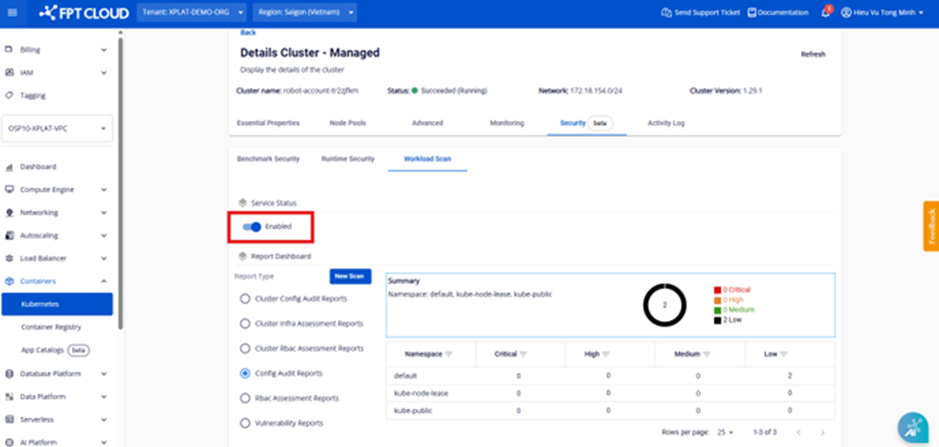
The ConfigAuditReport represents checks performed by Trivy on the configuration of each Kubernetes object. For example, it checks whether a container image runs as a non-root user or if resource requests and limits are set for that container. Checks may relate to other resources within the namespace, such as K8s workloads, services, configmaps, roles, and role bindings.
The report contains the following corresponding fields:
* **namespace:** The namespace used to scan roles within the K8s workload
* **summary**: Summary of scan results
* **criticalCount:** Number of high-severity vulnerabilities
* **highCount:** Number of high-severity vulnerabilities
* **mediumCount:** Number of medium-severity vulnerabilities
* **lowCount**: Number of low-severity vulnerabilities
**1.6. Cluster Config Audit Report**
While the Config Audit Report inspects configurations within the same namespace, the Cluster Config Audit Report comprehensively inspects configurations across multiple namespaces.
**1.7. Cluster Infrastructure Assessment Report**
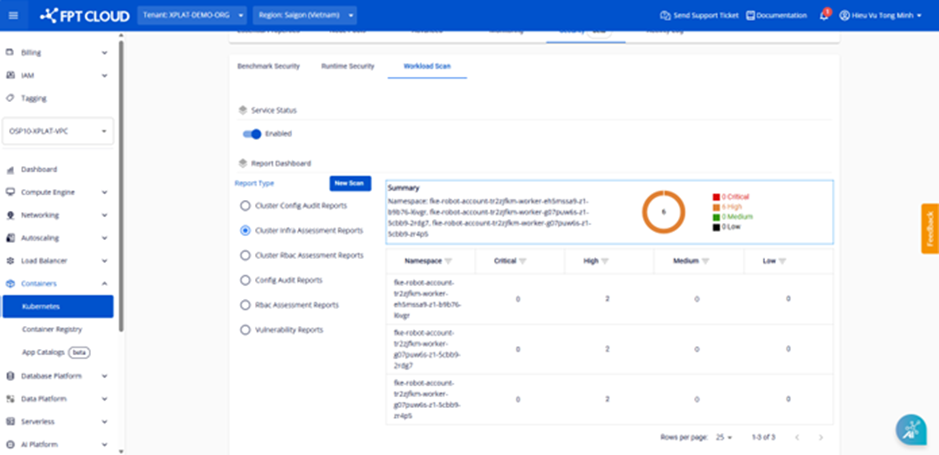
The Cluster Infrastructure Assessment Report checks important configurations in the management part of the K8s cluster, such as etcd, apiserver, scheduler, and controller manager.
**2. How to Use Features on the Unify Portal**
***Note:** The set of features that enhance M-FKE security are integrated after the cluster has successfully started (status "Succeeded (Running)").*
**2.1. Enabling Workload Security Features**
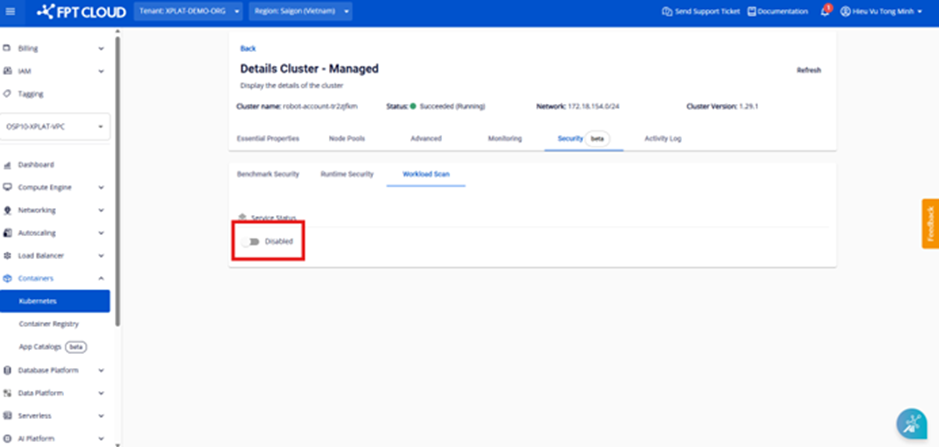
Access the FPT Cloud console.fptcloud.com portal, select the Kubernetes item, click the cluster requiring benchmarking, then navigate to the Security tab followed by the Workload Security tab to enable the feature.
Clicking the Enable button displays a form where users can select: the namespaces to scan, the report TTL (Time-to-live), and the scan type to output to the report displayed in the portal.
Figure 2. Configuration selection form after enabling the feature
Figure 3. Selecting namespaces
Figure 4. Selecting the scan to run and the report type to display in the portal
Figure 5. Selecting the TTL time (default is 30 minutes)
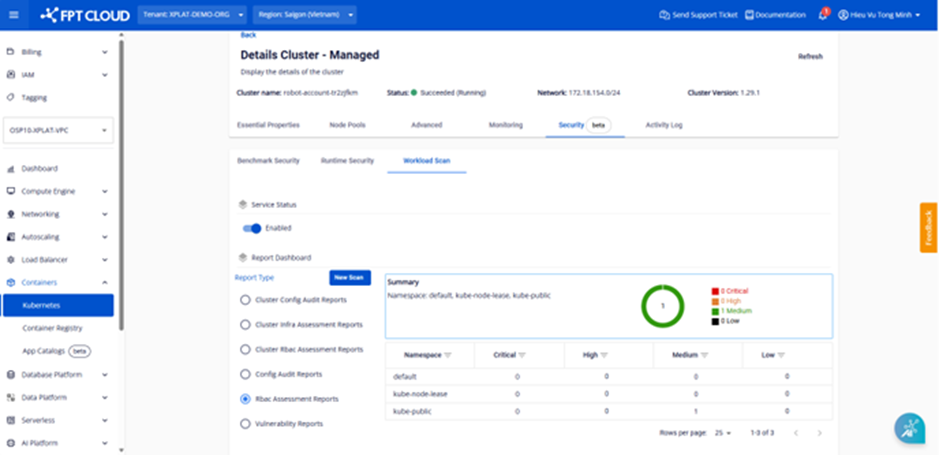
When the workload job completes successfully, detailed results are displayed. Users can rerun the workload to update the latest results.
Report display information is shown as follows, along with the display fields described above.
**2.2. Disabling Workload Security Features**
Access the FPT Cloud console.fptcloud.com portal, select the Kubernetes item, click on the cluster that requires benchmarking, select the Security tab, then the Workload Security tab, and stop the service after confirming.
**4. Audit Logs Functionality for Managed Kubernetes Clusters**
🌟 Audit Logs Security Feature Overview
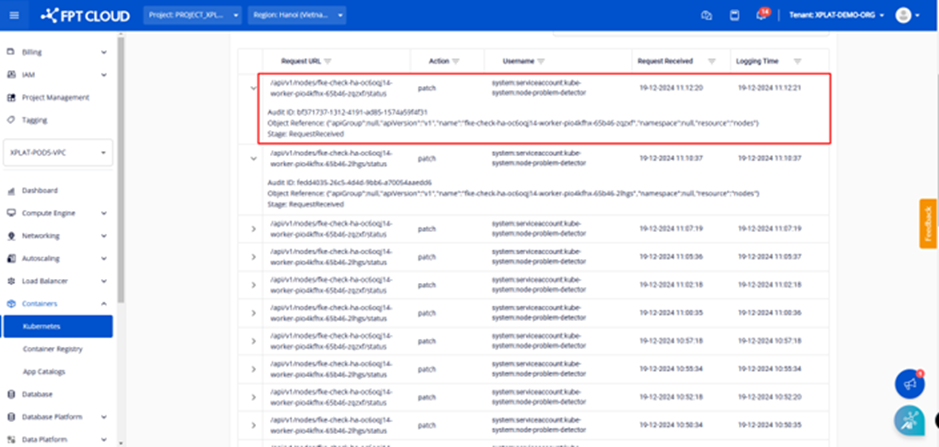
Audit Logs are included in the self-service security feature group provided in the MFKE product's Unify portal. They record all activities and API requests sent to the kube-apiserver. This enables tracking which agent performed what action, when, which objects were affected, and the resulting outcome.
🌟 Benefits of Audit Logs:
* Assists in monitoring the behavior of components interacting with the Kubernetes cluster's API server.
* Provides security analysis and anomaly detection capabilities.
* Supports troubleshooting and compliance adherence.
✓ Audit log structure consists of the following information:
1️⃣ Request URL: The path of the API called on the kube-apiserver.
* Audit ID: A unique ID for each audit event, used for log tracing.
* Object Reference: Information about the Kubernetes resource that was operated on:
* ApiGroup
* apiVersion: API version (v1)
* name: The name of the node
* namespace
* resource: Resource type (nodes)
2️⃣ Action: The operation performed on the Kubernetes resource. Examples: patch/create/delete/update
3️⃣ Username: The name of the account or service performing the action.
4️⃣ Request Received: Time the request was recorded by the kube-apiserver (dd-MM-yyyy HH:mm:ss format).
5️⃣ Logging Time: The time the event was recorded in the MFKE service's logging system. Typically, Logging Time is later than Request Received. This is because it takes time for logs to be pushed from the cluster's kube-apiserver to the centralized logging system.
🌟 How to Use Features in Unify Portal
⚠️ Note: The feature set enhancing the security of your Managed Kubernetes Cluster is integrated after the cluster has successfully started (status "Succeeded (Running)").
1\. Enabling Audit Log Security:\
Access the FPT Cloud console.fptcloud.com portal, select the Kubernetes item, click the cluster requiring auditing, then choose the Security tab and Audit Log tab.
\
\
Clicking the Audit Log tab automatically runs a query and displays all logs recorded in the past hour. Audit log information is displayed alongside the fields described in step 2 above.

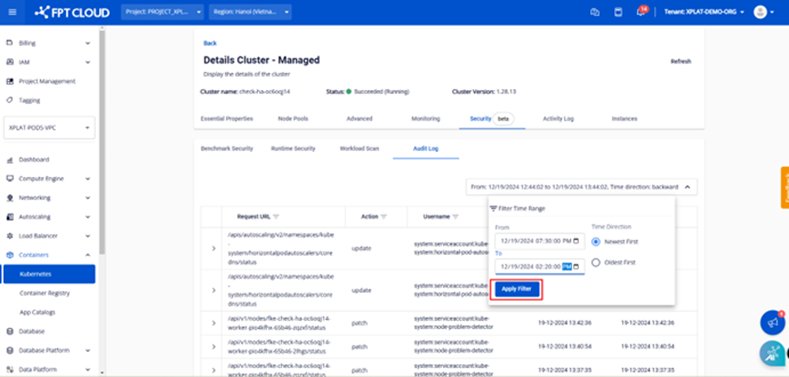
2\. To search for logs from a different time period, please follow these steps:
a. Step 1: Click the time picker in the upper-right corner of the screen.
b. Step 2: Enter the time period for which you want to view logs, then click "**Apply Filter".**
The system will display all logs recorded during the selected period, sorted in descending order.
⚠️ Note:
* You can only filter logs for a maximum period of 3 days (From – To).
* Logs are stored for the past 7 days.
---
# Agent Instructions
This documentation is published with GitBook. GitBook is the documentation platform designed so that both humans and AI agents can read, navigate, and reason over technical content effectively. Learn more at gitbook.com.
## Querying This Documentation
If you need additional information that is not directly available in this page, you can query the documentation dynamically by asking a question.
Perform an HTTP GET request on the current page URL with the `ask` query parameter, and the optional `goal` query parameter:
```
GET https://ai-docs.fptcloud.com/fpt-gpu-cloud/gpu-cluster/managed-k8s-with-gpu-virtual-machine/tutorial/cluster-security.md?ask=&goal=
```
`ask` is the immediate question: it should be specific, self-contained, and written in natural language.
`goal` is optional and describes the broader end goal you are ultimately trying to accomplish on behalf of the user. GitBook uses it to tailor the answer towards what is most useful for that goal.
The response will contain a direct answer to the question and relevant excerpts and sources from the documentation.
Use this mechanism when the answer is not explicitly present in the current page, you need clarification or additional context, or you want to retrieve related documentation sections.