> For the complete documentation index, see [llms.txt](https://ai-docs.fptcloud.com/llms.txt). Markdown versions of documentation pages are available by appending `.md` to page URLs; this page is available as [Markdown](https://ai-docs.fptcloud.com/fpt-gpu-cloud/gpu-cluster/managed-k8s-with-gpu-virtual-machine/tutorial/cluster-tagging.md).
# Cluster Tagging
The **tagging** feature allows users to assign custom tags to virtual machines, **enabling more efficient classification, search, and management of resources.**
* **Intelligent Classification:** Easily organize virtual machines based on any criteria suitable for your environment (production, staging, development), project, department, or management process.
* **Quick Search:** Based on tags, users can easily filter and search for VMs without needing to remember complex names.
* **Efficient Management:** Supports cost tracking, resource usage monitoring, and report generation for each tagged VM group.
* **Flexible Customization:** Tags are customizable and can be applied for various purposes to meet specific enterprise needs.
The tagging feature enables more scientific management of virtualized infrastructure, saving time and improving system operational efficiency.
In the portal, you can operate the tagging feature as follows:
**1. Creating Tags**
To tag VMs within an MFKE worker group, users must create tags in advance according to their intended use.
**2. Assigning Tags for Using Worker Groups Belonging to M-FKE**
**2.1. When Creating a New Cluster**
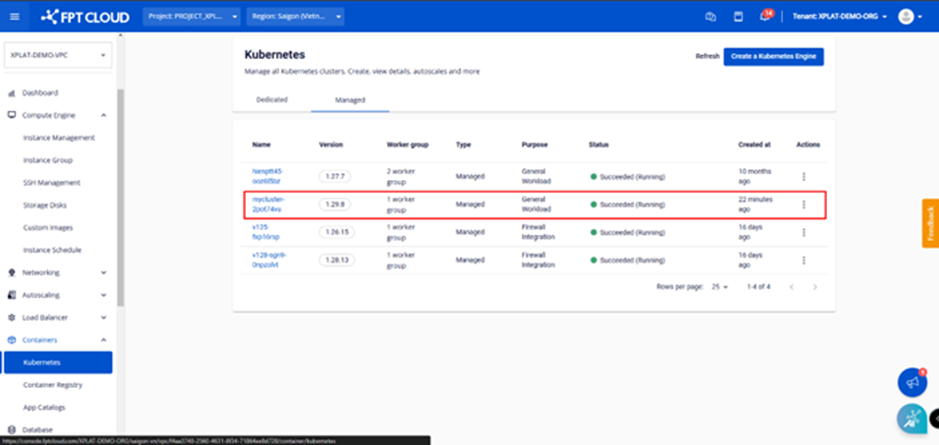
**Step 1:** In Unify Portal, select Kubernetes → Managed → Create a Kubernetes Engine to create a new cluster.
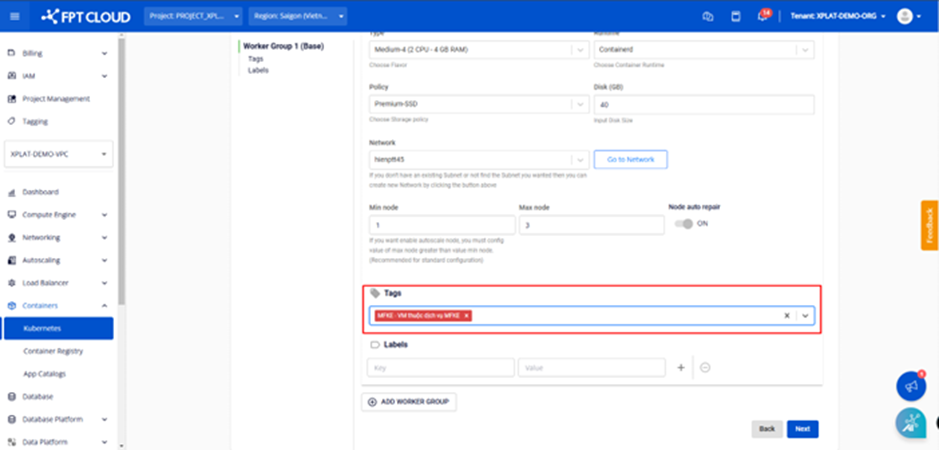
**Step 2:** Under \[Nodes Pool], select the tag to use for the worker group.
Enter all required information for the cluster and click the Create a Kubernetes Engine button.
**2.2. Editing Worker Group Tags**
**Step 1:** Select "Containers" > "Kubernetes" from the menu to display the Kubernetes Management page. Select the cluster whose tags you want to edit.
**Step 2**: Select Node Pools > Edit Workers.
**Step 3:** Add tags to the worker group and click the \[Save] button.
Tag editing completes within a few minutes, and the cluster status changes to "Processing." During this processing, users cannot edit the cluster.
**2.3. Removing Tags from a Worker Group**
**Step 1:** Select Node Pools > Edit Workers
**Step 2:** Click the ❎ mark to remove the tag from the worker group, then click Save.
Tag removal will be executed within a few minutes, and the cluster status will change to "**Processing**." Users cannot perform cluster editing operations until the process is complete.
---
# Agent Instructions
This documentation is published with GitBook. GitBook is the documentation platform designed so that both humans and AI agents can read, navigate, and reason over technical content effectively. Learn more at gitbook.com.
## Querying This Documentation
If you need additional information that is not directly available in this page, you can query the documentation dynamically by asking a question.
Perform an HTTP GET request on the current page URL with the `ask` query parameter, and the optional `goal` query parameter:
```
GET https://ai-docs.fptcloud.com/fpt-gpu-cloud/gpu-cluster/managed-k8s-with-gpu-virtual-machine/tutorial/cluster-tagging.md?ask=&goal=
```
`ask` is the immediate question: it should be specific, self-contained, and written in natural language.
`goal` is optional and describes the broader end goal you are ultimately trying to accomplish on behalf of the user. GitBook uses it to tailor the answer towards what is most useful for that goal.
The response will contain a direct answer to the question and relevant excerpts and sources from the documentation.
Use this mechanism when the answer is not explicitly present in the current page, you need clarification or additional context, or you want to retrieve related documentation sections.