> For the complete documentation index, see [llms.txt](https://ai-docs.fptcloud.com/llms.txt). Markdown versions of documentation pages are available by appending `.md` to page URLs; this page is available as [Markdown](https://ai-docs.fptcloud.com/fpt-gpu-cloud/gpu-cluster/managed-k8s-with-gpu-virtual-machine/tutorial/manage-a-cluster.md).
# Manage a cluster
## **View the list of clusters**
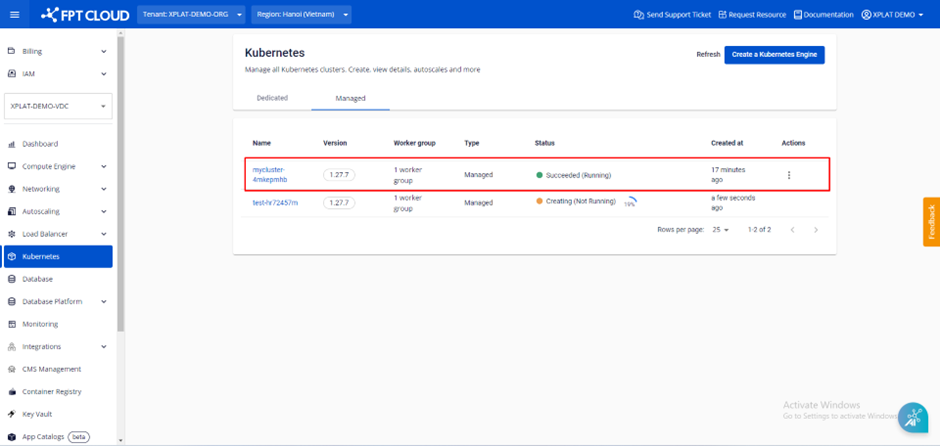
On the **Kubernetes Management** page, you can view and manage the list of existing Kubernetes clusters. To open **Kubernetes Management**, follow these steps:
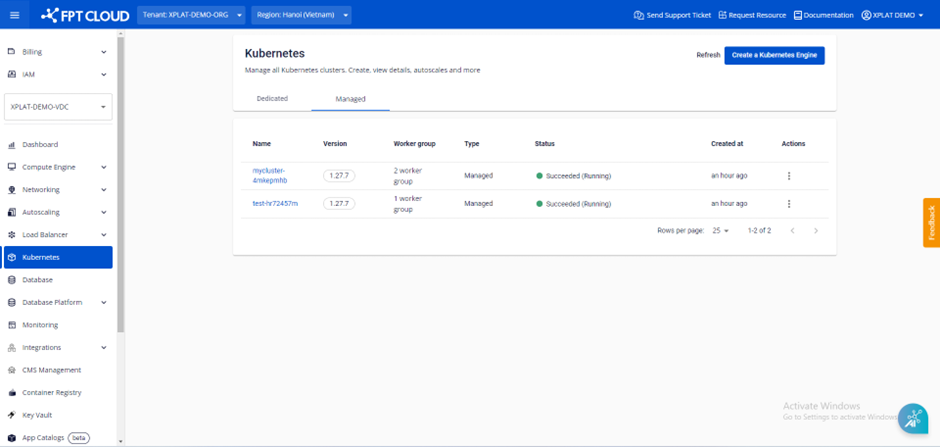
In the **FPT Portal** menu, select **Kubernetes**. The system displays a list of existing clusters organized by **Name, Version, Worker Group, Type, Status, Creation Date, and Action.**
## **Accessing Cluster Details**
**Step 1:** Select **Kubernetes** from the menu to display the **Kubernetes Management** page. Select the cluster for which you want to view details.
**Step 2:** The cluster information is displayed on the **\[Essential Properties]** tab.
* **Cluster Information:** Basic cluster information includes the cluster name, Kubernetes version, Kubernetes configuration file, status, purpose of ~~the SSH key file~~, and auto-upgrade version (if enabled).
* **Load Balancer VIP**: Information about the selected load balancer size.
* **Worker Group Settings:** List of groups and settings Worker Nodes: Minimum/maximum count, CPU, memory, disk.
* **API:** API URL for the cluster.
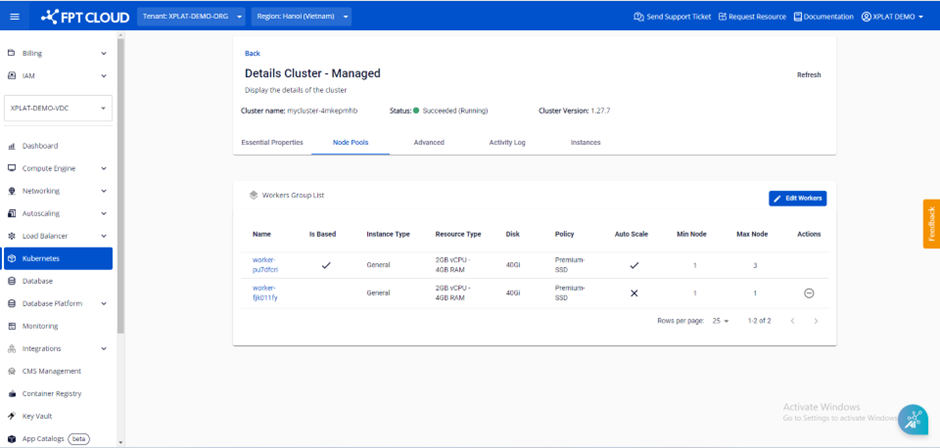
**Step 3:** The **\[Node Pools]** tab displays all worker groups belonging to the cluster and the configuration information for each worker group.
* **Name:** Worker group name
* **Is Based:** Display (ü) if worker-based, (û) if not worker-based
* **Instance Type:** Display the instance type (CPU or GPU)
* **Resource Type:** Display the amount of CPU and RAM
* **Disk:** Display disk capacity
* **Policy:** Display information about the selected storage policy
* **Auto Scale:** Displays (ü) if auto scaling is enabled, (û) if disabled
* **Min Node:** Displays the minimum number of worker node VM instances configured for the worker group.
* **Max Node:** Displays the maximum number of worker node VM instances configured for the worker group.
* **Action:** Users can delete worker groups that are no longer in use. Note: Worker group bases cannot be deleted
## **Obtaining Cluster Access Information**
**Step 1:** Select **"Containers" > "Kubernetes"** from the menu to display the **Kubernetes Management** page. Select the cluster whose information you want to access.
**Step 2:** Under **Essential Properties > Cluster Information > Configuration,** download the kubeconfig file to log into the cluster using tools like kubectl.
***Tip:** M-FKE uses Native Kubernetes, allowing users to manage the cluster using kubectl and dashboard tools just like a standard Kubernetes cluster.*
## **Kubeconfig Rotation**
When using a Kubernetes cluster, you can perform a kubeconfig rotation. Example: When you need to change the certificate for user authentication
**Step 1:** Select **\[Containers] > \[Kubernetes]** from the menu to display the **Kubernetes Management** page.

**Step 2:** Select **\[Renew kubeconfig]** under **\[Configuration]** in the **\[Essential Properties]** tab.

**Step 3:** Review the warning information in the pop-up and click the **\[Renew]** button.

## **Deleting a Kubernetes Cluster**
Unneeded **Kubernetes clusters** can be deleted using the following steps.
**Step 1:** Select **\[Containers] > \[Kubernetes]** from the menu to display the **Kubernetes Management** page.
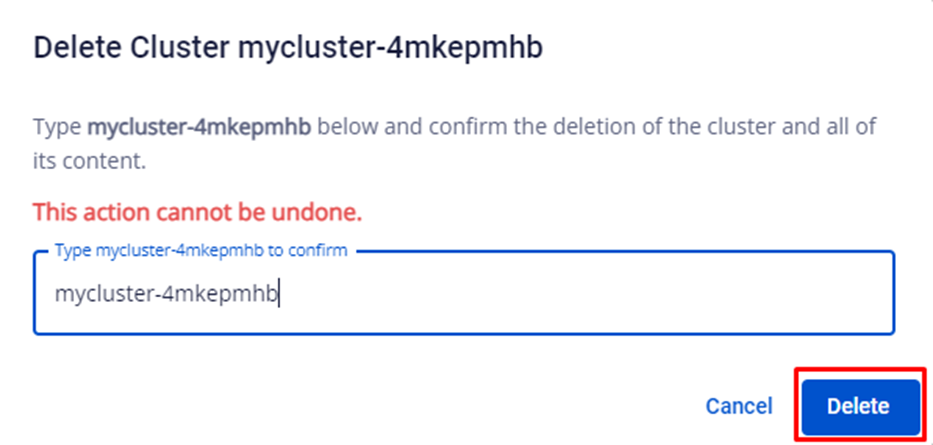
**Step 2**: From the list, select **\[Action]** at the end of the cluster you want to delete. Select **\[Delete]**.
**Step 3:** Review the warning information in the pop-up and select **"Delete".**
---
# Agent Instructions
This documentation is published with GitBook. GitBook is the documentation platform designed so that both humans and AI agents can read, navigate, and reason over technical content effectively. Learn more at gitbook.com.
## Querying This Documentation
If you need additional information that is not directly available in this page, you can query the documentation dynamically by asking a question.
Perform an HTTP GET request on the current page URL with the `ask` query parameter, and the optional `goal` query parameter:
```
GET https://ai-docs.fptcloud.com/fpt-gpu-cloud/gpu-cluster/managed-k8s-with-gpu-virtual-machine/tutorial/manage-a-cluster.md?ask=&goal=
```
`ask` is the immediate question: it should be specific, self-contained, and written in natural language.
`goal` is optional and describes the broader end goal you are ultimately trying to accomplish on behalf of the user. GitBook uses it to tailor the answer towards what is most useful for that goal.
The response will contain a direct answer to the question and relevant excerpts and sources from the documentation.
Use this mechanism when the answer is not explicitly present in the current page, you need clarification or additional context, or you want to retrieve related documentation sections.