> For the complete documentation index, see [llms.txt](https://ai-docs.fptcloud.com/llms.txt). Markdown versions of documentation pages are available by appending `.md` to page URLs; this page is available as [Markdown](https://ai-docs.fptcloud.com/fpt-gpu-cloud/gpu-cluster/managed-k8s-with-gpu-virtual-machine/tutorial/modify-cluster-settings.md).
# Modify cluster settings
## **1. Adding a Worker Group**
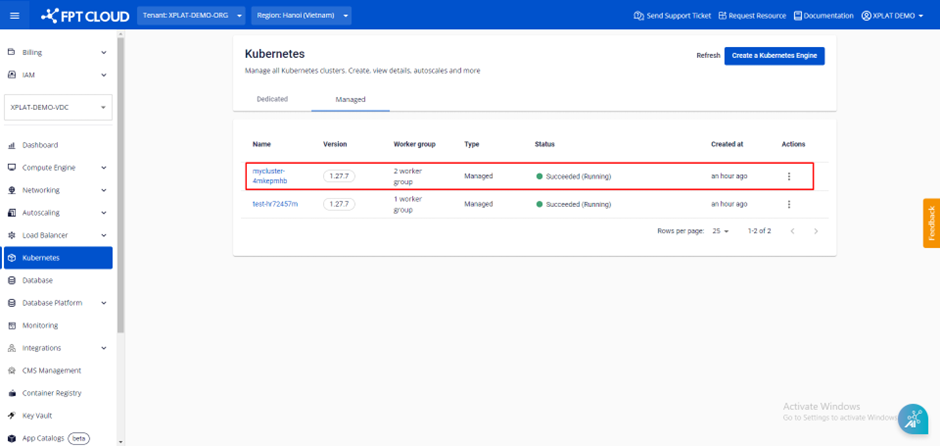
**Step 1**: Select **\[Containers] > \[Kubernetes]** from the menu to display the **Kubernetes Management** page. Select the cluster to which you want to add a worker group.
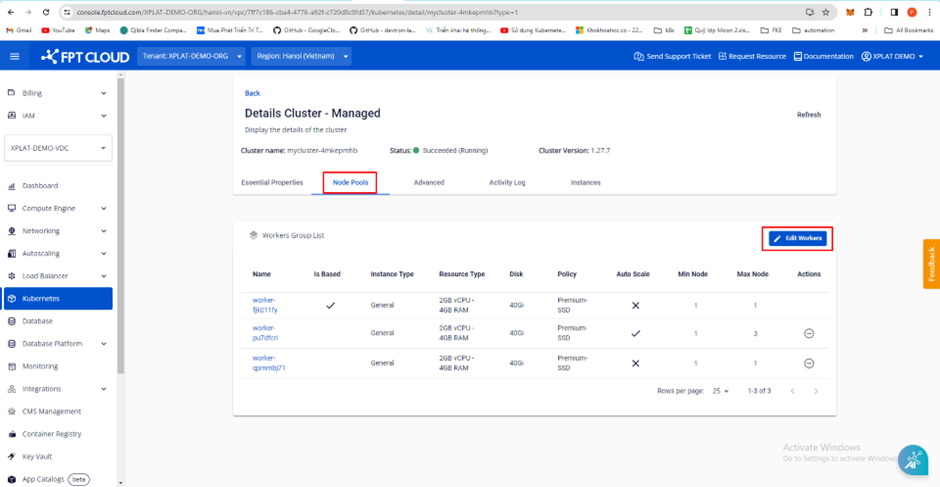
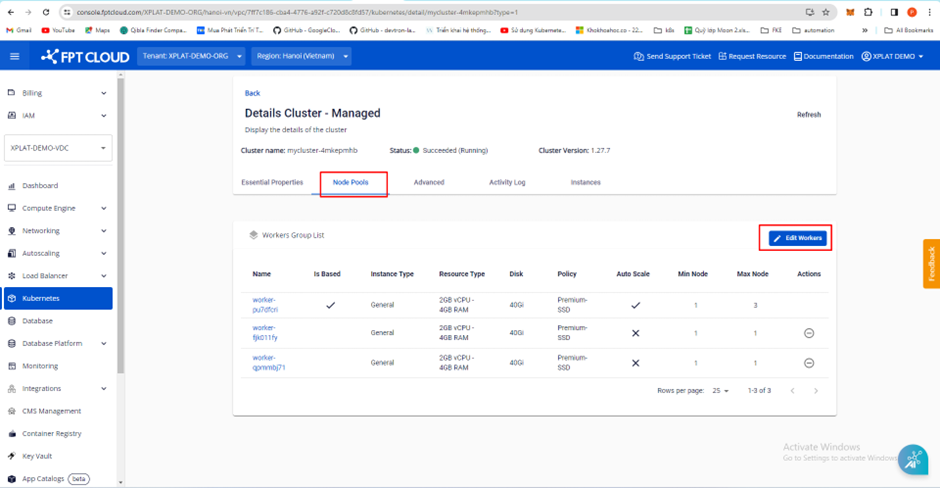
**Step 2:** Select **Node Pools > Edit Workers.**
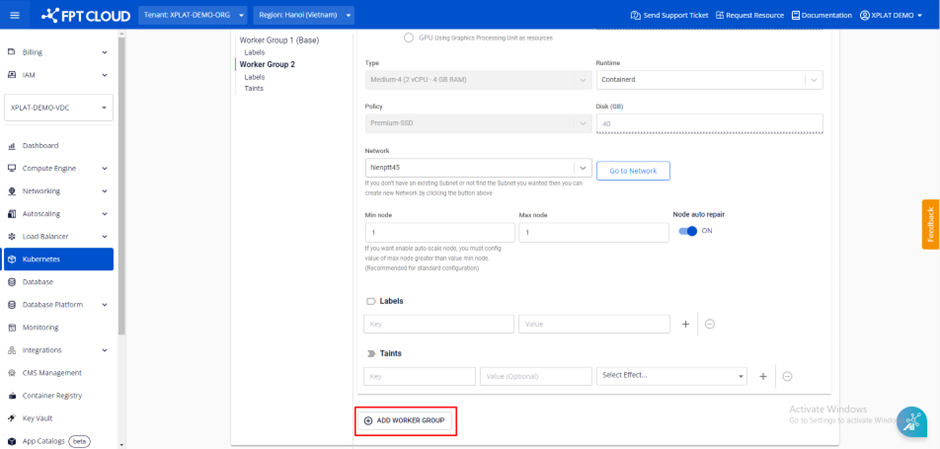
**Step 3**: Select **ADD WORKER GROUP.**
**Step 4:** Enter the required information in each field.
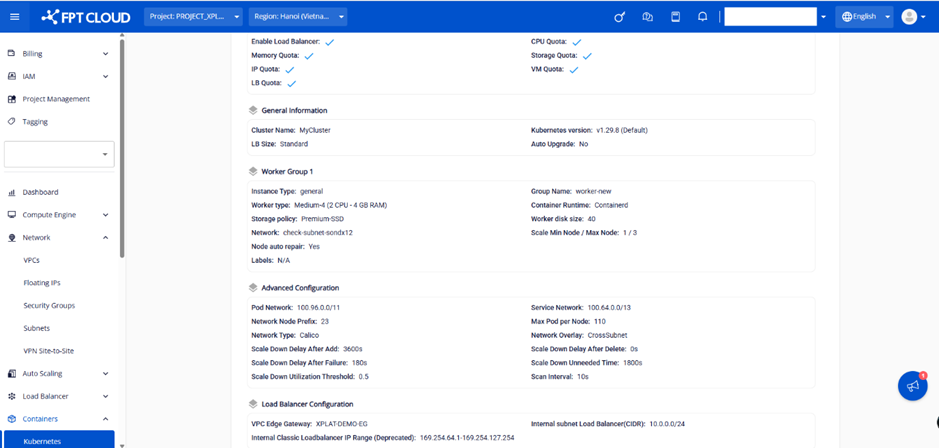
* **Instance Type:** Select **the worker node instance type** (CPU or GPU).
* **Type:** Select **the worker node configuration** (CPU and memory).
* **Container Runtime:** Select **Containerd.**
* **Storage Policy:** Select the storage policy type for the worker node disk (supports IOPS).
* **Disk (GB):** Select the capacity **of the worker node's root disk.**
* **Network:** Select the subnet used to deploy Kubernetes cluster VMs.
* **Scale min**: Minimum number of VM instances for worker nodes in the k8s cluster. A minimum of 3 nodes is recommended for production environments.
* **Scale max**: The maximum number of VM instances for worker nodes in the worker group within the k8s cluster.
* **Label:** Apply a label to a **worker** group
* **Taint:** Apply a Taint **to the worker group.**
**Step 5**: Review the information and select **"Save"** to add the new worker.
Adding the cluster takes a few minutes, and the cluster status changes to "**Processing."** The cluster continues to function normally even after adding a new worker group.
## **2. Editing Worker Group Labels/Taints**
**Step 1:** Select **\[Containers] > \[Kubernetes]** from the menu to display the **Kubernetes Management** page. **Select the cluster** whose labels/taint you wish to edit.
**Step 2:** Select **Node Pools > Edit Workers.**
**Step 3:** Enter the labels and **taints** you want to add to the worker group, then click the **\[Save]** button.
*Note: Label and taint editing takes effect within a few minutes, and the cluster status changes to **"Processing."** Users cannot perform editing operations on the cluster until this process completes.*
## **3. Enabling/Disabling Automatic Node Repair**
**In addition to cluster autoscaling,** FPTCloud provides a node auto-healing feature that automatically restarts worker nodes that remain in the NotReady state for over 3 minutes. This feature is effective when worker nodes become overloaded or when issues related to the container runtime or kubelet cause a node to enter the NotReady state. If a node fails to return to the Ready state after auto-repair, the system replaces the NotReady node with a new node with identical settings after 10 minutes. This feature is enabled by default for worker groups (worker groups containing cluster system components). Users can enable or disable this feature for other worker groups within the cluster.
**Step 1:** Select **"Containers" > "Kubernetes"** from the menu to display the **Kubernetes Management** page. Select the cluster for which you want to enable/disable Node Auto-repair.
**Step 2:** Select **Node Pools** > **Edit Workers.**
**Step 3:** **Within ****worker**** pool, toggle the Node auto repair feature on or off.**
*Note: Only version upgrades are possible; downgrades cannot be performed.*
**Step 4:** Click the **\[Save]** button.
Editing the Node auto repair on/off setting takes effect within a few minutes, and the cluster status changes to **Processing.** During execution, you cannot perform any cluster editing operations until the process completes.
## **4. Worker Group-Based Migration Feature**
If a user wishes to change the worker group base, system components (such as CoreDNS, Metrics Server, CNI Controller, etc.) will be redeployed to worker nodes belonging to the new worker group base. This feature is useful when you want to increase or decrease the worker node flavor configuration within a worker group base. In such cases, create a new worker group with the desired worker node configuration, migrate to that new worker group base, and then delete the old worker group base.
**Step 1:** Select **\[Containers] > \[Kubernetes]** from the menu to display the **Kubernetes Management** page. Select the cluster for which you want to modify Worker Group settings.
**Step 2:** Select **Node Pools > Edit Workers.**
**Step 3:** Select the worker group you want to modify.
**Step 4:** Review the information and select **\[Save]** to save the changes.
The Worker Group Base modification process will run. While it is running, users cannot perform any editing operations on the cluster until the process completes.
***Tip:** When changing worker group parameters, the system first creates new worker nodes with the desired configuration. Once new worker nodes are successfully created, the old worker nodes are removed from the system. Pods are migrated from the old worker nodes to the new worker nodes.*
## **5. K8s Version Upgrade**
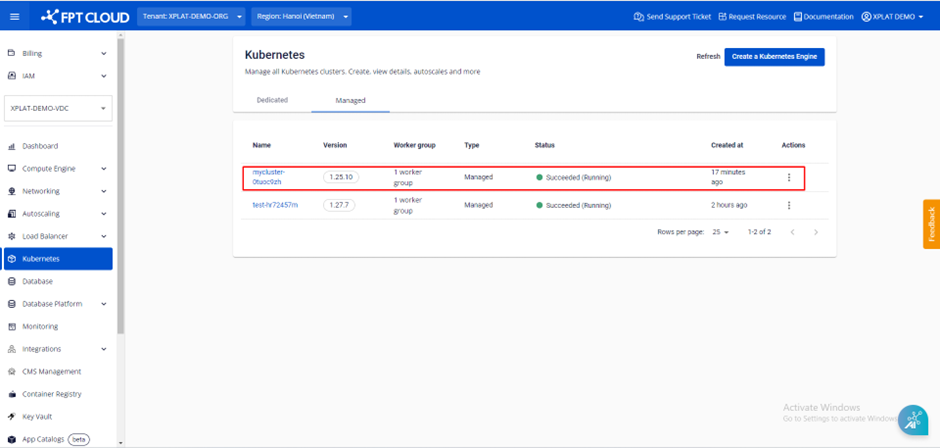
**Step 1:** Select **\[Containers] > \[Kubernetes]** from the menu to display the **Kubernetes Management** page. Select the cluster for which you want to upgrade the K8s version.
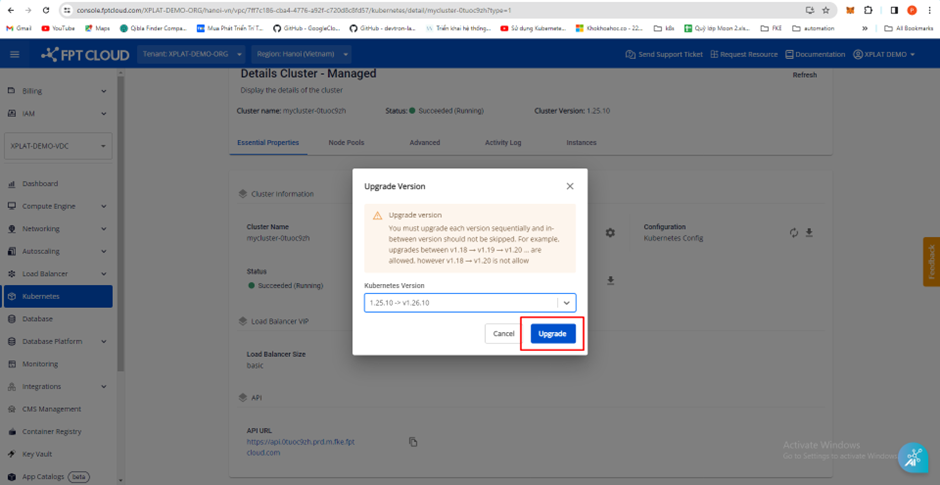
**Step 2:** Under **\[Cluster Information] > \[Version]**, select the **\[Setting]** icon.
**Step 3:** Select the version to upgrade to and choose **\[Upgrade].**
***Note:** Only version upgrades are possible; downgrades cannot be performed.*
*To avoid issues during processing, we recommend upgrading versions sequentially.*
## **6. Changing Cluster Endpoint Access**
### 1️⃣ **To change the access mode for a Kubernetes cluster**
⚠️ **Note**:
* M-FKE only supports converting access modes between Public & Private ➔ Private and vice versa.
* M-FKE does not support access mode conversion when the Kubernetes cluster is in Public mode.
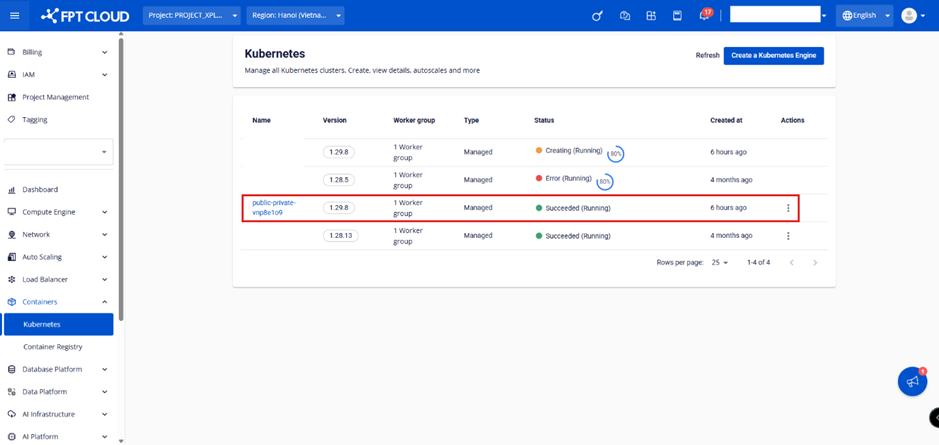
**Step 1:** Select the cluster whose access mode you want to change and click its name.
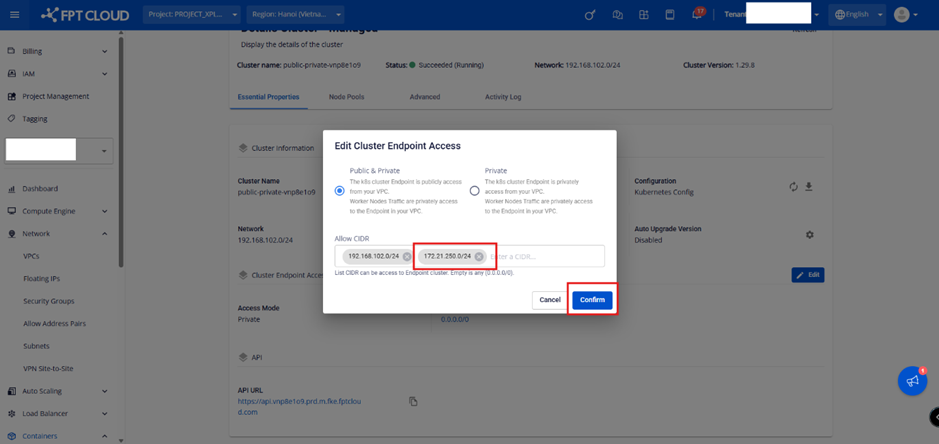
**Step 2:** Under \[Cluster Endpoint Access], click the \[Edit] button.
**Step 3:** Select the desired access mode, enter a valid Allow CIDR, and click the Confirm button.
### 2️⃣ **To update the Allow CIDR:**
**Step 1:** Select the cluster whose access mode you want to change and click the cluster name.
**Step 2:** Under Cluster Endpoint Access, click the Edit button.
**Step 3:** Enter additional valid CIDR ranges and click the Confirm button.
### 2️⃣ **To remove an Allow CIDR:**
**Step 1**: Select the cluster whose access mode you want to change and click the cluster name.
**Step 2:** Under "Cluster Endpoint Access," click the Edit button.
**Step 3:** Delete all existing CIDRs and click the Confirm button.
⚠️ The access mode update will be applied within a few minutes, and the cluster status will change to **"Processing."** The cluster will continue to function normally during the transition to the new access mode.
## **7. Changing Internal Subnet Load Balancer (CIDR) Settings**
FPT Cloud supports customers who wish to change the range of their Internal Subnet Load Balancer (CIDR) on the Unify Portal. Customers should follow the steps below.
**Step 1**: Select the cluster for which you wish to change the Internal Subnet Load Balancer and click the cluster name.
**Step 2**: Select the \[Advanced] tab and click the \[Config Internal subnet Load Balancer] button.
**Step 3**: Enter a valid CIDR range and click the "Confirm" button.
⚠️ The internal subnet load balancer update will be performed within a few minutes, and the cluster status will change to "Processing." The cluster will continue to function normally during the transition to the new internal subnet load balancer (CIDR).
---
# Agent Instructions
This documentation is published with GitBook. GitBook is the documentation platform designed so that both humans and AI agents can read, navigate, and reason over technical content effectively. Learn more at gitbook.com.
## Querying This Documentation
If you need additional information that is not directly available in this page, you can query the documentation dynamically by asking a question.
Perform an HTTP GET request on the current page URL with the `ask` query parameter, and the optional `goal` query parameter:
```
GET https://ai-docs.fptcloud.com/fpt-gpu-cloud/gpu-cluster/managed-k8s-with-gpu-virtual-machine/tutorial/modify-cluster-settings.md?ask=&goal=
```
`ask` is the immediate question: it should be specific, self-contained, and written in natural language.
`goal` is optional and describes the broader end goal you are ultimately trying to accomplish on behalf of the user. GitBook uses it to tailor the answer towards what is most useful for that goal.
The response will contain a direct answer to the question and relevant excerpts and sources from the documentation.
Use this mechanism when the answer is not explicitly present in the current page, you need clarification or additional context, or you want to retrieve related documentation sections.