> For the complete documentation index, see [llms.txt](https://ai-docs.fptcloud.com/llms.txt). Markdown versions of documentation pages are available by appending `.md` to page URLs; this page is available as [Markdown](https://ai-docs.fptcloud.com/fpt-gpu-cloud/gpu-cluster/managed-k8s-with-gpu-virtual-machine/tutorial/schedule-hibernate-and-wake-up.md).
# Schedule Hibernate & Wake-up
In addition to the hibernate & wake-up functionality directly available in the portal, FPT Cloud provides a hibernate & wake-up scheduling service, allowing users to automatically hibernate and wake up clusters.
In FPTCloud, users can set, edit, or delete one or multiple schedules simultaneously as needed.
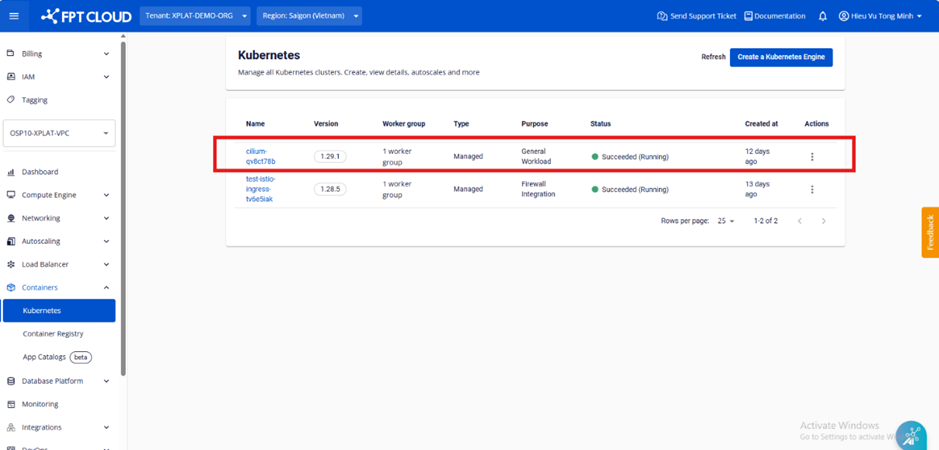
**Step 1:** Select **"Containers" > "Kubernetes"** from the menu to display the **Kubernetes Management** page.
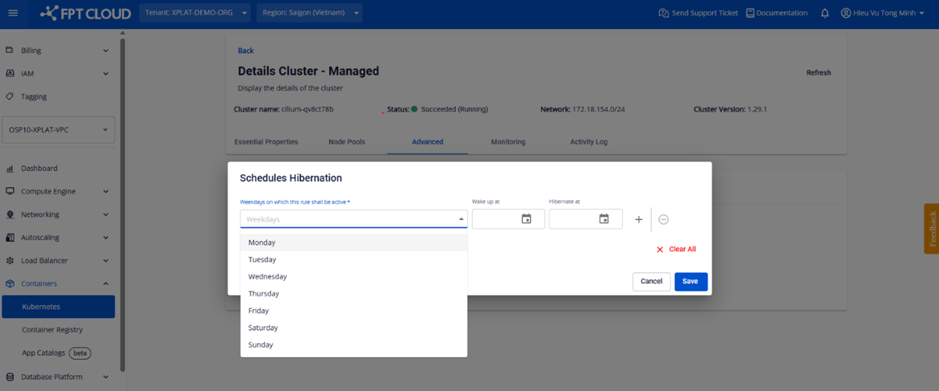
**Step 2:** Access the cluster details page \[Advanced] > \[Schedule Hibernation]
**Step 3**: Select the date(s) to apply the schedule. You can select one or multiple dates.
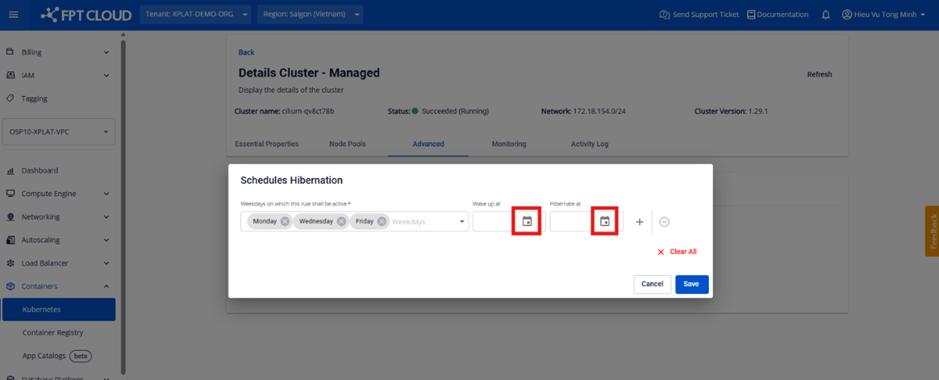
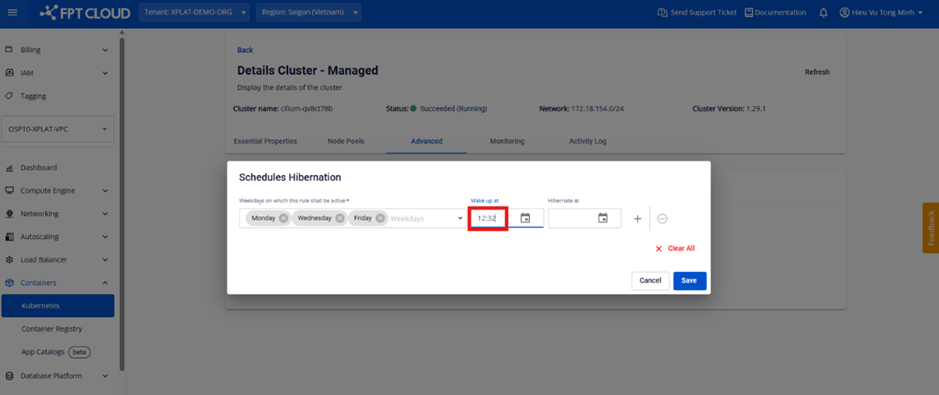
**Step 4**: Select the time to wake up and hibernate the cluster (Time Zone: UTC+7).
Method 1: Click the calendar icon in each field to set the time
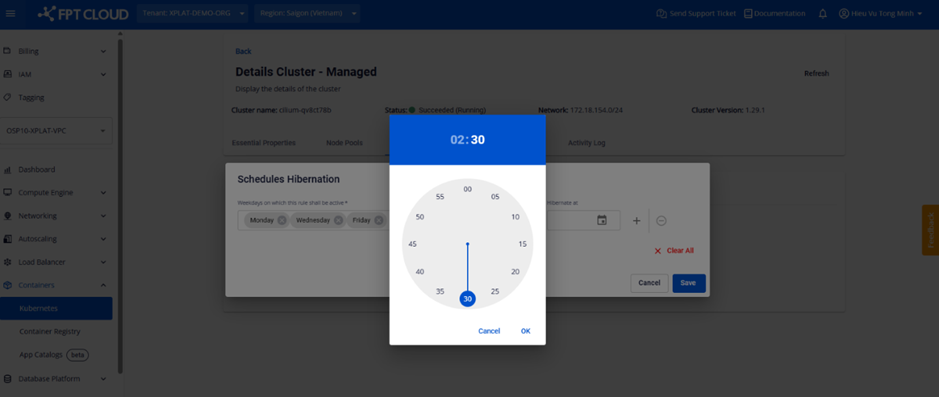
Set based on the clock
Method 2: Enter the time directly as text
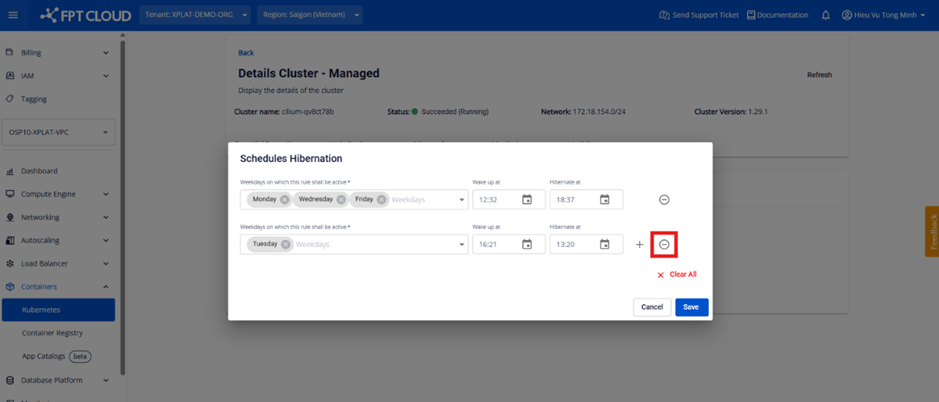
**Step 5: Add/Remove calendars**
Add a calendar
Delete a calendar
**Step 6: Save the new calendar after creation/modification**
At this point, when the user's schedule is successfully updated in the system, the system returns a *"Success"* status. Additionally, the display section shows the time remaining until the next hibernation/wake-up.
*Note:*
\- Users can create or delete multiple calendars simultaneously for multiple dates and multiple different times. However, please note that the interval between hibernation and wake-up must be at least 15 minutes apart.
---
# Agent Instructions
This documentation is published with GitBook. GitBook is the documentation platform designed so that both humans and AI agents can read, navigate, and reason over technical content effectively. Learn more at gitbook.com.
## Querying This Documentation
If you need additional information that is not directly available in this page, you can query the documentation dynamically by asking a question.
Perform an HTTP GET request on the current page URL with the `ask` query parameter, and the optional `goal` query parameter:
```
GET https://ai-docs.fptcloud.com/fpt-gpu-cloud/gpu-cluster/managed-k8s-with-gpu-virtual-machine/tutorial/schedule-hibernate-and-wake-up.md?ask=&goal=
```
`ask` is the immediate question: it should be specific, self-contained, and written in natural language.
`goal` is optional and describes the broader end goal you are ultimately trying to accomplish on behalf of the user. GitBook uses it to tailor the answer towards what is most useful for that goal.
The response will contain a direct answer to the question and relevant excerpts and sources from the documentation.
Use this mechanism when the answer is not explicitly present in the current page, you need clarification or additional context, or you want to retrieve related documentation sections.