> For the complete documentation index, see [llms.txt](https://ai-docs.fptcloud.com/llms.txt). Markdown versions of documentation pages are available by appending `.md` to page URLs; this page is available as [Markdown](https://ai-docs.fptcloud.com/fpt-gpu-cloud/gpu-virtual-machine/on-fpt-cloud-console/tutorials/block-storage.md).
# Block Storage
### Overview
**Block Storage** is a service that provides block-based storage volumes for GPU Virtual Machines (VMs). Each storage disk behaves like a physical hard drive when attached to a VM, supporting fast, consistent, and high-throughput data access. Compared to local NVMe storage, Block storage offers greater durability, scalability, and persistence, ensuring that data remains available even when a VM is deleted or stopped.
There are two types of Block Storage disks:
* **Root disk:** serves as the primary system disk of a VM, containing the OS and essential system files required for boot and runtime. It is automatically created along with the VM during provisioning.
* **External disk:** is an independent data disk used to expand a VM's storage capacity. External disks can be detached from one VM and reattached to another, allowing flexible data reuse across workloads.
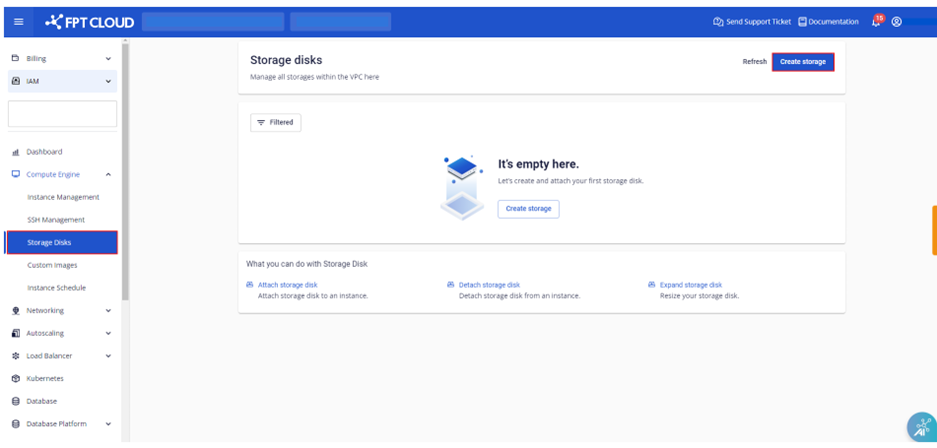
To access this service, go to **Main Menu** > **Compute Engine** > **Storage disks.** From this page, users can view a list of all Storage Disks created within the VPC, along with key details such as **Name**, **Tags**, **Storage type**, **Storage policy**, **Size**, **Created At (creation date)**, and **Attached (associated virtual machine)**.
### Create Storage Disks
To create a Storage disk in FPT Cloud, first identify the type of disk you need:
* **Root disk** is automatically created along with the virtual machine. References: [Create a GPU VM](https://ai-docs.fptcloud.com/ai-infastructure/gpu-virtual-machine/tutorials/how-to-create-a-gpu-vm)
* **External disk** can be created independently and attached to a virtual machine later.
You can create an **External disk** using either of the following methods:
{% tabs %}
{% tab title="Method 1" %}
#### **Create an External disk from a Virtual machine detail page**
1\. Access the **Storage** section:
* From the main menu, go to **Compute Engine** > **Instance management**
* Select the virtual machine you want to external storage from the list, then click **Storage** tab
* Click **Create disk**
2\. Enter the required configuration
* **Storage policy**: Select the storage type or performance tier.
* **Size**: Define the storage capacity.
3\. Create the disk
* Click **Create disk**
* The system will initialize the new disk and notify you upon completion.
* Once successfully, the new External disk will appear in the **Storage** tabs.
{% endtab %}
{% tab title="Method 2" %}
#### **Create an External disk from the Storage disks page**
1\. Access the **Storage disks** page:
* From the main menu, go to **Compute Engine** > **Storage disks**
* Click **Create storage**
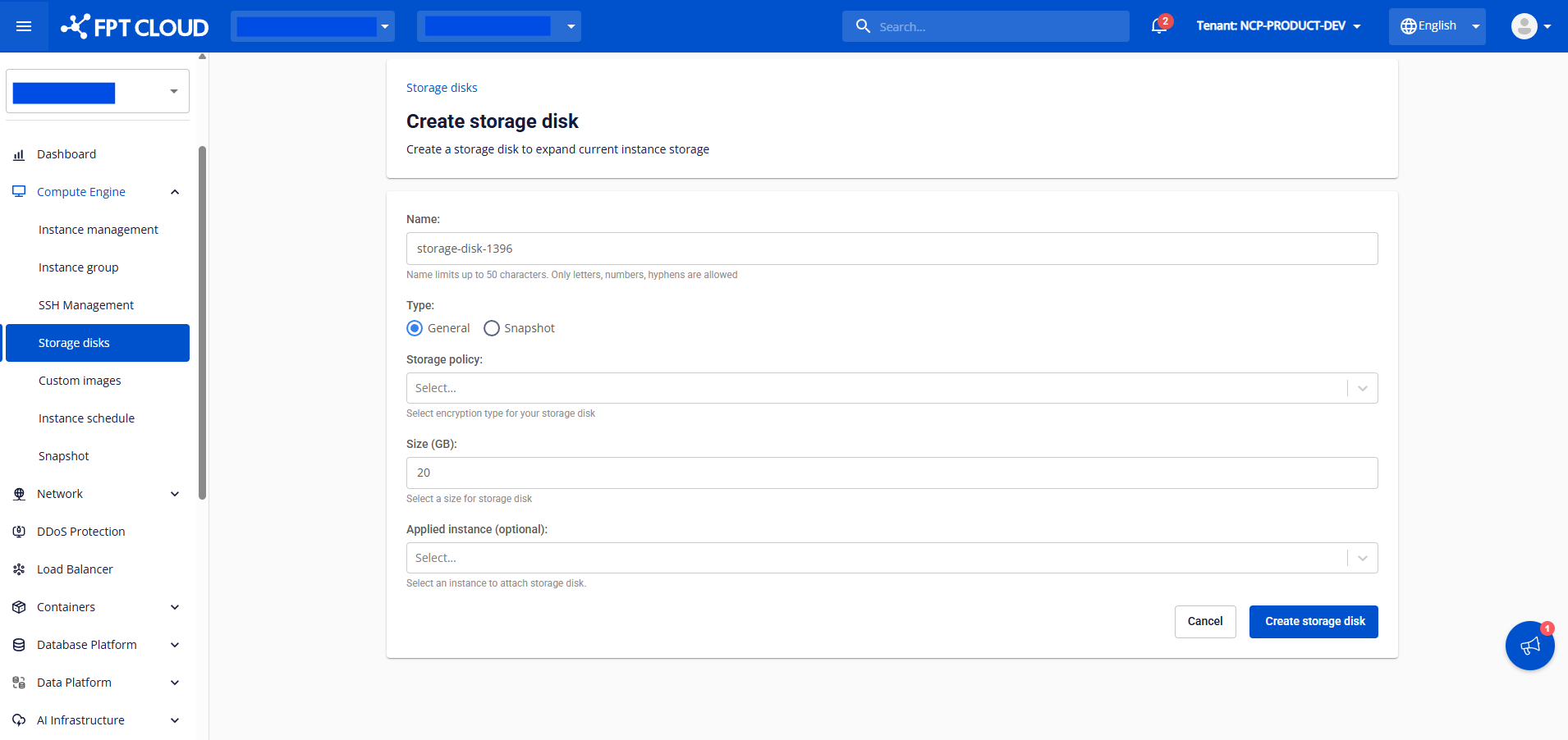
2\. Enter the required configuration
* **Name**: Specify the storage disk name.
* **Type**: Choose **General** to create a new empty disk or **Snapshot** to restore from an existing snapshot.
* **Storage policy**: Select the storage type or performance tier.
* **Size**: Define the storage capacity.
* **Applied instance (optional)**: Choose a VM to attach the disk to (can be done later).
3\. Create the disk
* Click **Create storage disk**
* The system will initialize the new disk and notify you upon completion.
* Once successfully, the new External disk will appear in the **Storage disks** page.
{% endtab %}
{% endtabs %}
### Attach External Disks to GPU VMs
After creation, if a External disk is not yet attached to any virtual machine, you can manually attach it to enable usage. Storage disks are compatible with all OSs supported on FPT Cloud.
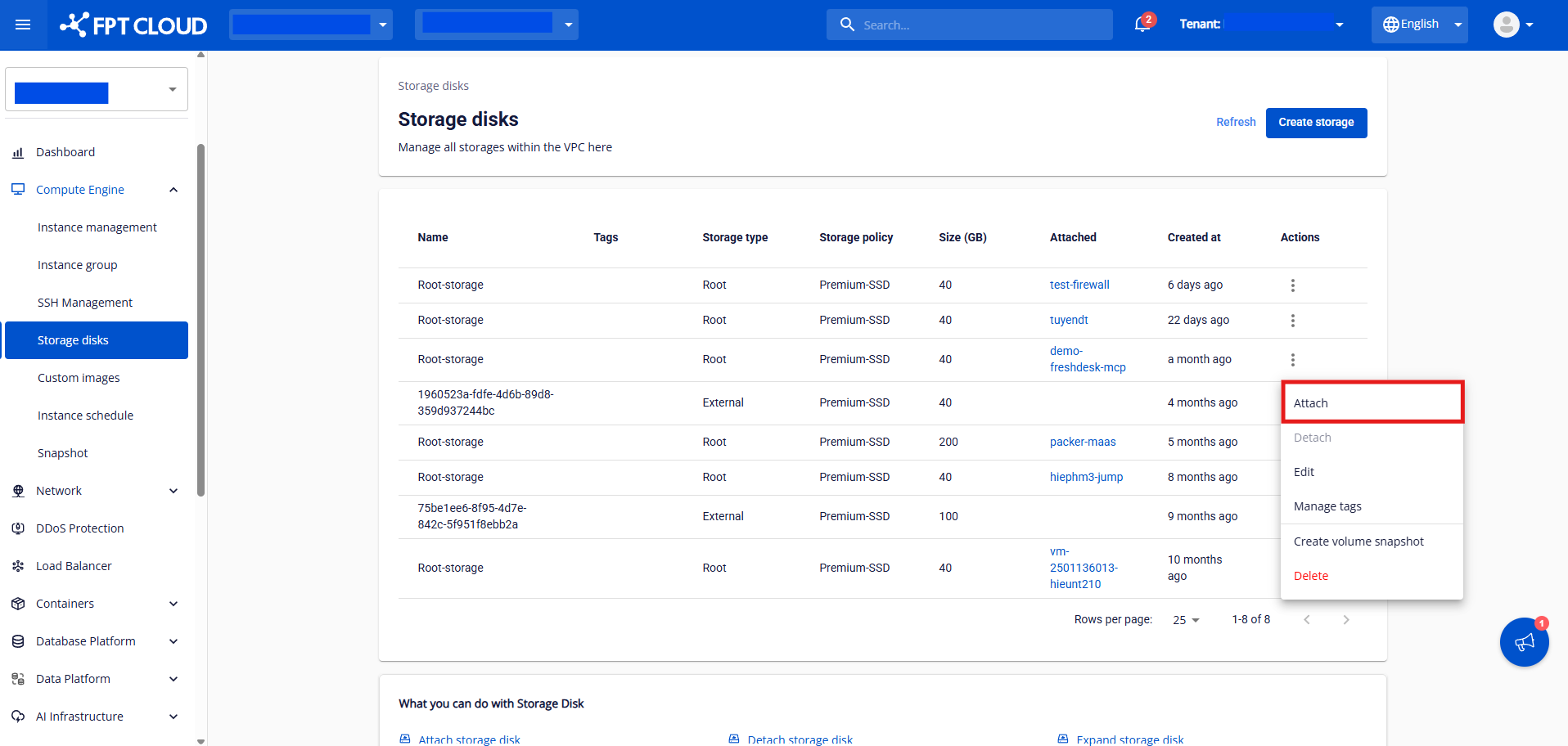
1\. Select the External disk you want to attach. Then click **Actions** > **Attach`.`**
2\. Choose the target virtual machine from the popup window and click **Attach storage disk**.
{% hint style="warning" %}
Note:
* Each Storage disk can only be attached to 01 virtual machine at a time.
* For Windows virtual machine, additional configuration steps are required before the new disk becomes usable.
{% endhint %}
### Detach External Disks to GPU VMs
You can detach a External disk from a virtual machine when it is no longer needed. After detachment, all data on the disk remains intact, and the disk can be reattached to another virtual machine at any time.
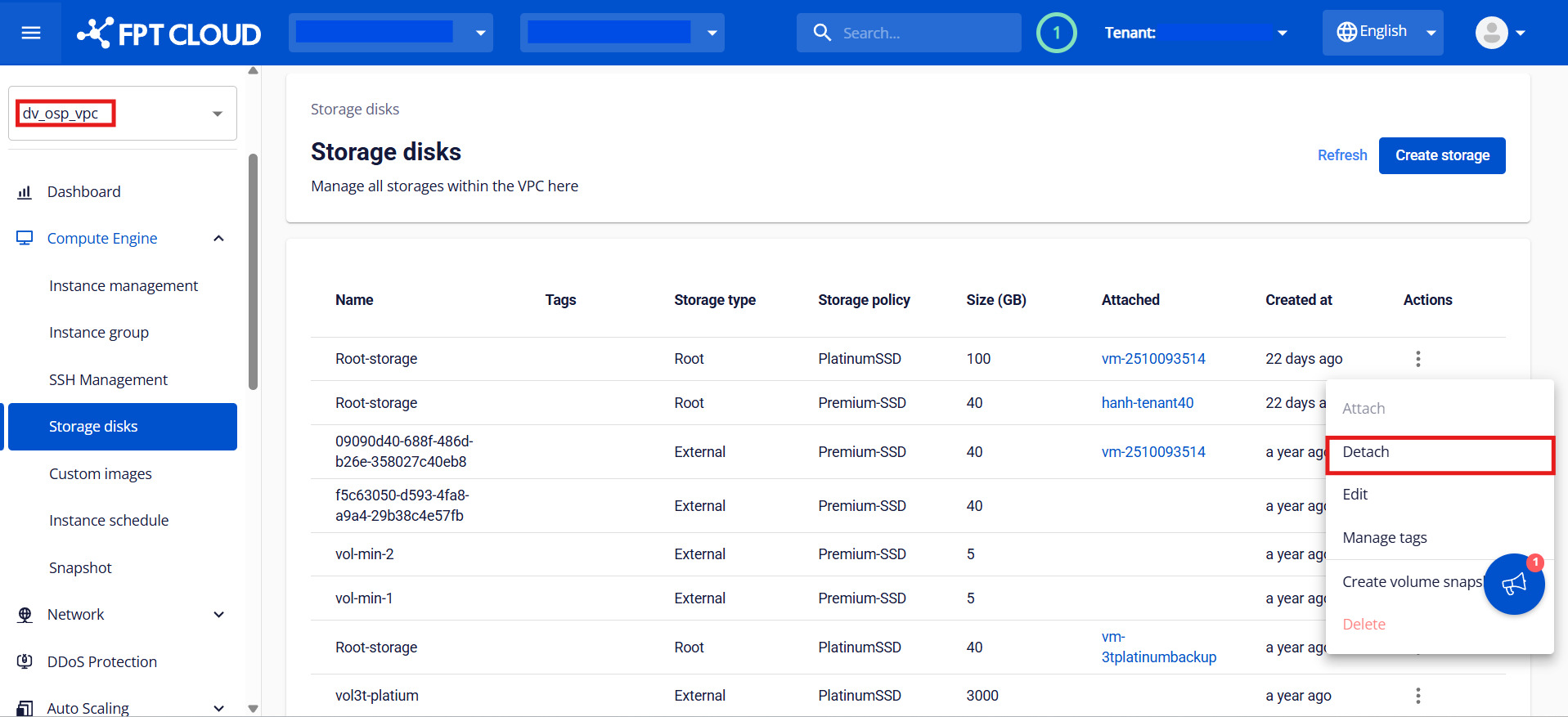
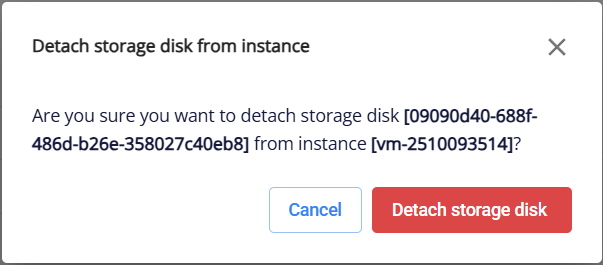
1\. Select the External disk you want to detach from the list, then click **Actions** > **Detach**.
2\. Review the confirmation popup, then click **Detach** to confirm.
### Edit Storage Disks
You can edit the details of a Storage disk when it is not attached to any virtual machine.
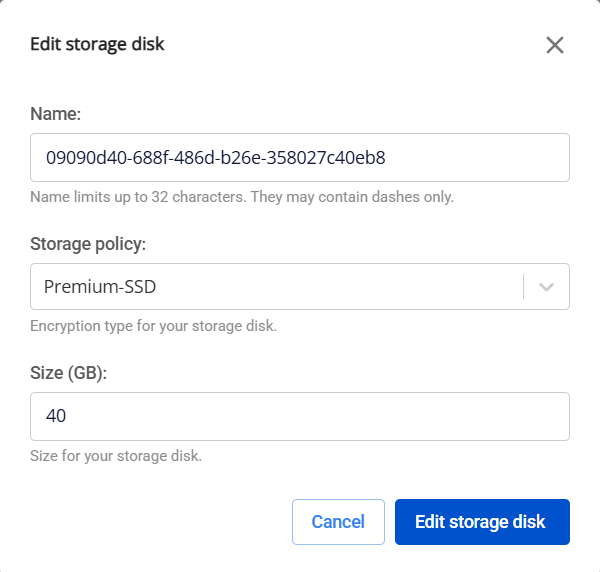
1\. Select the Storage disk you want to modify from the list, then click **Actions** > **Edit**.
2\. In the **Edit** popup, update the necessary information, then click **Edit root disk**/ **Edit storage disk** to save changes.
* **Name**: the name of the storage disk.
* **Storage policy**: the storage type or performance tier.
* **Size**: the capacity of the storage disk.
**Note**: The new size must be **greater than the current size** - reducing disk size is not supported.
### Create Volume Snapshots
1\. Select the Storage disk you want to back up from the list, then click **Actions** > **Create volume snapshots**.
2\. In the **Create volume snapshot** pop-up, update the necessary information, then click **Create volume snapshot**.
* **Snapshot name**: the name for the snapshot
* **Add tag (optional)**: tags for the snapshot
{% hint style="warning" %}
**Note:**
* Snapshot will contain data from the selected storage disk.
* Creating a snapshot from an attached volume may cause data inconsistency in some cases. It’s recommended to detach the disk or stop the VM before taking a snapshot for critical workloads.
* Snapshots are stored in the **Snapshot** section and can be used to create new disks or restore data later.
{% endhint %}
### Delete Storage Disk
A Storage disk can be automatically and manually deleted depending on its type and attachment status.
* **Root disk**: is automatically deleted together with the virtual machine it is attached to. No manual action is required.
* **External disk**: is not deleted when the virtual machine it is attached to is removed. The disk remains available in **Storage disks** features and can be reattached to another virtual machine as needed.
You can also manually delete an **External disk** at any time to avoid additional storage costs by following these steps:
{% hint style="warning" %}
**Note:**
* Only detached External disks (not attached to any instance) can be deleted.
* Once deleted, all data on the disk cannot be recovered. Please proceed with caution.
{% endhint %}
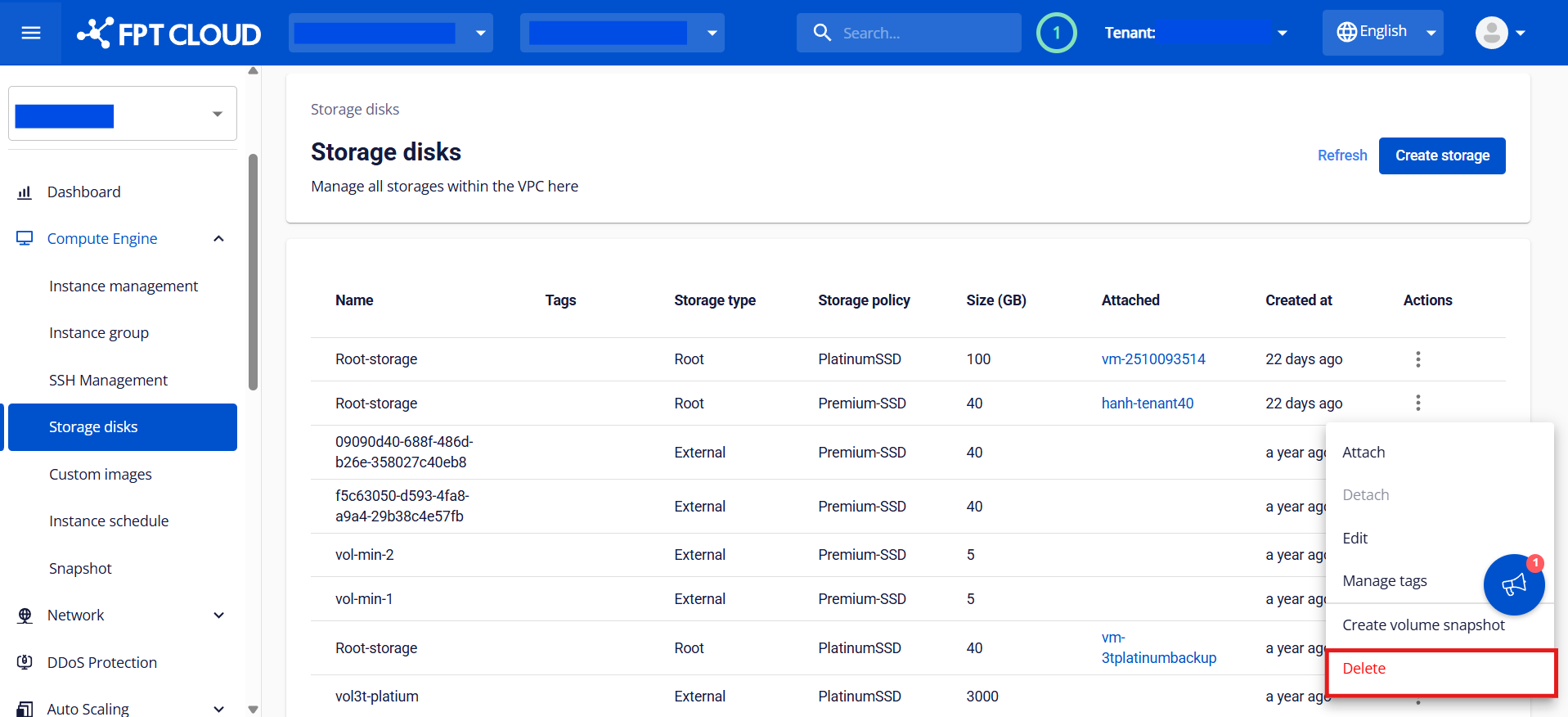
1\. Select the External disk you want to delete from the list, then click **Actions** > **Delete`.`**
2\. Review the warning message in the confirmation pop-up and click **Delete storage disk** to confirm.
The External disk will be permanently removed from your VPC.
---
# Agent Instructions
This documentation is published with GitBook. GitBook is the documentation platform designed so that both humans and AI agents can read, navigate, and reason over technical content effectively. Learn more at gitbook.com.
## Querying This Documentation
If you need additional information that is not directly available in this page, you can query the documentation by asking a question.
Perform an HTTP GET request on the following URL with the `ask` and `goal` query parameters:
```
GET https://ai-docs.fptcloud.com/fpt-gpu-cloud/gpu-virtual-machine/on-fpt-cloud-console/tutorials/block-storage.md?ask=&goal=
```
`ask` is the immediate question: it should be specific, self-contained, and written in natural language.
`goal` is what the user is ultimately trying to achieve, the reason they need the answer. Sharing it helps GitBook give you a better, more relevant answer. A goal is most helpful when it describes the outcome the user wants rather than restating the question. For example, with `ask=how do I create an API token`, a goal like `automate deployments from our CI pipeline` lets GitBook tailor the answer to that use case.
The response will contain a direct answer to the question and relevant excerpts and sources from the documentation.
Use this mechanism when the answer is not explicitly present in the current page, you need clarification or additional context, or you want to retrieve related documentation sections.