# HPS Mount point in Vietnam region

## What is a Mount Point? <a href="#hpsmountpoint-whatisamountpoint" id="hpsmountpoint-whatisamountpoint"></a>

In **File Storage – High Performance**, a **mount point** is a logical access point that allows users to connect to a specific directory (path) within the storage pool.

To access data from a **Bare Metal Server or GPU Virtual machine**, you need to create a mount point that defines how the server connects to the file storage system.

## Mount Point Configuration <a href="#hpsmountpoint-mountpointconfiguration" id="hpsmountpoint-mountpointconfiguration"></a>

<table><thead><tr><th width="163.5999755859375">Configuration</th><th>Description</th></tr></thead><tbody><tr><td><strong>Path</strong></td><td>The directory path in the storage system to be mounted.</td></tr><tr><td><strong>Access Protocol</strong></td><td>Supported protocols such as <strong>NFSv3</strong> or <strong>NFSv4</strong>.</td></tr><tr><td><strong>Access Subnet</strong></td><td>Only servers within the specified subnet are allowed to mount. Servers outside this range will be denied access.</td></tr></tbody></table>

## Role of the Mount Point <a href="#hpsmountpoint-roleofthemountpoint" id="hpsmountpoint-roleofthemountpoint"></a>

<table><thead><tr><th width="164.39996337890625">Component</th><th>Role</th></tr></thead><tbody><tr><td><strong>Mount Point</strong></td><td>Acts as the access interface from the internal network to the file storage system via NFSv3, NFSv4, or S3.</td></tr><tr><td><strong>Client (Server)</strong></td><td>Mounts the file storage and displays it as a local drive.</td></tr><tr><td><strong>QoS Policy</strong></td><td>Associates performance control such as IOPS or throughput limits with the mount point.</td></tr></tbody></table>

## Mount Point Structure <a href="#hpsmountpoint-mountpointstructure" id="hpsmountpoint-mountpointstructure"></a>

<table><thead><tr><th width="164.39996337890625">Field</th><th>Description</th></tr></thead><tbody><tr><td><strong>Name</strong></td><td>Display name shown in the portal.</td></tr><tr><td><strong>Path</strong></td><td>Actual directory path (e.g., <code>/ml-data</code>).</td></tr><tr><td><strong>Protocol</strong></td><td>NFS protocol version (NFSv3 or NFSv4).</td></tr><tr><td><strong>Subnet</strong></td><td>CIDR network range allowed to access.</td></tr><tr><td><strong>Endpoint Range</strong></td><td>Connection endpoint for client access.</td></tr><tr><td><strong>QoS Policy</strong></td><td>Defines performance and throughput limits.</td></tr><tr><td><strong>NFS Alias</strong></td><td>An optional alias name is displayed in the operating system.</td></tr></tbody></table>

## Relationship with Other Components <a href="#hpsmountpoint-relationshipwithothercomponents" id="hpsmountpoint-relationshipwithothercomponents"></a>

* **VPC & Subnet:**\
  A mount point can be assigned to multiple subnets within the same or different VPCs. Only servers in the assigned subnets can access it.
* **QoS Policy:** Used to control performance through:
  * Maximum Throughput (MB/s)
  * Maximum IOPS
  * Burst Limit
* **NFS Protocol Support:**
  * **TCP:** Standard and widely used protocol.
  * **RDMA:** Provides higher performance and lower latency.
  * **Multi-Path RDMA:** Recommended for large-scale or high-throughput workloads.

{% hint style="warning" %} <mark style="color:$primary;">**Note:**</mark>

This feature for **managing mount points in the FPT Cloud console is currently supported** **only in the Vietnam (Hanoi2) region** and can be used **exclusively with the Metal Cloud service (Bare Metal GPU servers).**

**For HPS used with GPU VM or in Japan regions, FPT will provide a mount point to use.**
{% endhint %}

## Create a Mount Point <a href="#hpsmountpoint-createamountpoint" id="hpsmountpoint-createamountpoint"></a>

#### **Key Principles**

* **Subnet Association:**\
  The mount point must be assigned to a specific subnet; only servers in that subnet can connect.
* **Avoid Root Path (`/`):**\
  Create mount points only for subdirectories (e.g., `/project-a`, `/team1/data`).
* **One Path – One Mount Point:**\
  Each path can only be assigned to a single mount point (no duplicates).
* **Unlimited Mount Points:**\
  You can create multiple mount points as long as paths do not overlap.
* **NFSv4 Path Export Rule:**\
  All parent directories of the target path must also be exported.\
  Example: To export `/project-a/team1/data`, the paths `/project-a` and `/project-a/team1` must also be exported.

#### **Step-by-Step**

{% stepper %}
{% step %}
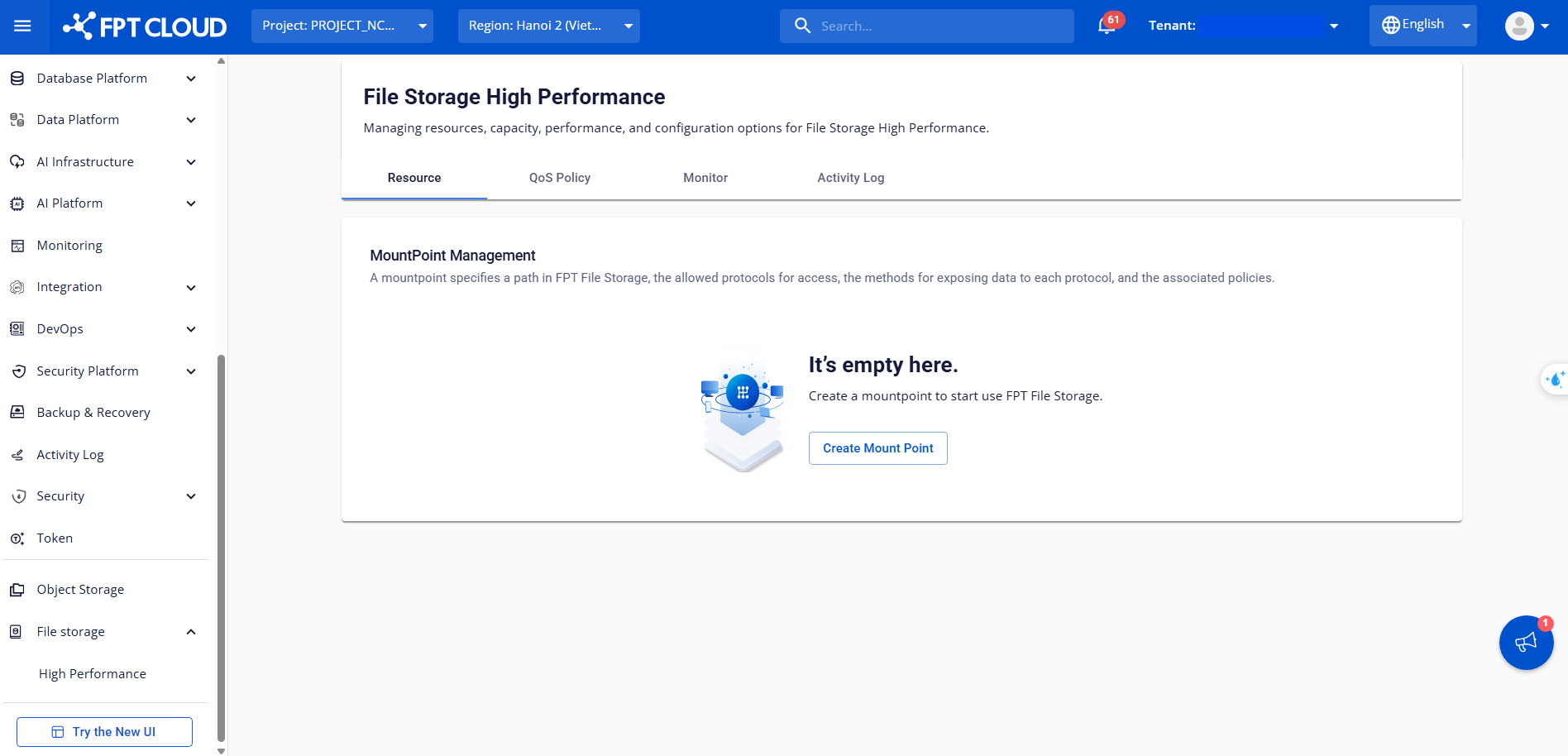
Go to **High-performance** under **File Storage** in the left-side menu, and click **Create Mount Point**.

<figure><img src="https://2158065032-files.gitbook.io/~/files/v0/b/gitbook-x-prod.appspot.com/o/spaces%2F2FDB5fvsiFxYI972UDTv%2Fuploads%2FoQjKyvGcl5x46R1MHX2o%2Fimage.png?alt=media&#x26;token=12f6602d-25ff-4326-90bb-bd76c3c83b7b" alt=""><figcaption></figcaption></figure>
{% endstep %}

{% step %}
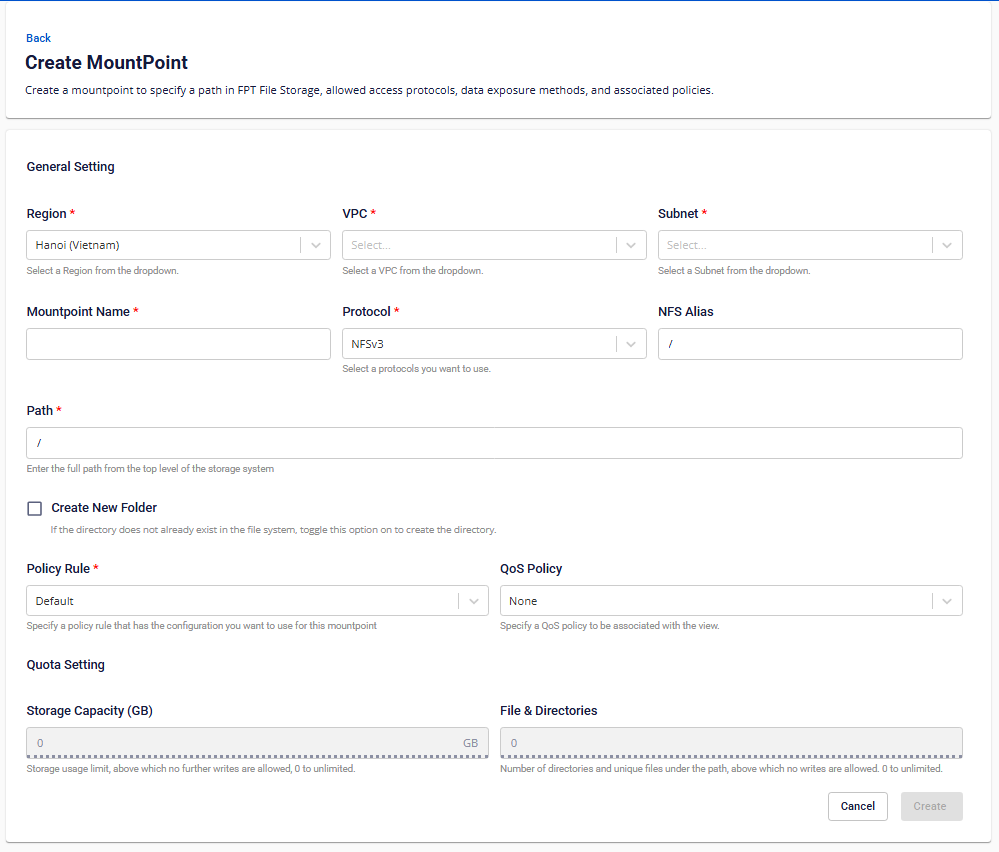
Enter the required information:

<figure><img src="https://2158065032-files.gitbook.io/~/files/v0/b/gitbook-x-prod.appspot.com/o/spaces%2F2FDB5fvsiFxYI972UDTv%2Fuploads%2FTGDKelzWOLKVcIwkAvQR%2Fimage.png?alt=media&#x26;token=c472afc1-ba1c-4a42-82fb-55bd198de0d0" alt=""><figcaption></figcaption></figure>

* **Region:** Select the desired region.
* **VPC / Subnet:** Choose the subnet containing the target server.
* **Mount Point Name:** 3–63 characters (letters, numbers, underscores). Cannot start or end with a special character.
* **Protocol:** Choose **NFSv3** or **NFSv4**.
  * *NFSv3:* You may set an NFS Alias.
  * *NFSv4:* Ensure all parent directories are also exported.
* **Path:** Must start with “/”, cannot end with “/” or contain spaces.
  * Optionally, check **Create new directory** if the path does not exist.
* **QoS Policy:** Select an existing policy or create a new one.
  {% endstep %}

{% step %}
Click **Create** to complete setup.

**Result:**

* **Success:** The mount point appears in the portal and is available to servers in the assigned subnet.
* **Failure:** Review and correct the configuration parameters, then retry.
  {% endstep %}
  {% endstepper %}

## View details of a Mount Point <a href="#hpsmountpoint-viewdetailsofamountpoint" id="hpsmountpoint-viewdetailsofamountpoint"></a>

After creating a Mount Point, you should review its configuration details in the portal to verify that all parameters are correct before starting to use it.

#### **Step-by-step**

{% stepper %}
{% step %}
In the **FPT Cloud console**, go to the **Resource** tab.

<figure><img src="https://2158065032-files.gitbook.io/~/files/v0/b/gitbook-x-prod.appspot.com/o/spaces%2F2FDB5fvsiFxYI972UDTv%2Fuploads%2F24my7Bbc6c5hNDjxRBG8%2Fimage.png?alt=media&#x26;token=85281573-82b0-4005-94f6-1b20cd77c83b" alt=""><figcaption></figcaption></figure>
{% endstep %}

{% step %}
In the mount point list, click a mount point name.
{% endstep %}

{% step %}
It will show the mount point configuration and the guide to mount it with Bare Metal servers (Metal Cloud).

<figure><img src="https://2158065032-files.gitbook.io/~/files/v0/b/gitbook-x-prod.appspot.com/o/spaces%2F2FDB5fvsiFxYI972UDTv%2Fuploads%2FMiNHAf324gEOzNksk6bC%2Fimage.png?alt=media&#x26;token=33409e2f-cad1-4496-9532-106662e065b8" alt=""><figcaption></figcaption></figure>
{% endstep %}
{% endstepper %}

## Delete a Mount Point <a href="#hpsmountpoint-deleteamountpoint" id="hpsmountpoint-deleteamountpoint"></a>

You can delete a mount point when it is no longer needed to:

* Revoke access permissions.
* Safely disconnect servers from the storage system.
* Reconfigure network or storage settings.

#### **Step-by-step**

{% stepper %}
{% step %}
In the **FPT Cloud console**, go to the **Resource** tab.
{% endstep %}

{% step %}
Locate the target mount point and select **Action > Delete**.
{% endstep %}

{% step %}
Confirm the deletion when prompted.
{% endstep %}
{% endstepper %}

{% hint style="warning" %}
**Notices**

* Ensure all clients have unmounted the storage before deletion.
* Deleting a mount point does **not** delete the underlying data in the directory path.
  {% endhint %}