> For the complete documentation index, see [llms.txt](https://ai-docs.fptcloud.com/llms.txt). Markdown versions of documentation pages are available by appending `.md` to page URLs; this page is available as [Markdown](https://ai-docs.fptcloud.com/~/revisions/GkZVtBK6yRi7YYdjkSnZ/ai-marketplace/ai-inference/tutorials/api-keys.md).
# API keys
## 1. How to manage your API Keys?
### 1.1 How to view your API Keys?
To check your API keys, please follow the instruction below:
**Note**: Please ensure your account is subscribed to a paid plan. If you don’t have one, please **contact us**.
Step 1: Click on the account icon on the header.
Step 2: Select **My Account.**
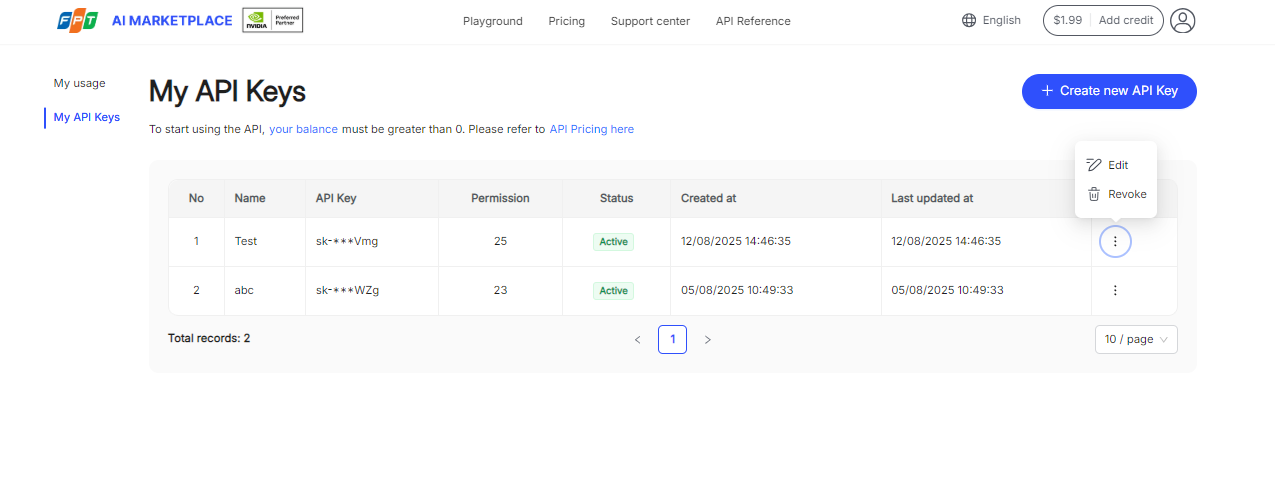
Your list of API keys will be shown on the **My API Keys** page.
### 1.2 How to create a new API Key?
To create an API Key, please follow these steps:
Step 1: Go to the **My API Keys** page and click **Create New API Key** button.
Step 2: Input **Name**
Step 3: Choose the models you’d like to access.
Step 4: Click **Create** button to generate your new API Key.
After your new API Key created, please copy or save your key.
*Note: The API key is only visible and can be copied once at creation. Please save your key in safe place and do not share your API key with others, or expose it in the browser or other client-side code, anyone with your API Key can make requests on your behalf.In order to protect the security of your account, AI Marketplace may automatically disable any API key that we've found has leaked publicly.*
Then, click the **Done** button to finish
### 1.3 How to edit an existing API Key?
You can edit **Name** and **Permission** of the API Key. To edit an API Key, please follow these steps:
**Step 1**: Go to the **My API Keys** page and click Action next to the API Key you want to edit.
**Step 2**: Select **Edit** from the dropdown menu.
**Step 3**: Edit your information.
**Step 4**: Click Save button to finalize the changes.
### 1.4 How to revoke an API Key?
Before revoking the API Key, please note: After revoking, this API key will immediately be disabled. API requests made using this key will be rejected, which could cause any systems still depending on it to break.
To revoke an API key, please follow the following steps:
**Step 1**: Go to the **My API Keys** page and click **Action** next to the API key you want to revoke.
**Step 2**: Select **Revoke** from the dropdown menu.
**Step 3**: Click **Revoke key** button to confirm and delete the API key.
## 2. How to check your usage?
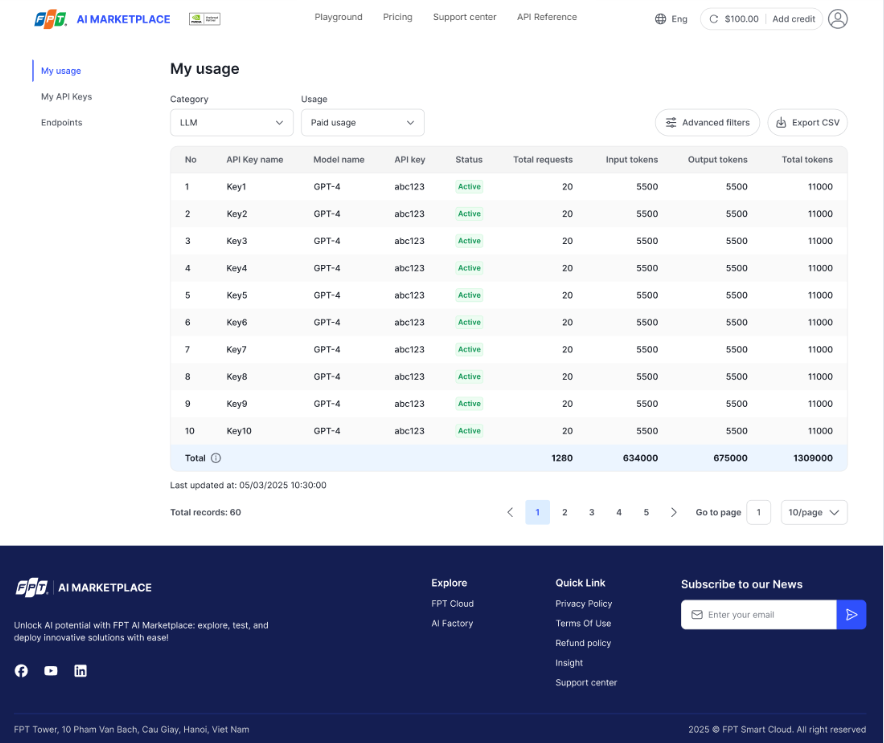
To check your usage including Input tokens, Output tokens, Total Usage for each Model and API Key, please go to **My Account > My usage**
---
# Agent Instructions
This documentation is published with GitBook. GitBook is the documentation platform designed so that both humans and AI agents can read, navigate, and reason over technical content effectively. Learn more at gitbook.com.
## Querying This Documentation
If you need additional information that is not directly available in this page, you can query the documentation by asking a question.
Perform an HTTP GET request on the following URL with the `ask` and `goal` query parameters:
```
GET https://ai-docs.fptcloud.com/~/revisions/GkZVtBK6yRi7YYdjkSnZ/ai-marketplace/ai-inference/tutorials/api-keys.md?ask=&goal=
```
`ask` is the immediate question: it should be specific, self-contained, and written in natural language.
`goal` is what the user is ultimately trying to achieve, the reason they need the answer. Sharing it helps GitBook give you a better, more relevant answer. A goal is most helpful when it describes the outcome the user wants rather than restating the question. For example, with `ask=how do I create an API token`, a goal like `automate deployments from our CI pipeline` lets GitBook tailor the answer to that use case.
The response will contain a direct answer to the question and relevant excerpts and sources from the documentation.
Use this mechanism when the answer is not explicitly present in the current page, you need clarification or additional context, or you want to retrieve related documentation sections.