
How to Generate a Dataset?
Generate Dataset feature allows you to create a new dataset using a pre-trained model (teacher model) to label or generate outputs from your input data. You’ll need to provide model configuration, input data, and generation parameters.
Access the Data Hub service, navigate to Dataset Management menu and click the "Generate Dataset" button
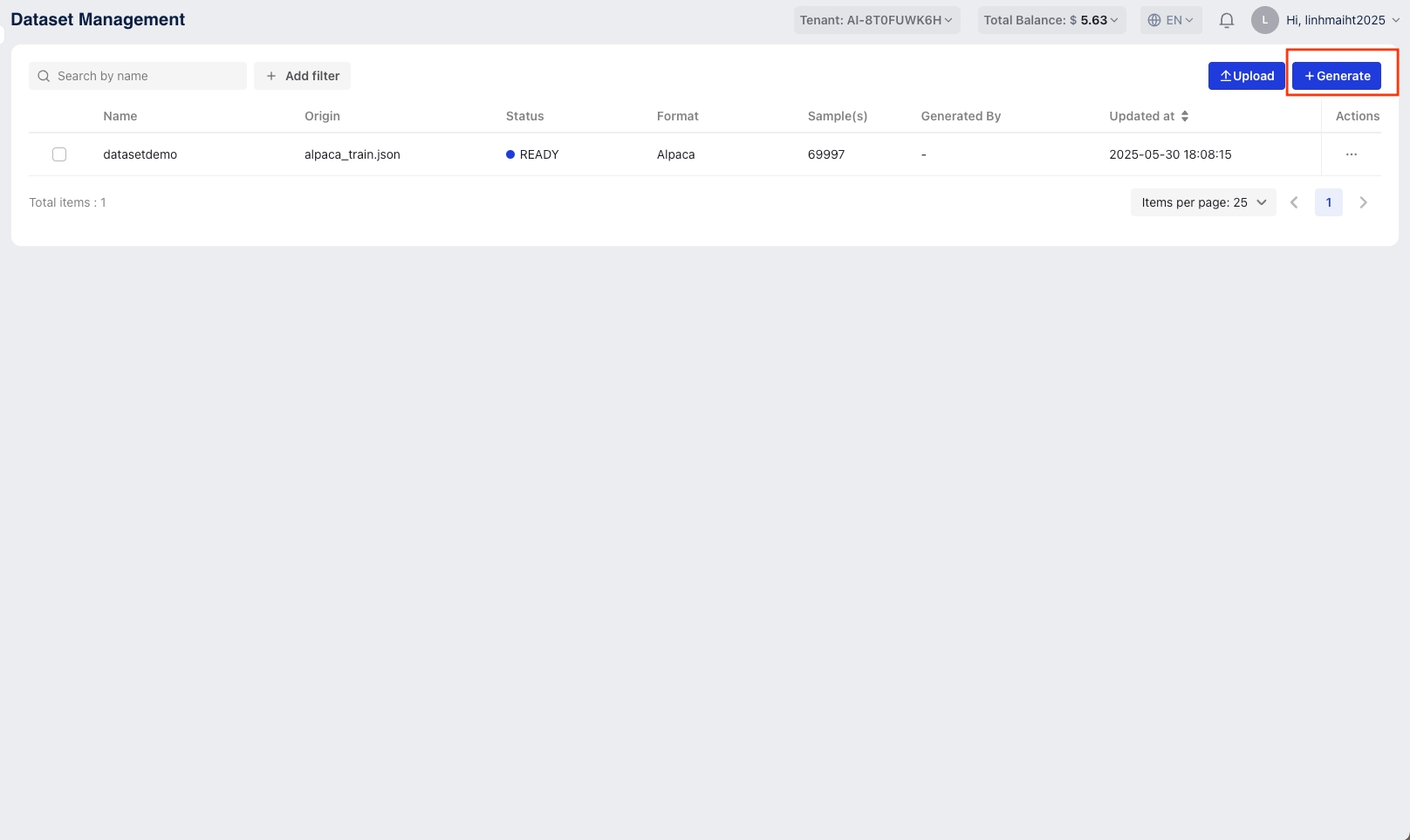
Step 1: Select or Create a New Model Configuration
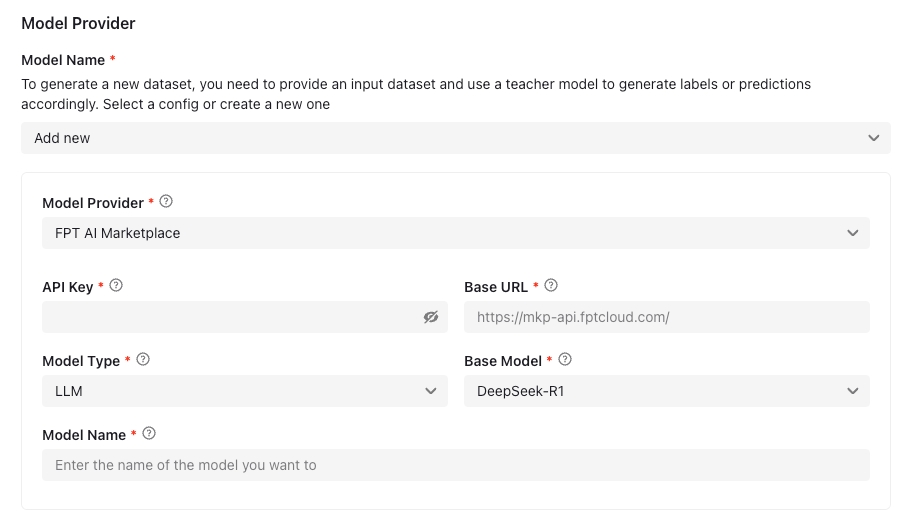
You can select a model configuration that you have created or create a new one by click drop-down list
Model Provider: A model provider is a service that offers AI models for tasks like text generation, ranking, and classification, currently support FPT AI Marketplace & OpenAI
API Key: An API key is a unique code that authenticates your access to a service
Base URL: The base endpoint URL for the model. Example:
https://mkp-api.fptcloud.com/Model Type: Select the type of model, which defines the AI model’s function. Currently only support LLM - Large Language Model
Base Model: Choose the foundation model (e.g., DeepSeek-R1).
Model Name: Specify the name of the model you want to set
Step 2: Set Parameters
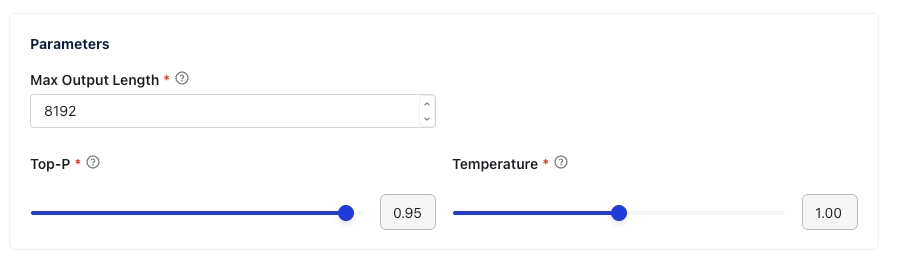
Max Output Length: Maximum number of tokens the model is allowed to generate. Default:
8192.Top-P: Controls the cumulative probability for token sampling. A higher value increases diversity. Default:
0.95.Temperature: Controls randomness in the output. Higher values result in more creative responses. Default:
1.00.
Step 3: Configure Dataset
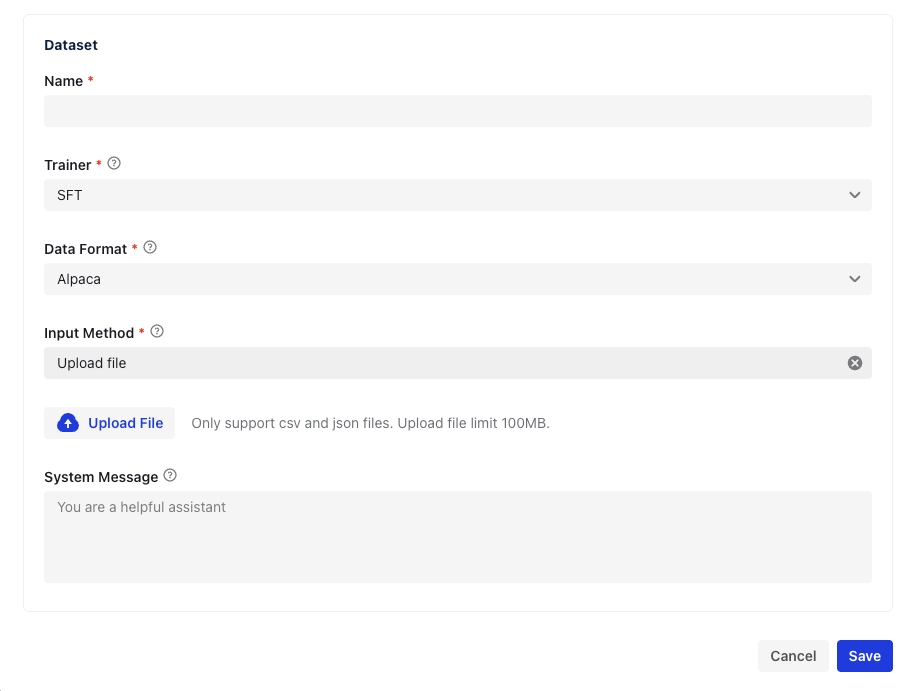
Name (required): Enter a name for the dataset to be generated.
Trainer: Select the trainer type (e.g., SFT - Supervised Fine-Tuning).
Data Format: Choose the format of the input data, such as Alpaca
Input Method: Choose how to provide input data. Currently supports File Upload & Data Connection
Upload File: Click Upload File to upload a
.csvor.jsonfile.
Note: Max file size is 100MB.
Data Connection: Choose a data connection that you want and enter a valid path
System Message (optional): A background prompt for the model, e.g.,
"You are a helpful assistant."
After completing required fields, click “Save” button. Depending on file size and model response time, generation may take a few minutes.
Last updated