# How to Evaluate Model?

## Playground

**Playground** is space where users can interact with AI models in a chat-like format. It’s designed for testing messages, evaluating model responses, and adjusting model behavior.

<figure><img src="/files/rZXyOAkJy6HwOokN0r4T" alt=""><figcaption></figcaption></figure>

You can follow guide to evaluate your model:

{% stepper %}
{% step %}

### Adjust parameters <a href="#contentify_0" id="contentify_0"></a>

Parameters include:

<table><thead><tr><th>Name</th><th width="295.800048828125">Description</th><th>Type</th><th>Supported value</th></tr></thead><tbody><tr><td>Temperature</td><td>Controls randomness in assistant responses. Lower = more focused, higher = more creative.</td><td>Float</td><td>[0.00, 2.00] (commonly 1.00 is balanced)</td></tr><tr><td>Add stop sequence</td><td>Defines where the model should stop generating text.</td><td>String</td><td>Custom string(s)</td></tr><tr><td>Output length</td><td>Limits the number of tokens in the response.</td><td>Int</td><td>[0, 8192]</td></tr><tr><td>Top-P</td><td>Controls diversity via nucleus sampling. Lower = more focused</td><td>Float</td><td>(0.00, 1.00]</td></tr></tbody></table>

We recommend you adjust parameters based on each purpose:

| Purpose               | Temperature | Add stop sequence | Output length | Top-P   |
| --------------------- | ----------- | ----------------- | ------------- | ------- |
| Creative writing      | 1.0–1.5     |                   | 500+          | 0.8–1.0 |
| Technical explanation | 0.2–0.5     |                   | 200–500       | 0.3–0.6 |
| Summarization         | 0.2–0.5     |                   | 150–300       | 0.3–0.6 |
| Code generation       | 0.1–0.4     | “n” or “#”        |               | 0.3–0.6 |
| Conversational agent  | 0.7–1.0     |                   | 200–600       | 0.8–1.0 |
| {% endstep %}         |             |                   |               |         |

{% step %}

### Start chatting <a href="#contentify_1" id="contentify_1"></a>

The Playground interface is structured around **Completions**, which include:

<table><thead><tr><th width="183.00006103515625">Prompts</th><th>Description</th></tr></thead><tbody><tr><td>System messages</td><td>Define the assistant’s behavior and tone. It helps guide how the model responds throughout the conversation.<br><br><strong>Eg:</strong> You are a creative writing assistant. Always write with vivid imagery, emotional depth, and a storytelling tone.</td></tr><tr><td>User messages</td><td>Represent the input or query from you. You can type text to test LLM models or add to upload an image to test VLM models.</td></tr><tr><td>Assistant responses</td><td>The AI model’s reply is based on user messages and system messages.</td></tr></tbody></table>

You can interact with the model in real time, observe how it responds, and iterate based on your goals.
{% endstep %}

{% step %}

### Refine your prompts <a href="#contentify_2" id="contentify_2"></a>

To improve or explore different behaviors:

* Modify the **system message** to change the assistant’s personality or tone.
* Adjust the **user message** to test different types of queries.
* Tweak the **parameters** to observe how the model’s output changes.
  {% endstep %}

{% step %}

### Clear completion

1. Click icon **Clear** to reset and start a new completion.
2. After clearing completion, completion is finished and stored in completion history.<br>
   {% endstep %}
   {% endstepper %}

## Completion History

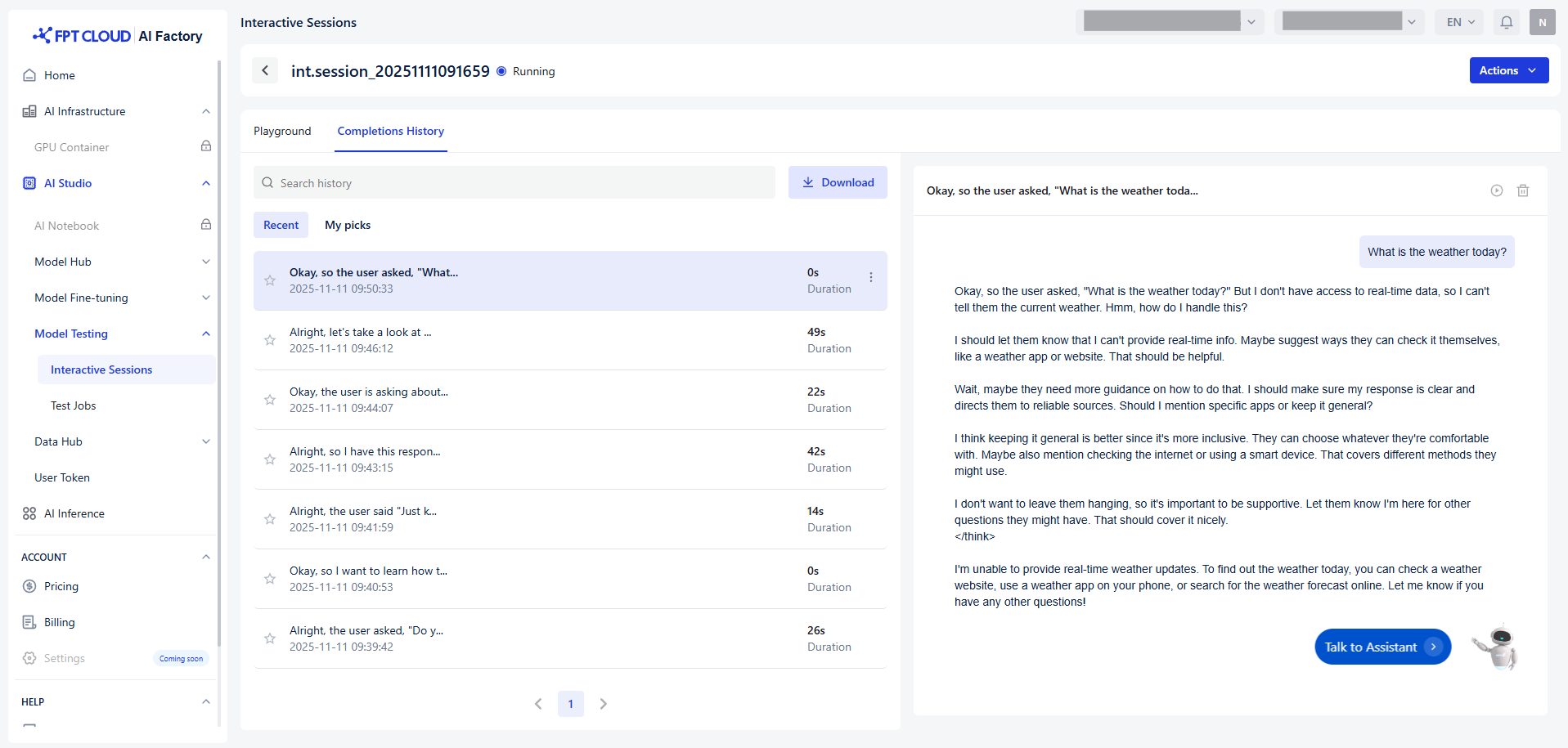
Completion history allows you to view and manage the past completions. It helps track previous messages, responses, and session details for review or reuse.

<figure><img src="/files/X7mlpG6Ce6PZEbr5rjvL" alt=""><figcaption></figcaption></figure>

### Accessing completion history <a href="#contentify_0" id="contentify_0"></a>

1. Navigate to the **Completion History** tab in your interface. This page displays a list of all your current and past completions.
2. You can **browse** through the list or use the **search bar** to find specific completions using:

* Keywords from the last assistant responses.

### Viewing completion details <a href="#contentify_1" id="contentify_1"></a>

1. Click on one completion to **expand** it.
2. You will see:

* **User message**
* **Assistant response**
* **Duration** of the completion
* **Timestamp** of when it occurred

### Continuing a completion <a href="#contentify_2" id="contentify_2"></a>

1. To resume a past completion, click the **Continue** button.
2. This will reopen **Playground**, allowing you to continue chatting with your model.

### Delete a completion <a href="#contentify_3" id="contentify_3"></a>

To remove a completion from your history:

1. Click the **trash icon** or the **Delete** button.
2. Confirmation popup show to confirm the deletion

**Notice:** Deleted completions are **permanently removed** and cannot be recovered.

### Download all completions <a href="#contentify_4" id="contentify_4"></a>

To export your entire completion history:

1. Click the **Download** button
2. The supported file format is '.xlsx'. It consists of all user messages, assistant responses, timestamps, and metadata for each completion.
3. (Optional) Download completion you want to select by clicking the **start** icon and navigate **My pick**


---

# Agent Instructions: Querying This Documentation

If you need additional information that is not directly available in this page, you can query the documentation dynamically by asking a question.

Perform an HTTP GET request on the current page URL with the `ask` query parameter:

```
GET https://ai-docs.fptcloud.com/fpt-ai-studio/services/model-testing-interactive-sessions/tutorials/how-to-evaluate-model.md?ask=<question>
```

The question should be specific, self-contained, and written in natural language.
The response will contain a direct answer to the question and relevant excerpts and sources from the documentation.

Use this mechanism when the answer is not explicitly present in the current page, you need clarification or additional context, or you want to retrieve related documentation sections.